Chapter 2. 2-4
Using the On-Screen Display (OSD) controls
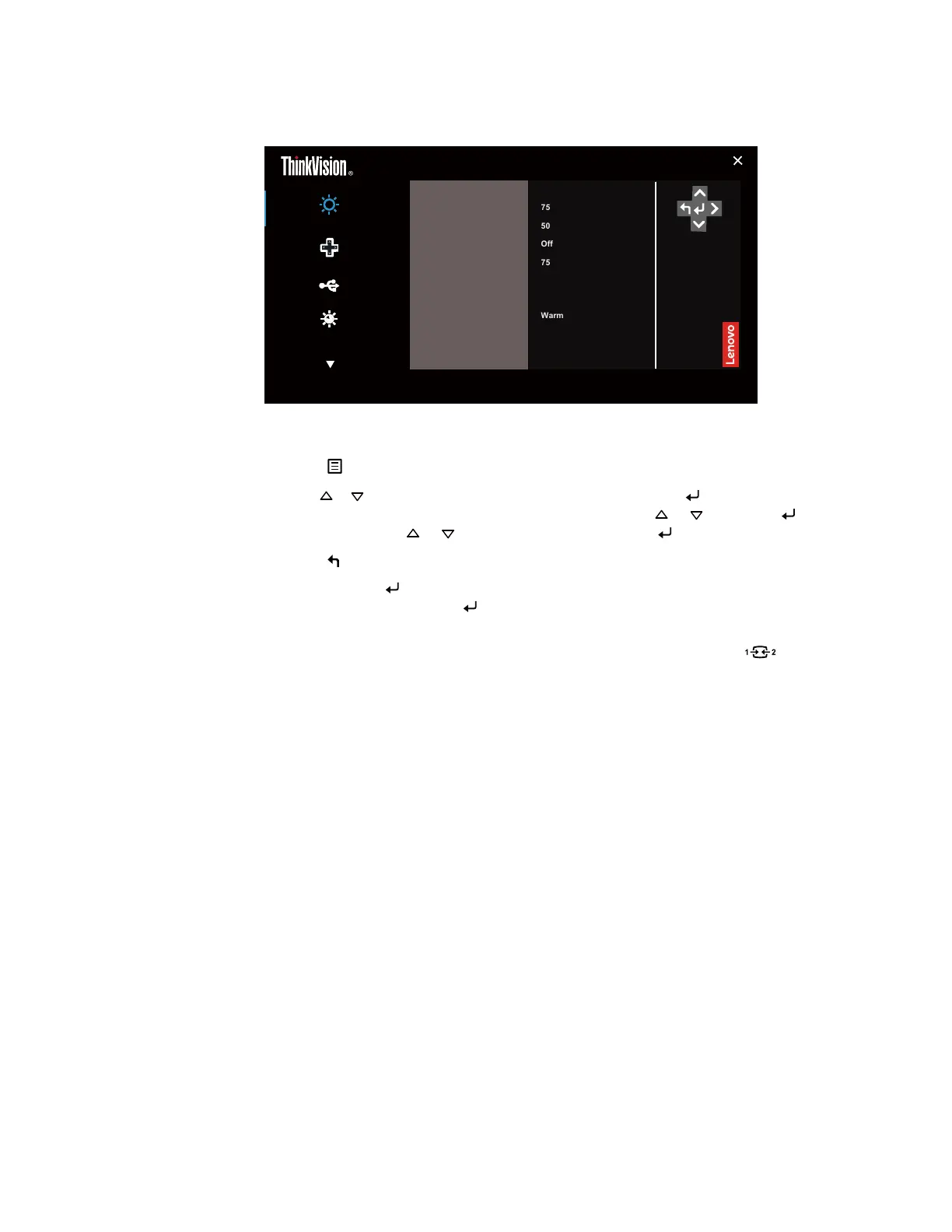
To adjust the settings, the user controls can be viewed through the OSD.
Monitor control
Input Signal: HDMI Resolution: 1920 x 1080 Refresh Rate: 60Hz
Brightness 75
Volume 50
Color mode
Warm
Contrast 75
Mute
Off
Quik settings
Port settings
Advanced settings
E24-30
Dynamic contrast
Off
Over Drive Off
To use the controls:
1. Press to open the main OSD menu.
2. Use or to move among the icons. Select an icon and press to access that function. If
there is a sub-menu, you can move between options using or , then press to select
that function. Use or to make adjustments then Press to save.
3. Press to move backwards through the sub-menus and exit from the OSD.
4. Press and hold for 10 seconds to lock the OSD. This will prevent accidental adjustments
to the OSD. Press and hold for 10 seconds to unlock the OSD and allow adjustments to
the OSD.
5. Enables DDC/CI by default. Use OSD Input Source Key, Press and hold for 10
seconds to disable / enable DDC/CI function. The words “DDC/CI disable” shows on the
screen.
6. When a VGA signal is connected, the timing parameters of the analog signal, including
Image Position (H/V position), Clock, and Phase, can be stored in up to 16 sets of data.




 To Next Page