22
4.3 VerifEye
®
Web App Overview
The VerifEye
®
meter hosts a Web Application that can be accessed by any smart
device running a web browser. You can access the VerifEye
®
Web App via the USB
or Ethernet port.
NOTE:
• Mac users can congure the meter using the VerEye
®
Web App Interface by
installing a driver that is included in the media distribution materials.
• The VerifEye
®
Web App operates on a single element at a time.
4.3.1 Connect to Web App Using USB
1. Connect your smart device to the meter.
2. Open Web Browser.
3. Enter http://169.245.1.5 in the address bar (this is the static address of the
USB port).
4.3.2 Connect to Web App Using Ethernet
1. Discover the IP address of the meter by one of the following methods.
– Navigate to About Meter on the LCD menu.
– Use a network discovery tool to nd the address by connecting and
disconnecting the Ethernet cable.
– Set the meter to a static address using the serial interface.
2. Connect your smart device to the same subnet as the VerifEye
®
meter.
3. Open a Web Browser.
4. Enter the meter's Ethernet address into the web browser.
4.3.3 Authentication
You can view and control the VerifEye
®
Web App from any smart device, and
it communicates in parallel to the host system, therefore, the meter can be
congured to require a PIN to restrict access to it.
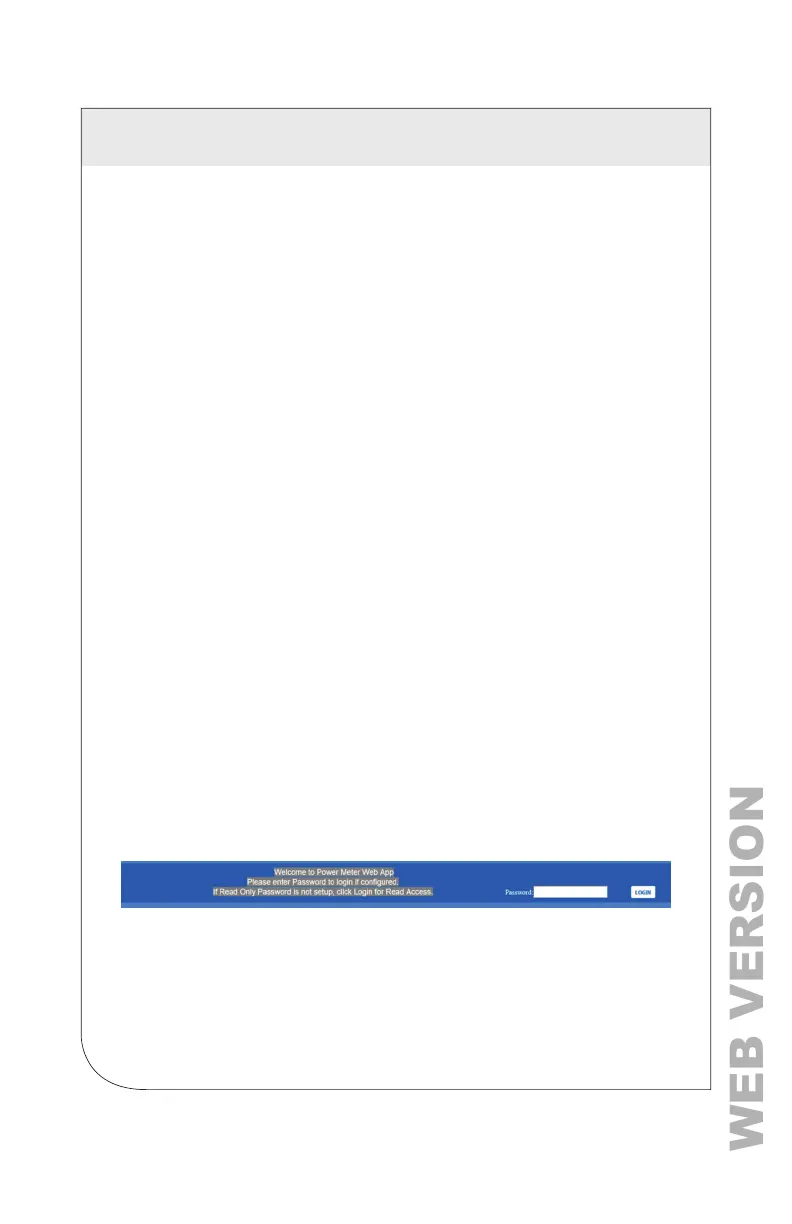
Enter the PIN, if assigned, or leave blank, if unassigned, and click LOGIN.
4 METER CONFIGURATION



 To Next Page