41
40
15. To add a website to the bookmarks, click the grey star in the upper right-hand
part of the screen, in the browser address bar. The star lights up ( ) and the
website is automatically added to the “Bookmarks” menu. To remove a website
from the bookmarks, click the star again.
16. In the “Bookmarks” menu, a short click on a bookmark enables you to open it. A
long click on a bookmark gives you access to a sub-menu that enables you to open it
and to change its name and web
address, as well as to erase it.
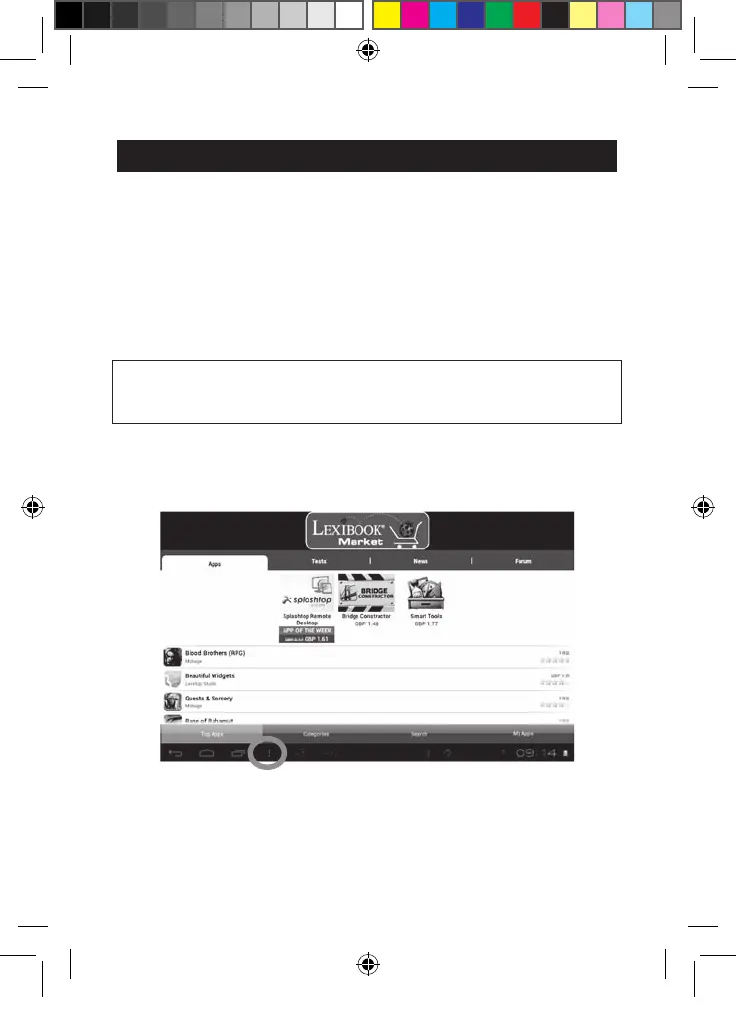
The Lexibook® Market
With the “Lexibook® Market” you can quickly and easily find and install thousands of
applications on your Lexibook® tablet.
On the Lexibook® Market you’ll find:
• Thousands of applications selected by Lexibook® to suit the whole family.
• Applications (paid and free) downloadable in a few seconds.
• Regular updates
• Famous applications (Skype® ...) and educational applications (games, puzzles,
coloring ...)
Important: Ask for help and permission from your parents BEFORE you
purchase and download paid applications on your tablet.
Lexibook® cannot be held liable for any expense, cost or financial loss, in any
form whatsoever, caused by a purchase on the Internet using this tablet.
• Create an account on Lexibook® Market
1. On the Home screen, click on the Lexibook® Market icon to launch the
application.
2. Click on the “Options” button at the bottom of the screen.
MFC142EN_09IM1373_11Sept_V12.indd 41 11/09/2013 5:31 PM



 To Next Page