EasyManua.ls Logo

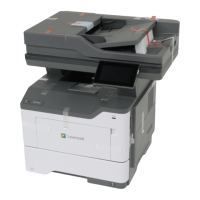
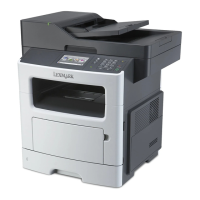
Lexmark MX517 - User Manual

Lexmark MX517
321 pages
Print Icon
To Next Page IconTo Next Page
Loading...
MX410, MX417, MX510, MX511,
MX517
User's Guide
June 2017 www.lexmark.com
Machine type(s):
7015
Model(s):
470, 630, 670, 675

Table of Contents

Other manuals for Lexmark MX517

Questions and Answers

  • K
    Keith PowellSep 5, 2025
    How to fix load [paper source] with [paper type] [paper size] [paper orientation] on Lexmark All in One Printer?
    • C
      Charles MoranSep 5, 2025
      To resolve the 'Load [paper source]' message on your Lexmark All in One Printer, load the tray or feeder with the correct size and type of paper. To use the tray that has the correct size or type of paper, select 'Finished loading paper' on the printer control panel. If you have a non-touch-screen printer, press the confirmation button. Alternatively, cancel the current job.
  • G
    George BellAug 25, 2025
    What to do if Lexmark All in One Printer says cartridge nearly low?
    • P
      Paula SmithAug 25, 2025
      If your Lexmark All in One Printer indicates 'Cartridge nearly low', select 'Continue' on the printer control panel to clear the message and continue printing. For printer models without a touch screen, press the confirmation button.
  • B
    Bruce DuranAug 25, 2025
    How to clear scanner jam on Lexmark MX517 All in One Printer?
    • T
      Tony McleanAug 26, 2025
      To resolve a scanner jam on your Lexmark All in One Printer, remove all originals from the scanner.
  • X
    xcarrollSep 13, 2025
    What to do if Lexmark MX517 All in One Printer says insufficient memory, some held jobs were deleted?
    • E
      Eric BryanSep 13, 2025
      To resolve the 'Insufficient memory, some Held Jobs were deleted' message on your Lexmark All in One Printer, select 'Continue' to clear the message. If you have a non-touch-screen printer model, press the confirmation button.
  • K
    Kevin VelasquezSep 23, 2025
    What to do if Lexmark All in One Printer says supply needed to complete job?
    • W
      William HendersonSep 23, 2025
      To resolve the 'Supply needed to complete job' message on your Lexmark All in One Printer, install the missing supply to complete the job. Alternatively, cancel the current job.
  • N
    Natalie GregorySep 9, 2025
    What to do if Lexmark MX517 All in One Printer disk is full?
    • J
      Joseph ReedSep 9, 2025
      To address the 'Disk full' error on your Lexmark All in One Printer, select 'Continue' to clear the message and continue printing. If you have a non-touch-screen printer model, press the confirmation button. You can also delete fonts, macros, and other data stored on the printer's hard disk, or install a printer hard disk with a larger capacity.
  • A
    Anthony MccallSep 1, 2025
    How to fix replace unsupported imaging unit on Lexmark All in One Printer?
    • J
      Jeremy PhelpsSep 1, 2025
      To resolve the 'Replace unsupported imaging unit' message on your Lexmark All in One Printer, remove the current imaging unit and install a supported one to clear the message and continue printing.
  • T
    Timothy FullerSep 23, 2025
    What to do if Lexmark MX517 All in One Printer says unformatted flash detected?
    • B
      Brandon Edwards DDSSep 23, 2025
      To resolve the 'Unformatted flash detected' message on your Lexmark All in One Printer, select 'Continue' from the printer control to stop the defragmentation and continue printing. You can also format the flash memory.
  • J
    Jessica RamirezSep 17, 2025
    How to fix remove paper from standard output bin error on Lexmark MX517?
    • J
      Jacob WernerSep 17, 2025
      To resolve the 'Remove paper from standard output bin' message on your Lexmark All in One Printer, remove the paper stack from the standard bin. The printer automatically detects paper removal and resumes printing. If removing the paper does not clear the message, select 'Continue' on the printer control panel. For non-touch-screen printer models, press to confirm.
  • G
    Gabriel JohnsonAug 28, 2025
    What to do if Lexmark All in One Printer says maintenance kit nearly low?
    • L
      Lisa MurrayAug 28, 2025
      If your Lexmark All in One Printer displays the message 'Maintenance kit nearly low', select 'Continue' to clear the message and continue printing. For non-touch-screen printer models, press to confirm.

Lexmark MX517 Specifications

General IconGeneral
BrandLexmark
ModelMX517
CategoryAll in One Printer
LanguageEnglish

Related product manuals