EasyManua.ls Logo

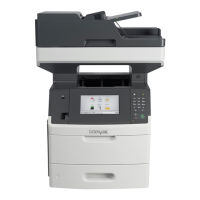
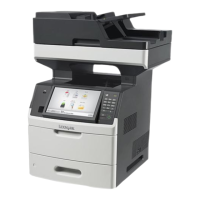
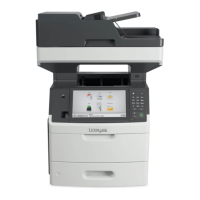
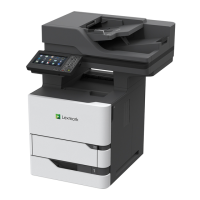
Lexmark MX717 - User Manual

Lexmark MX717
360 pages
Print Icon
To Next Page IconTo Next Page
Loading...
MX710, MX711, MX717, MX718
User's Guide
June 2017 www.lexmark.com
Machine type(s):
7463
Model(s):
032, 036, 037, 232, 236, 237

Table of Contents

Questions and Answers

  • A
    andreajohnsonAug 29, 2025
    What to do when Lexmark MX717 All in One Printer displays 'Cartridge very low'?
    • R
      rachelcalderonAug 29, 2025
      If your Lexmark All in One Printer displays 'Cartridge very low', it means you may need to replace the toner cartridge soon. Touch 'Continue' on the printer control panel to clear the message and continue printing, if necessary.
  • R
    Rebecca Rodriguez MDSep 5, 2025
    What to do if Lexmark MX717 All in One Printer says 'Unsupported disk'?
    • M
      Melvin TaylorSep 5, 2025
      If your Lexmark All in One Printer displays 'Unsupported disk', remove the unsupported printer hard disk, and then insert a supported one.
  • R
    Rhonda DillonAug 28, 2025
    How to fix 'Fax memory full' error on Lexmark MX717 All in One Printer?
    • N
      Nicole GarzaAug 28, 2025
      If your Lexmark All in One Printer's fax memory is full, follow these steps: 1. From the control panel, touch 'Continue' to clear the message and cancel the fax job. 2. Reduce the fax resolution or the number of pages. 3. Send the fax job again.
  • L
    Laura VincentSep 23, 2025
    Why is fax disabled on my Lexmark All in One Printer?
    • R
      Russell HarrellSep 23, 2025
      To enable faxing on your Lexmark All in One Printer, connect the printer to an analog phone line.
  • T
    Tanya PattersonSep 6, 2025
    What to do if Lexmark MX717 says 'Replace unsupported imaging unit'?
    • J
      Jennifer FritzSep 6, 2025
      If your Lexmark All in One Printer displays 'Replace unsupported imaging unit', remove the imaging unit and install a supported one to clear the message and continue printing.
  • K
    katelyn84Sep 9, 2025
    What to do if Lexmark MX717 All in One Printer says 'Close door or insert cartridge'?
    • J
      jacksonjenniferSep 10, 2025
      If your Lexmark All in One Printer shows 'Close door or insert cartridge', it means the toner cartridge is either missing or not correctly installed. You should insert the cartridge and ensure that all doors and covers are properly closed.
  • A
    April ChandlerSep 14, 2025
    How to resolve 'Install Tray [x]' message on Lexmark MX717?
    • T
      Terry BarronSep 14, 2025
      If your Lexmark All in One Printer displays 'Install Tray [x]', try the following: * Install the specified tray: 1. Turn off the printer. 2. Unplug the power cord from the electrical outlet. 3. Install the specified tray. 4. Connect the power cord to a properly grounded electrical outlet. 5. Turn the printer back on. * Cancel the print job. * Reset the active bin.
  • J
    jamesbarberSep 23, 2025
    How to fix 'Network [x] software error' on Lexmark MX717?
    • J
      Jennifer MartinSep 23, 2025
      Try one or more of the following: * From the printer control panel, touch Continue to continue printing. * Turn off the printer, wait for about 10 seconds, and then turn the printer back on.
  • C
    Crystal ChavezAug 26, 2025
    What does 'Imaging unit low' mean on Lexmark MX717?
    • J
      Joseph WilliamsAug 26, 2025
      If your Lexmark All in One Printer displays 'Imaging unit low', it indicates that you may need to order a replacement imaging unit. You can select 'Continue' on the printer control panel to clear the message and proceed with printing.
  • R
    Roy BennettAug 25, 2025
    What to do if Lexmark MX717 says 'Cartridge nearly low'?
    • M
      Mrs. Allison DuncanAug 26, 2025
      If your Lexmark All in One Printer shows 'Cartridge nearly low', you can touch 'Continue' on the printer control panel to clear the message and continue printing, if necessary.

Lexmark MX717 Specifications

General IconGeneral
Print TechnologyLaser
FunctionalityPrint, Copy, Scan, Fax
Print Speed (Color)50 ppm
Print Resolution1200 x 1200 dpi
Monthly Duty CycleUp to 300, 000 pages
Processor Speed1.2 GHz
ConnectivityUSB, Ethernet, Wi-Fi
Operating System CompatibilityWindows, macOS, Linux
Copy Speed (Color)50 cpm
Copy Resolution600 x 600 dpi
Fax Speed33.6 Kbps
Scan Resolution600 x 600 dpi
Standard Paper Capacity650 sheets
Paper Capacity (Maximum)3, 300 pages
Memory (Maximum)2 GB
Copy Reduce / Enlarge Range25% to 400%
Fax Transmission SpeedApprox. 3 seconds per page
Scan TechnologyCIS
Mobile PrintingAirPrint, Google Cloud Print

Related product manuals