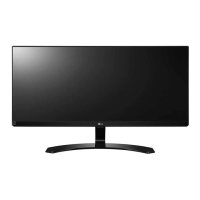
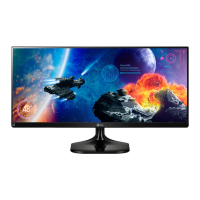
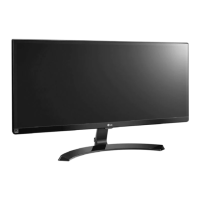
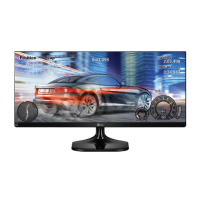
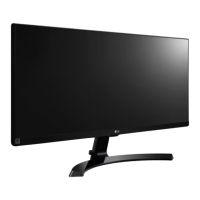
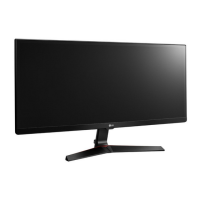
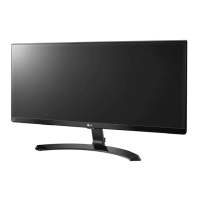
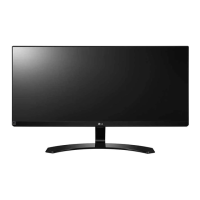
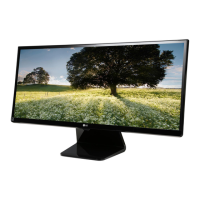
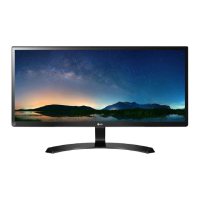
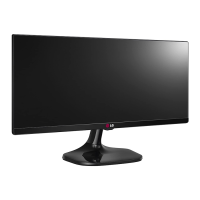
This document is the owner's manual for the LG IPS LED Monitor (LED Monitor*), model 29UC88. The asterisk indicates that LG LED Monitors are LCD Monitors with LED Backlighting.
Function Description:
The LG 29UC88 is an IPS LED monitor designed for various uses, including PC connectivity, AV devices, and external peripherals like headphones. It supports a range of display modes and resolutions, offering features for both general use and specific applications like gaming and document viewing. The monitor incorporates a joystick button for intuitive control of its functions and OSD (On-Screen Display) menu.
Important Technical Specifications:
LCD Screen:
- Type: TFT (Thin Film Transistor) LCD (Liquid Crystal Display) Screen
- Pixel Pitch: 0.2628 mm x 0.2628 mm
- Maximum Resolution: 2560 x 1080 @ 60 Hz
- Recommended Resolution: 2560 x 1080 @ 60 Hz
Video Signal:
- Horizontal Frequency: 30 kHz to 90 kHz
- Vertical Frequency:
- HDMI: (AV) 25Hz to 60 Hz, (PC) 56Hz to 75 Hz
- DP: 56 Hz to 75 Hz
- Synchronization: Separate Sync.
- HDMI IN1, HDMI IN2, DP (DisplayPort) IN, H/P (Headphones Port)
Power:
- Voltage: 19 V --- 3.3 A
- Power consumption (Typ.):
- On mode: 31 W (ENERGY STAR® standard)*
- Sleep Mode ≤ 0.5 W
- Off Mode ≤ 0.3 W
- *The power consumption level can be different by operating condition and monitor setting.
- *The On mode power consumption is measured with ENERGY STAR® test standard.
- *ENERGY STAR® is a US registered mark of the United States Environmental Protection Agency.
- AC/DC adaptor:
- Type DA-65G 19, Asian Power Devices Inc. production
- Or type LCAP39, LIEN CHANG ELECTRONIC ENTERPRISE production
- Output: 19 V --- 3.42 A
Environmental Conditions:
- Operating Condition: Temperature: 0°C to 40°C; Humidity: < 80%
- Storing Condition: Temperature: -20°C to 60°C; Humidity: < 85%
Audio Output:
Stand Angle Adjustment:
- Forwards/Backwards: -5° to 20° (Head)
Dimension (Monitor Size - Width x Height x Depth):
- With Stand: 700.9 mm x 491.3 mm x 232.8 mm
- Without Stand: 700.9 mm x 316.5 mm x 64.9 mm
Weight (Without Packaging):
- With Stand: 7.1 kg
- Without Stand: 5.1 kg
HDMI Timing (Video) Support (Preset Mode):
- 480P: 31.50 kHz, 60 Hz
- 576P: 31.25 kHz, 50 Hz
- 720P: 37.50 kHz, 50 Hz; 45.00 kHz, 60 Hz
- 1080P: 56.25 kHz, 50 Hz; 67.50 kHz, 60 Hz
Indicator LED Color:
- On Mode: White (Only 15 seconds)
- Sleep Mode: Blinking White
- Off Mode: Off
Usage Features:
Assembly and Installation:
- Product Components: Includes CD (Owner's Manual)/Card, Power Cord, AC-DC Adapter (country-dependent), HDMI Cable (not included in all countries), Stand Base, Stand Body, Cable Holder, and 4 Screws.
- Stand Assembly: The stand base attaches to the stand body with a screw. A tool is used to secure the stand body to the monitor. The stand can be disassembled in reverse order.
- Cable Management: A cable holder is provided to arrange cables neatly.
- Height Adjustment: The stand allows for height adjustment up to 120.0 mm. Users are cautioned not to place fingers between the screen and base when adjusting height.
- Table Installation: Requires at least 10 cm clearance from the wall for ventilation. The power adapter connects to the monitor and then to a wall outlet.
- Angle Adjustment: The screen angle can be adjusted from -5° to 20° for comfortable viewing. Users should avoid touching or pressing the screen area during adjustment and not hold the lower part of the monitor's frame to prevent injury.
- Kensington Lock: A security system connector is located at the back of the monitor for connecting a Kensington lock cable to a table, providing physical security.
- Wall Mount Installation: Supports standard wall mount plates (VESA standard 75 x 75 mm, M4 x L10 screws). The monitor should be placed face down on a soft cloth during installation. Screws should be tightened carefully to avoid damage. The wall mount plate is sold separately.
Connectivity:
- Connecting to a PC: Supports Plug and Play. Connects via HDMI or DisplayPort.
- Connecting to AV Devices: Connects via HDMI.
- Connecting to External Devices (Headphones): Connects via the H/P port. Straight earphones are recommended over angled ones to avoid interference with other external devices.
The monitor's functions are controlled via a joystick button located at the bottom.
- Activating Main Menu: Press the joystick button, then navigate with up/down/left/right movements.
- Basic Functions:
- Power On/Off: Press once to turn on, press and hold to turn off.
- Volume Control: Move left/right to adjust volume.
- Main Menu Features:
- Menu: Configures screen settings.
- Game Mode: Changes Picture Mode to a gaming mode.
- Input: Sets input mode.
- Monitor off: Turns off the monitor.
- Exit: Exits the main menu.
- Quick Settings:
- Brightness: Adjusts color contrast and brightness.
- Contrast: Adjusts contrast.
- Volume: Adjusts audio volume (can be muted/unmuted by moving joystick down).
- Input: Selects current input mode.
- Ratio: Adjusts screen ratio (Wide, Original, Cinema 1, Cinema 2, 1:1).
- PBP (Picture-by-Picture):
- Displays two input modes simultaneously on one monitor.
- Sub: Turns PBP mode on/off.
- Sound Out: Selects audio input for Main or Sub screen.
- Swap: Toggles main and sub screens.
- Sub Full: Converts sub screen to wide screen.
- Ratio: Adjusts aspect ratio for main or sub screen in PBP mode.
- Picture Settings:
- Picture Mode: Custom, Reader, Photo, Cinema, Color Weakness, FPS Game 1, FPS Game 2, RTS Game, Custom (Game).
- Picture Adjust:
- Sharpness: Adjusts screen sharpness.
- Black Level: Sets offset level (for HDMI only) – controls darkest color display.
- DFC (Digital Fine Contrast): Automatically adjusts brightness.
- Game Adjust:
- Response Time: Sets response time (High, Middle, Low, Off) for displayed pictures. High setting may cause image sticking.
- FreeSync: Provides seamless images by synchronizing vertical frequency (On/Off). Requires a FreeSync-compatible graphic card and DisplayPort interface.
- Black Stabilizer: Controls black contrast for better visibility in dark scenes.
- Color Adjust:
- Gamma: Adjusts gamma value (darker/lighter image).
- Color Temp: Custom, Warm, Medium, Cool.
- Six Color: Adjusts hue and saturation for Red, Green, Blue, Cyan, Magenta, Yellow.
- Reset: Returns color settings to default.
- Sound Settings:
- MaxxAudio: Enables/disables MaxxAudio® by Waves for enhanced sound.
- MaxxAudio Settings: MaxxBass (Bass Enhancement), MaxxTreble (Treble Enhancement), MaxxDialog (Dialog Enhancement), Maxx3D (Three-dimensional effect), Reset (default sound quality).
- Midnight Mode: Provides rich and full sound at low volume.
- General Settings:
- Language: Sets OSD menu language.
- SMART ENERGY SAVING: High, Low, Off. Saves energy by adjusting luminance.
- Power LED: On/Off (controls front power LED).
- Automatic Standby: Automatically turns off monitor after a set period of inactivity (Off, 4 H, 6 H, 8 H).
- Buzzer: On/Off (sound generated when monitor powers on).
- OSD Lock: Prevents incorrect key input (On/Off).
- Reset: Returns all settings to default.
Proper Posture for Using the Monitor:
- Adjust the screen for a slight downward angle from natural eye level.
- Take regular breaks (approx. 10 minutes every hour).
- Adjust stand angle for optimal view.
- Ensure hands are gently on the keyboard, arms bent at elbows, and extended horizontally.
- Position the monitor to avoid reflection or glare.
Maintenance Features:
Troubleshooting:
- No display: Check power cord, power LED status, input selection, computer power, and signal cable connection.
- OSD lock: If menu functions are unavailable, check OSD Lock setting in General menu.
- Image retention: Avoid displaying still images for prolonged periods; use a screensaver to extend monitor lifetime.
- Unstable/shaky display, shadow trails: Check resolution (avoid interlaced 1080i 60/50 Hz; use 1080P or recommended resolution).
- Abnormal display color: Set color to 24-bit or higher, check signal cable connection. Pixilated spots (red, green, blue, white, black) are normal for LCD screens.
- "Unrecognized monitor, Plug&Play (VESA DDC) monitor found" message: Install display driver from CD or LG website; ensure video card supports Plug&Play.
- No sound from headphone port/speaker: Increase volume, set monitor as default audio device in PC settings.
General Safety and Care:
- Always use genuine components to ensure safety and performance.
- Damage from counterfeit components is not covered by warranty.
- Use supplied components and certified cables to avoid display issues or image noise.
- Avoid touching the monitor screen to prevent damage or pixel issues.
- When moving the monitor, disconnect power/cables, hold top/bottom frame, avoid holding the panel, keep it upright, and avoid strong shocks/vibrations.
- If using the monitor panel without the stand base, ensure stability to prevent falls and joystick malfunction.
- Cover the screen with a soft cloth when placing it face down to prevent scratches.
- Applying excessive force when tightening screws can damage the monitor and is not covered by warranty.
- Be careful of sharp edges on screw covers.
- Do not carry the monitor upside down by the base alone.
- Unplug the power cord before moving or installing to avoid electric shock.
- Do not install on ceilings or slanted walls.
- Use VESA standard wall mounting bracket and screws; screw length from outer back cover surface should be under 8mm.
- The monitor is set to turn off automatically after 4 hours of no display adjustment (Automatic Standby) if sold in Europe and needs to meet ErP Directive. This can be disabled in the OSD menu.


 To Next Page
 General