EasyManua.ls Logo

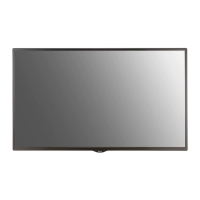
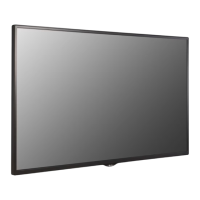
LG 55SE3B - User Manual

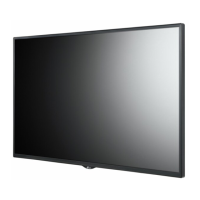
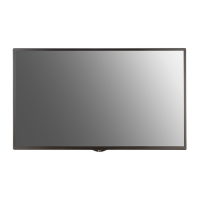
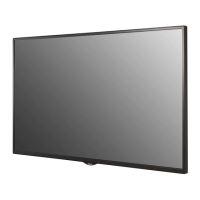
LG 55SE3B
85 pages
Print Icon
To Next Page IconTo Next Page
Loading...
LG Digital
Signage
(MONITOR SIGNAGE)
OWNER’S MANUAL
Please read this manual carefully before operating your set and retain it
for future reference.
www.lg.com
32SE3B
43SE3B
49SE3B
55SE3B
65SE3B
32SE3KB
43SE3KB
49SE3KB
55SE3KB
65SE3KB
43SL5B
49SL5B
55SL5B

Questions and Answers

  • S
    Sandra BoothAug 3, 2025
    Why is no image displayed on my LG 55SE3B Digital Signage?
    • D
      david26Aug 3, 2025
      There might be several reasons: * Ensure the power cord is properly connected to the outlet. * The signal cable between your PC and the device might be loose; double-check the connection. * The input signal might not be selected; use the INPUT menu on the remote to check. * The frequency range from the PC (video card) might be incompatible. Consult the manual's specifications to adjust the frequency range.
  • S
    Stacey RamirezAug 6, 2025
    What to do if the screen color is abnormal on my LG 55SE3B?
    • S
      Sheila CamposAug 7, 2025
      If the screen color appears abnormal, try the following: * Ensure the color setting is at least 24 bits (true color) via Control Panel - Display - Settings - Color Table in Windows. * Check the signal cable connection or try re-inserting the PC video card. Note: Several red, green, white, or black pixels may appear on the screen. This is normal for LCD panels and not a malfunction.
  • J
    jrossAug 11, 2025
    What to do if the screen image looks abnormal on my LG 55SE3B Digital Signage?
    • E
      Erin RobertsonAug 11, 2025
      If the screen image looks abnormal, try these steps: 1. Press the 'AUTO' button on the remote to automatically optimize the screen. 2. If the result is not satisfactory, navigate to [PICTURE] - [Screen] - [Position] in the OSD menu. 3. Verify that the video card resolution and frequency are supported. If the frequency is out of range, set the recommended resolution in the Control Panel "Display" settings. 4. Connect the signal cable that matches with the source input signal, if the proper input signal is not connected to the signal port. 5. If the result is not satisfactory, select [PICTURE] - [Screen] - [Size] in OSD menu. 6. If the result is not satisfactory, select [PICTURE] - [Screen] - [Phase] in OSD menu.
  • A
    alexis02Aug 15, 2025
    Why does after-image appear on my LG Digital Signage?
    • G
      gjohnsonAug 15, 2025
      An after-image may appear because: * The pixels may be damaged if a fixed image is displayed for an extended period. To prevent this, use the screen-saver function. * Image sticking can occur when a dark image is displayed after a high contrast image (black and white or gray). This is normal for LCD screens.
  • X
    xlynchAug 19, 2025
    How to fix audio if it does not work on LG Digital Signage?
    • M
      Meagan EstradaAug 19, 2025
      If the audio function is not working, try the following: * Check if the audio cable is properly connected. * Adjust the volume settings. * Ensure the sound is set correctly. * Select an appropriate equalizer sound.
  • S
    smcdonaldAug 25, 2025
    What to do if the operation does not work normally on my LG 55SE3B?
    • J
      jamescainAug 25, 2025
      If the operation is not working normally, consider the following: * Check if the Off Timer is set. * Review the power control settings to ensure power has not been interrupted.
  • J
    John GarciaAug 28, 2025
    What to do if the 'Unknown Product' message appears when connecting my LG Digital Signage?
    • J
      John HensonAug 28, 2025
      Check if the Plug & Play function is supported by referring to the video card user manual.

Summary

IMPORTANT PRECAUTIONS

Electrical Power Precautions

Safety guidelines for electrical power usage.

Product Installation Precautions

Guidelines for safely installing the monitor.

Product Moving Precautions

Safety measures for moving the display unit.

Product Usage and Cleaning Precautions

Best practices for using and cleaning the monitor.

Product Disposal Information

Instructions for environmentally responsible disposal.

LICENSES

ASSEMBLY AND PREPARATION

Included Accessories

List and description of items included in the product package.

Parts and Buttons Identification

Stand Installation Guide

Speaker Connection Guide

IR Receiver Setup

Monitor Mounting and Security

Portrait Layout Setup

Instructions for orienting the monitor in a portrait display.

Kensington Lock Usage

How to install and use the Kensington security lock.

Wall Mounting Instructions

REMOTE CONTROL OPERATION

Remote Control Button Functions

Detailed explanation of each button on the remote control.

INPUT PORT MANAGEMENT

Device Name Display

Displaying the name of connected external input devices.

White Balance Adjustment Menu

Menu for fine-tuning the color balance of the display.

Picture ID Configuration

EXTERNAL DEVICE CONNECTIONS

Connecting to a PC

Steps for connecting a personal computer to the monitor.

Connecting Other External Devices

Guide for connecting other devices like HD receivers or AV receivers.

MONITOR USAGE GUIDELINES

Using the Input List

Navigating and selecting available input sources on the monitor.

Aspect Ratio Adjustment

How to resize the image for optimal viewing.

ENTERTAINMENT FEATURES

Network Setup and Usage

Configuring and connecting the monitor to a network.

My Media Functionality

Accessing and playing media files from USB storage.

File Browsing and Playback

Browsing and playing various media file formats.

CUSTOMIZING SETTINGS

Accessing Main Menus

How to navigate and access the monitor's main menu options.

Picture Settings Configuration

Adjusting image quality, brightness, contrast, and color.

Audio Settings Configuration

Adjusting sound modes, effects, and volume levels.

Time Settings Configuration

Setting the clock, timers, and auto-off functions.

Option Settings Configuration

Customizing general display options and features.

Network Settings Configuration

Configuring network connection and status.

TROUBLESHOOTING COMMON ISSUES

No Image Displayed Solutions

Troubleshooting steps when the screen shows no image.

Product Connection Error Resolution

Resolving issues related to product connection errors.

Screen Image Anomaly Solutions

Fixing problems with abnormal screen display or color.

PRODUCT SPECIFICATIONS

Panel, Signal, and Connector Specs

Specifications for the LCD panel, video signals, and connectors.

Environmental and Audio Specifications

Information on operating conditions and audio output.

PRODUCT DIMENSIONS

SUPPORTED MODES AND FREQUENCIES

RGB PC Supported Modes

List of supported display resolutions and frequencies for PC input.

HDMI;DVI-D Supported Modes

List of supported resolutions and frequencies for HDMI/DVI-D input.

IR CODES

MULTI-PRODUCT CONTROL VIA RS-232 C

RS-232 C Cable Connection

Guide to connecting the RS-232C cable for multi-product control.

RS-232 C Configuration Details

Setting up RS-232C parameters for communication.

Command Reference List

List of commands for controlling the monitor via RS-232C.

Transmission and Receiving Protocol

Details on the protocol for data transmission and reception.

LG 55SE3B Specifications

General IconGeneral
Panel life30000 h
Color gamut68 %
Response time12 ms
Display diagonal55 \
Display brightness350 cd/m²
Display technologyLED
Native aspect ratio16:9
Supported video modes1080i, 1080p, 720p
Contrast ratio (dynamic)5000000:1
Contrast ratio (typical)1100:1
Display number of colors1.073 billion colors
Audio input1
Sound modesGame, Music, Standard, Movie, News, Sports
Temperature indicatorYes
USB ports quantity2
Multi-display supported-
On Screen Display (OSD) languagesDUT, NOR, ENG, ESP, ITA, SWE, CHI (SIMPL), POR, CHI (TR), FIN, FRE, KOR, RUS, CZE, GRE, DAN, DEU
Product colorBlack
Product designDigital signage flat panel
Panel mounting interface300 x 300 mm
CertificationUL / cUL / CB / TUV / KC / FCC Class \
RMS rated power20 W
AC input voltage100 - 240 V
AC input frequency50 - 60 Hz
Power consumption (off)0.5 W
Power consumption (typical)70 W
Sustainability certificatesENERGY STAR
Operating temperature (T-T)0 - 40 °C
Operating relative humidity (H-H)10 - 80 %
Cables includedAC, VGA
Package depth149.86 mm
Package width1330.96 mm
Package height812.8 mm
Package weight21500 g
Weight and Dimensions IconWeight and Dimensions
Depth38.6 mm
Width1238 mm
Height714.9 mm
Weight17300 g

Related product manuals