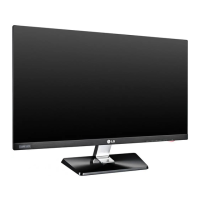
This document serves as the owner's manual for an LG LED LCD Monitor, specifically models IPS224T and IPS234T. It provides comprehensive instructions for assembling, operating, customizing, and troubleshooting the monitor, ensuring users can maximize its functionality and maintain its longevity.
Function Description
The LG LED LCD Monitor is designed to display video signals from a personal computer (PC). It supports both analog (D-SUB) and digital (DVI-D) input signals, offering flexibility in connectivity. The monitor is equipped with Plug & Play functionality, allowing a PC to automatically recognize the connected device without requiring extensive configuration. This feature simplifies the initial setup process, making it user-friendly for various technical skill levels.
The monitor's primary function is to provide a visual interface for computer operations, ranging from general computing tasks to specific applications like text editing, photo viewing, video playback, and gaming. It features an On-Screen Display (OSD) menu system that allows users to access and adjust various settings to optimize their viewing experience.
Usage Features
The LG LED LCD Monitor offers a range of features designed to enhance user experience and display customization:
-
Assembly and Setup: The manual details the process of unpacking the monitor, identifying parts like the stand body, stand base, power cord, and AC-DC adapter. It provides clear instructions for attaching and detaching the stand base, mounting the monitor on a table, and using a cable holder for organized cable management. For wall mounting, it outlines VESA compatibility and precautions, emphasizing the importance of proper screws and authorized wall mounts for safety and warranty compliance.
-
Connectivity: The monitor supports D-SUB and DVI-D connections to a PC. The D-SUB connection transmits analog video, while the DVI-D connection transmits digital video signals. The manual illustrates how to connect the PC to the monitor using the appropriate cables, including a note for Macintosh users requiring a separate plug adapter for D-SUB connections.
-
Power Management: The monitor features a power indicator that shows its operational status (on, sleep, or off). It includes a power button for turning the device on and off. The "Self Image Setting" function automatically optimizes display settings upon initial connection or when the monitor is turned on, particularly in Analog Mode. The "AUTO" function helps improve resolution and clarity in cases of blurry screens, blurred letters, screen flicker, or tilted screens.
-
Customizing Settings (OSD Menu): The OSD menu is the central hub for adjusting monitor settings. Users can navigate the menu using buttons on the bottom panel. Key customization categories include:
- Picture: Adjusts brightness, contrast, and sharpness. It also allows switching between "WIDE" (full screen) and "ORIGINAL" (original aspect ratio) modes, particularly useful when the input resolution is lower than the monitor's native 16:9 ratio.
- Color: Offers gamma adjustment (GAMMA 0, 1, 2) to control image whiteness or blackness. Users can customize red, green, and blue color levels and select preset color temperatures (WARM, MEDIUM, COOL). The "SIX COLOR" option allows fine-tuning hue and saturation for six primary colors (RED/GREEN/BLUE/CYAN/MAGENTA/YELLOW).
- Display: Controls horizontal and vertical positioning, clock, and phase. These settings help minimize vertical bars or stripes, adjust screen size, and improve image clarity and stability.
- Others: Allows users to select the OSD language, toggle the power indicator light (ON/OFF), and activate "WHITE BALANCE" to adjust signal levels for optimal image quality, especially when dealing with video signal distortion.
-
FUNC. Setting: This menu provides quick access to various picture modes and energy-saving features:
- Picture Mode: Offers presets like CUSTOM (user-adjustable), TEXT (optimized for text), PHOTO (optimized for pictures), CINEMA (optimized for videos), and GAME (optimized for gaming) to suit different content types.
- SUPER ENERGY SAVING: Enables an energy-efficient function that reduces power consumption and CO2 emissions. The manual provides data on power savings for different monitor sizes and emphasizes that these values are based on "broadcast video signal" standards.
- DUAL DISPLAY: Requires the DUAL PACKAGE program. This feature allows users to configure a secondary monitor in "CLONE" mode (mirroring the primary display) or "EXTENDED" mode (extending the desktop).
- DUAL WEB: Also requires the DUAL PACKAGE program. This feature helps users browse the web more efficiently by dividing the screen in half, facilitating window arrangement and control over divided window ratios.
-
MY KEY Setting: This feature allows users to designate one of the FUNC. menu options (PICTURE MODE, SUPER ENERGY SAVING, DUAL DISPLAY, DUAL WEB) as a "short key" for quick access to their favorite feature.
Maintenance Features
The manual implicitly guides users on maintaining the device through various warnings and notes:
- Safety Precautions: Users are advised not to use unapproved accessories to ensure product safety and lifespan, as damages from such use are not covered by the warranty. It also warns against unplugging the power cord before moving the monitor to prevent electric shock.
- Screen Protection: Users are cautioned against pressing the screen with fingers for extended periods to avoid temporary distortion. When adjusting the monitor's angle, users should avoid holding the bottom frame to prevent finger injuries. Laying a foam mat or soft cloth on the surface when placing the monitor face down is recommended to protect the screen from damage.
- Image Burn Prevention: To prevent image burn from fixed images, users are advised to avoid displaying static content for long periods and to use a screen saver.
- Wall Mount Safety: When wall mounting, users must use screws and wall mounts that comply with VESA standards and are of the proper length. Over-tightening screws can damage the monitor and void the warranty. Using unauthorized wall mounts or improper screws can lead to product damage or injury.
- OSD Lock: The "OSD LOCKED" feature allows users to secure current control settings, preventing inadvertent changes. It can be unlocked by pressing the MENU button for several seconds.
- Troubleshooting: The manual includes a troubleshooting section to help users address common issues such as no image, incorrect display image (blurry, flickering, tilted), or "Unrecognized monitor" messages. It suggests checking cable connections, adjusting brightness/contrast, using the AUTO function, and installing display drivers as solutions.
- Environmental Conditions: The specifications section provides recommended operating and storage temperatures and humidity ranges to ensure optimal performance and longevity of the monitor.



 To Next Page
 General