26
Getting Started
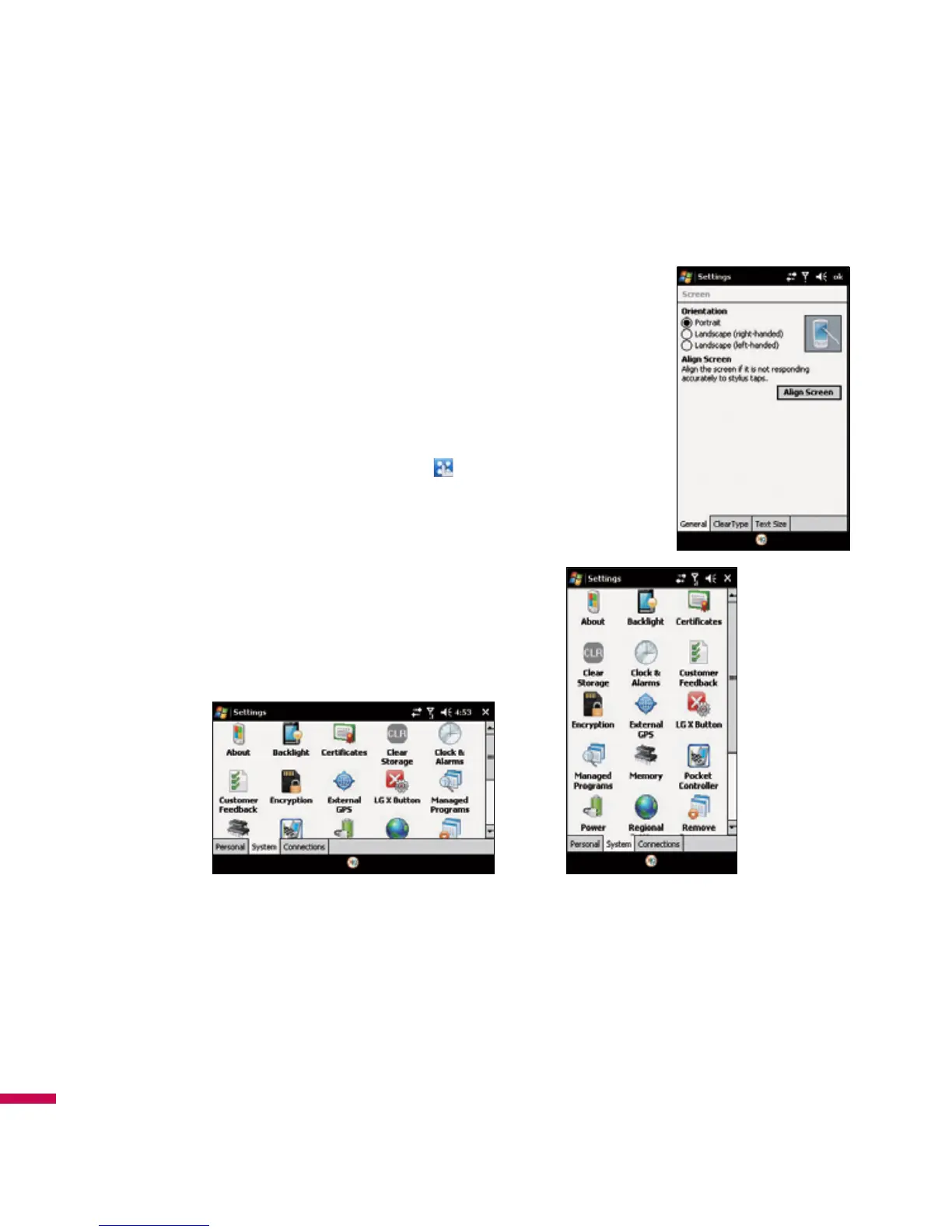
Manage Screen Settings
The device touch screen has three orientation modes: Portrait, Landscape
(right-handed), and Landscape (left-handed). Portrait mode allows you
to get a better view or a better operation of certain programs on your
device, while Landscape mode may be optimal for viewing longer text
files.
v
To change the orientation, tap
Start
>
Settings
>
System
tab >
Screen
>
General
tab, and select the orientation you want.
If Accelerometer Sensor is turned on (check
(
LG Menu
) >
Settings
>
Sensor
>
Accelerometer Sensor
), rotation sensor automatically
perceive the orientation of your device and decide to direction of
screen display when the orientation for device is changed.
Landscape mode Portrait mode
v
To smooth the edges of screen fonts for many programs, on the
ClearType
tab(tap
Start
>
Settings
>
System
tab>
Screen
), select the
Enable ClearType
check box.
v
To increase the readability or to see more content on the screen, on the
Text Size
tab
(tap
Start
>
Settings
>
System
tab>
Screen
), adjust the text size by moving the slider.
Getting Started



 To Next Page