13
Adding a Fingerprint
Select your lock from the Lockly app.
Go to the ‘Access tab’ and follow on-screen instructions.
If adding a fi ngerprint fails, return to the previous app menu to rescan.
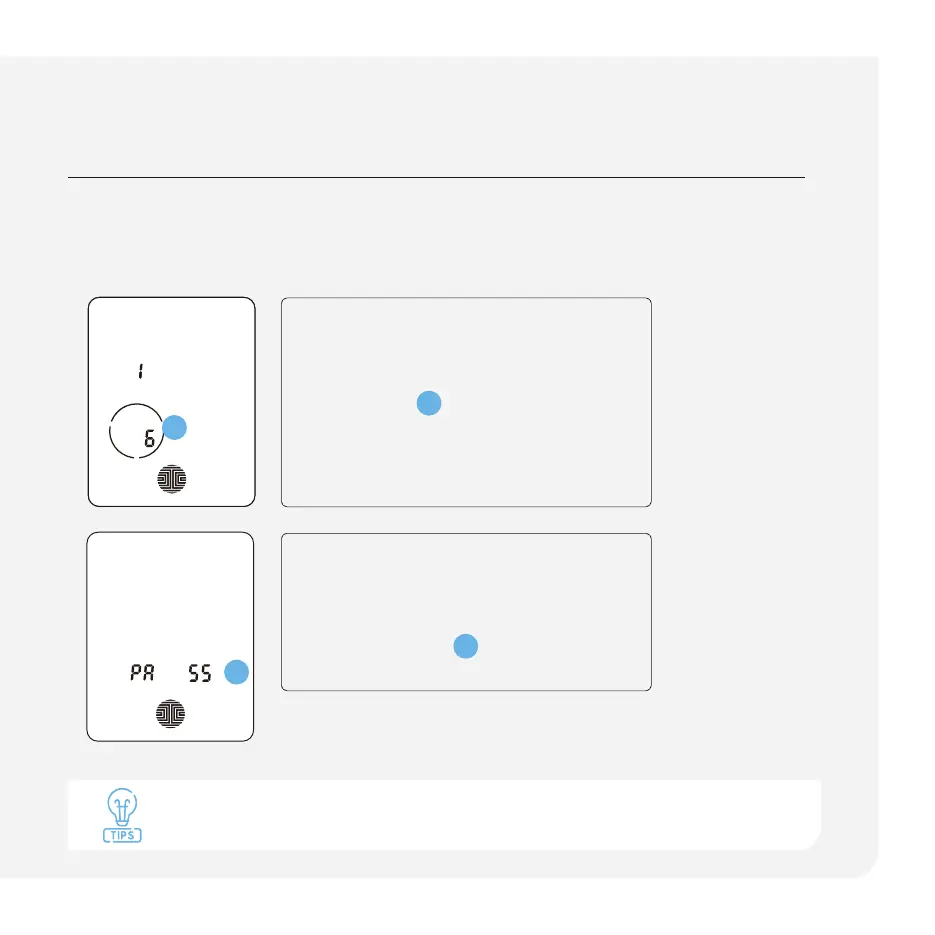
STEP 1 - Fingerprint Scanning
• The sensor will scan each fi nger-
print multiple times, as shown by the
countdown
1
on the screen.
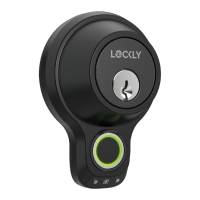
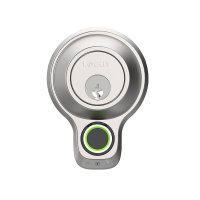
• Lightly place your fi nger on the sensor
until you hear a beep with the number
counting down.
STEP 2 - Lift and Repeat
• After each scan, lift your fi nger.
• Continue this process until you see
the word “PASS”
2
on the screen
accompanied by a long beep.
STEP 3 - Repeat for Each Finger
1
2



 To Next Page