14
4.2 Locking/Unlocking LOCKLY
®
with Fingerprints
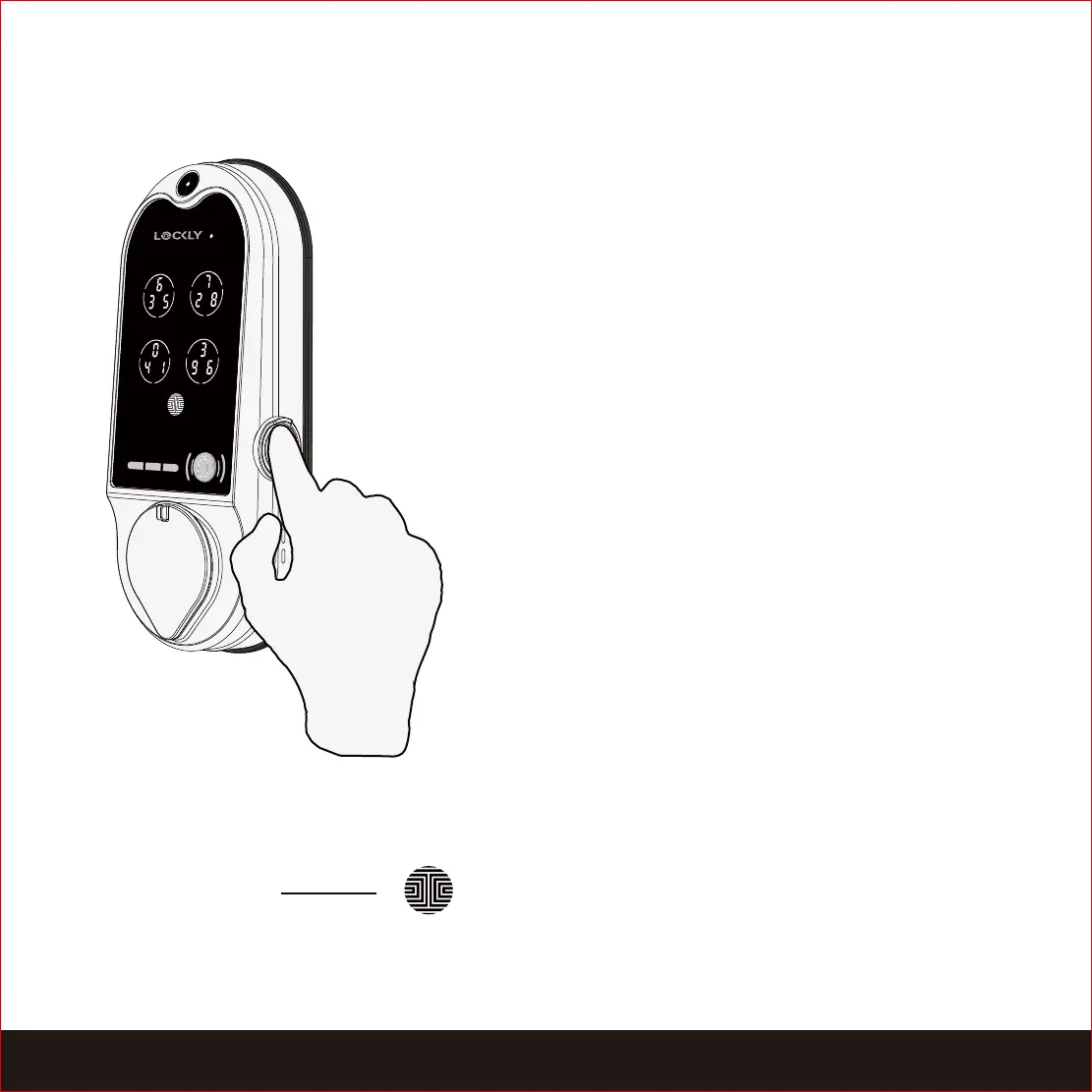
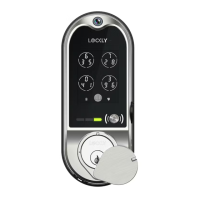
Place a registered finger to the fingerprint
scanner located on the exterior side of the lock
to the right.
To register a fingerprint, please see Section 3.6.
If your fingerprint is registered and
acknowledged, you will hear a “beep” sound
and a Green LED will light up on the fingerprint
scanner. You can then open the door.
If you see a Red LED, it means your fingerprint is
not recognized. You must wait until the red LED
is off to try again.
For best fingerprint scanning practices, see
Section 3.7.
To lock your smart lock, press the OK Button
anytime or brush your hand across the screen
when the lock is unlocked.
OK Button
Locking
Unlocking
SECTION 4.2


 To Next Page