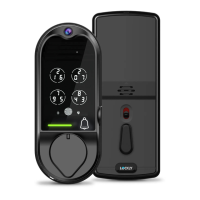
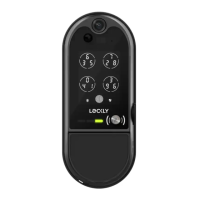
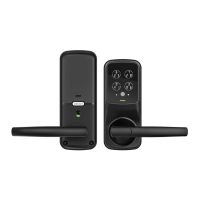
Once your LOCKLY Vision
™
and Vision Connect has been installed and configured
correctly, make sure you enable the LOCKLY Action for Google Assistant or the Amazon
Alexa Skill before you can configure your voice to perform voice commands.
You can ask your questions such as door status or request for your door to be locked or
unlocked.
4.5 Locking and Unlocking with Voice Assistants
- "Hey Google, unlock my Back Door"*
- "Hey Google, is my Back Door locked?"
- "Hey Google, lock my Back Door"
- "Hey Google, is my Back Door unlocked?"
16
4.4 Locking/Unlocking LOCKLY
®
with App
You must have the LOCKLY iOS or Android app installed in order to lock and unlock
with smartphone, connect with voice assistants like Alexa or Google Assistant and to
access video doorbell feature. Please download the app by visiting the link below or
search “LOCKLY” from the correct app store.
- Alexa, unlock my Front Door.*
- Alexa, is my Front Door locked?
- Hi Alexa, lock my Front Door.
- Alexa, is my Front Door unlocked?
Scan or visit LOCKLY.com/app
*Unlock requests will require additional voice security codes.
You may configure it in the settings page.
Google, Android and Google Play are trademarks of Google LLC.
SECTION 4.4


 To Next Page