36
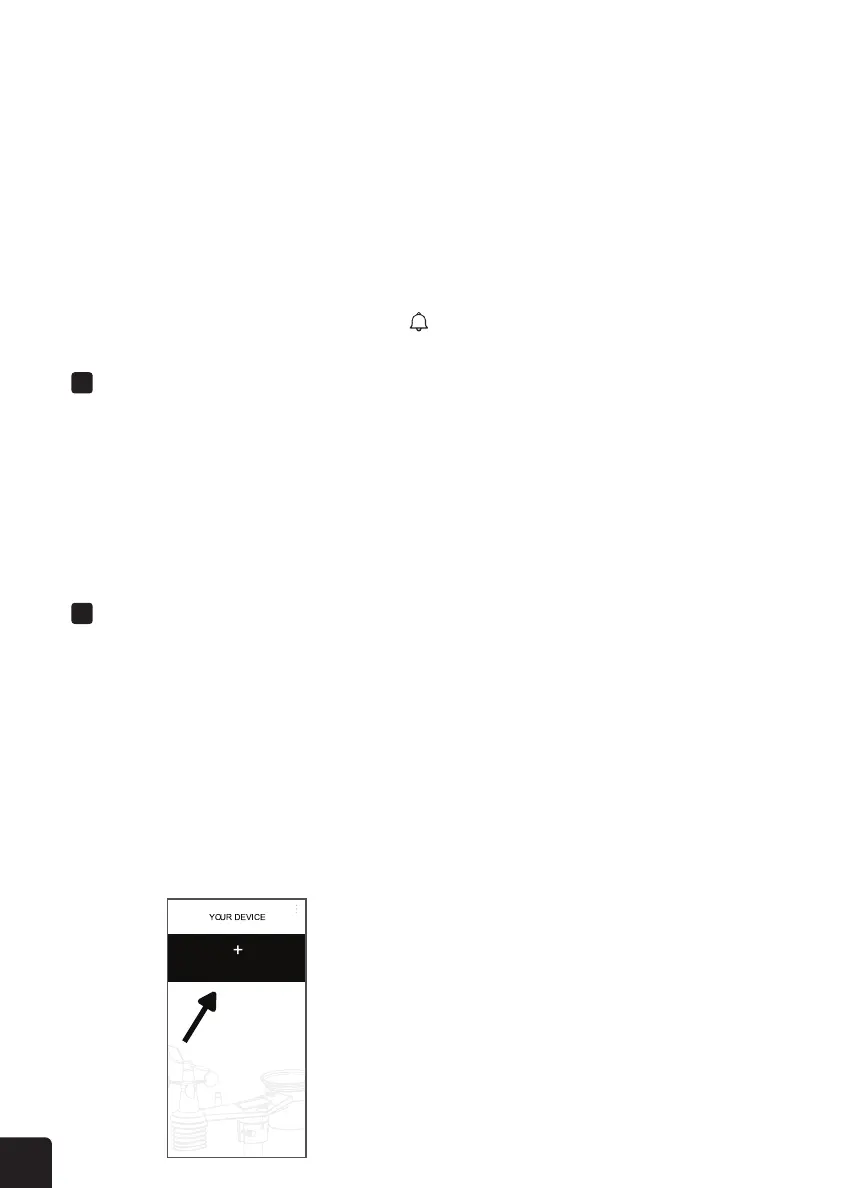
Add Device
ALARM OPERATION
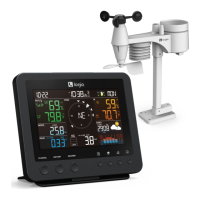
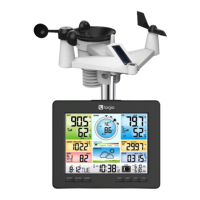
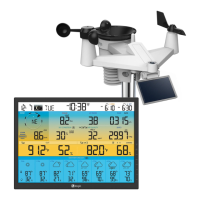
Use the UNIT button to change the unit of the readings on the console display.
The weather console backlight can be adjusted, using the HI/LO/AUTO slider to select the
appropriate brightness:
SET UP THE WSLINK APP
• Press and hold the UNIT button for two (2) seconds to enter the unit setting mode.
• Press the UNIT button to proceed to the next setting step.
• Press the ^/MOD or v/NDX button to change the value. Press and hold the button to
change the value quickly.
• Press and hold UNIT button for two (2) seconds to exit the unit setting mode at any time.
• Slide to the HI position for the brighter backlight.
• Slide to the LO position for the dimmer backlight.
• Slide to the AUTO position for auto-adjusted backlight.
1. Download the WSLINK App to your mobile device from the Google Play™ or App Store
®
.
2. Make sure the console is in AP mode. Press and hold the SENSOR/WI-FI button for six
(6) seconds to manually enter AP mode. At this time, the console is ready for the Wi-Fi
settings to be adjusted.
3. Open the WSLink app and tap “Add Device”.
BACKLIGHT FUNCTION
LEARNING THE WSLINK APP


 To Next Page