44
This display console supports OTA (over the air) Function Firmware and will update whenever
necessary through the WSLink app. The update function for both types of updates can be found
at the bottom of the Advanced Tab on the wireless settings interface (see Advanced Settings via
Web Interface).
Follow the steps below to update your device’s rmware:
UPDATING THE FIRMWARE
CARE/MAINTENANCE
1. Firmware will automatically download to your mobile device once your console is
connected to the app.
2. Follow the in-app instructions to transfer the le from your mobile device to the console.
3. Once the le is transferred, the console will start to update.
4. The console will restart once the update is complete.
5. The console will stay in AP mode for you to check the rmware version. Press and hold the
SENSOR/WI-FI button for six (6) seconds to exit AP mode.
BATTERY REPLACEMENT
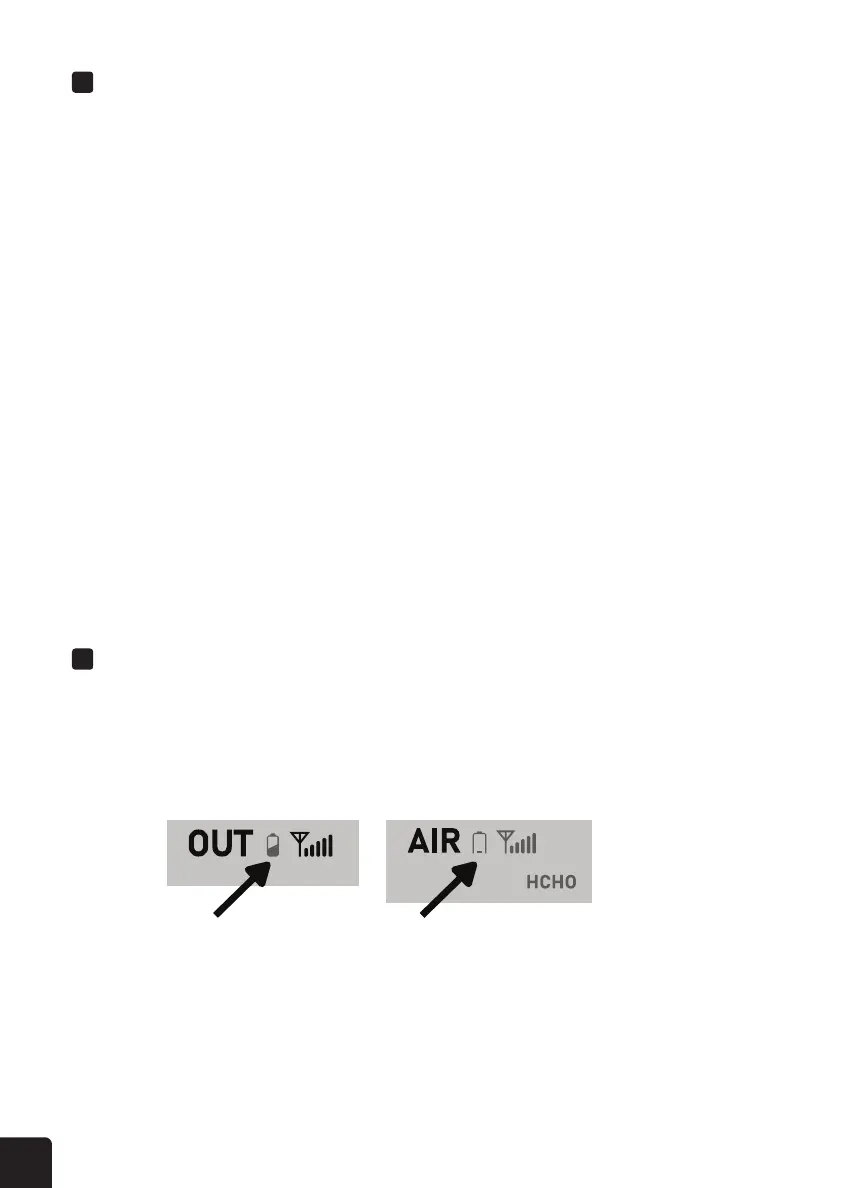
If the low battery indicator icon is displayed near the antenna icon of the sensor(s), this
indicates that the batteries in your wireless weather sensor(s) are running low and should
be replaced. Make sure to replace all batteries at the same time.


 To Next Page