EasyManua.ls Logo

Lorex N843 Series - User Manual

Lorex N843 Series
2 pages
Print Icon
To Next Page IconTo Next Page
Loading...
N843_QSG_EN_R2
Test your cameras prior to selecting a permanent mounting location by temporarily
connecting the cameras and cables to your NVR using one of the following 2 methods:
a. Connect cameras directly to the recorder (recommended).
N843 Series
Quick Setup Guide
Physical setup of recorder and essential system settings
b. Connect cameras to a PoE switch or router on your network (not included).
1 / 2
Connect the recorder to your router using the included Ethernet cable.
NOTES:
It may take up to 1 minute for cameras to start up and transmit video to your recorder.
This guide covers connecting IP cameras to your security recorder only. For full instructions on
installing your cameras, please refer to your camera’s documentation at lorex.com.
Connecting cameras to a router, or a network switch without PoE, requires a power adapter for
each camera. Refer to your cameras documentation at lorex.com for the correct power adapter
model number.
OR
NOTES:
If you are using a PoE switch, ensure the switch is connected to the same network as your
recorder.
To receive automatic rmware updates and enable remote viewing with mobile apps, a high
speed Internet connection is required (minimum upload speed of 5Mbps required for 4K viewing;
3.5Mbps for lower resolutions). All other system features can be used without an Internet
connection.
Copyright © 2021 Lorex Corporation
As our products are subject to continuous improvement, Lorex reserves the right to modify product design, specications
and prices, without notice and without incurring any obligation. E&OE. All rights reserved.
Need Help?
Visit us online for up-to-date software
and complete instruction manuals
Click on the Downloads tab
4
Visit lorex.com
Search for the model
number of your product
Click on your product
in the search results
3
2
1
See the steps below (expanded instructions to the right) to complete initial setup of the
recorder:
Lorex Fusion supports connectivity with select wireless devices to the NVR. To learn more
about fusion connectivity and which Lorex devices are compatible with this feature, visit
lorex.com/pages/fusion.
* Not included / sold separately.
For camera compatibility information, visit lorex.com/compatibility.
STEP 1:
Connect cameras*
STEP 2:
Connect router*
STEP 3:
Connect mouse
STEP 5:
Connect power
STEP 4:
Connect monitor*
Overview of extra ports:
NOTE: For full instructions on using the extra ports, please refer to your security recorder’s instruction
manual at lorex.com.
Audio In/Out
Connect microphone / speaker*
Setting Up Your Recorder
USB MouseEthernet CablePower Adapter HDMI Cable
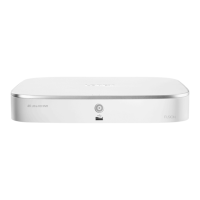
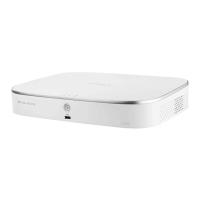
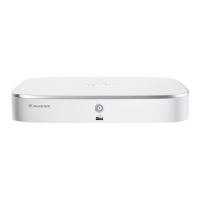
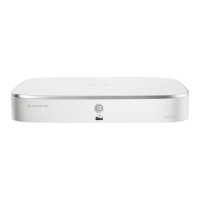
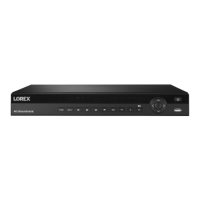
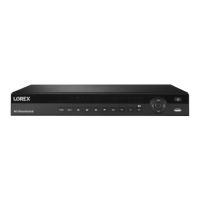
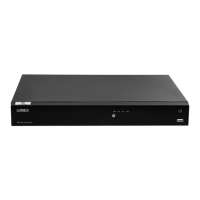
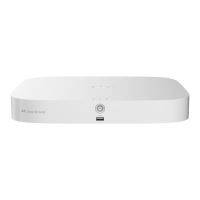
4K Ultra HD Security NVR
12.8” / 324mm
9.6” / 245mm
2.4”
60mm
Package Contents
Dimensions
Lorex Fusion
s
STEP 1: Connect cameras*
Connect the recorder to a monitor using the included HDMI cable or a VGA cable (not
included). The HDMI port supports up to 4K resolution, and VGA supports up to 1080p.
Connect the included mouse to a USB port on the recorder.
Use the included power adapter to connect the recorder to a nearby outlet.
OR
IMPORTANT: To optimize picture quality, set the recorder’s video output to match the resolution of your
monitor. See the section Changing the Recorder’s Output Resolution on the rear for details.
Back panels shown below are for illustration only. Your recorder’s back panel
may appear different, with all the same ports in different locations.
STEP 2: Connect router*
STEP 3: Connect mouse
STEP 4: Connect monitor*
STEP 5: Connect power
To quickly open a window that displays vital system information such as device ID, model
number, rmware version, and IP address:
Reference: Quick Access to System Information
Tap the button on the front panel of the recorder.
Right-click to open the Quick Menu and click Info.
OR
STEP 6:
Lorex Setup
Wizard
Record your password below and store in a secure place:
When you rst power up your recorder, the
Lorex Setup Wizard will begin. The Wizard will help you
congure core system settings.
You will also create a secure password. For future reference,
it is recommended that you record your password here:
STEP 6: Lorex Setup Wizard
N843_QSG_EN_R2.indd 1N843_QSG_EN_R2.indd 1 2021-04-08 4:25:17 PM2021-04-08 4:25:17 PM

Questions and Answers

Overview

This document outlines the quick setup and essential system settings for the Lorex N843 Series 4K Ultra HD Security NVR. It provides a comprehensive guide for users to install, configure, and manage their security system effectively.

Function Description

The Lorex N843 Series is a 4K Ultra HD Security NVR (Network Video Recorder) designed for surveillance applications. Its primary function is to record, store, and manage video footage from connected IP cameras, providing a robust solution for monitoring homes or businesses. The NVR supports high-resolution video, including 4K, ensuring clear and detailed images. It can connect to cameras directly or via a PoE switch/router, offering flexibility in network setup. The system also supports Lorex Fusion, allowing connectivity with select wireless Lorex devices to the NVR, expanding the surveillance capabilities.

Usage Features

The NVR offers a user-friendly interface accessible via a connected monitor and mouse. The initial setup is guided by the Lorex Setup Wizard, which assists users in configuring core system settings and creating a secure password.

Camera Connectivity:

  • Direct Connection: Cameras can be connected directly to the NVR, which is the recommended method.
  • PoE Switch/Router Connection: Cameras can also be connected to a PoE switch or router on the network. If connecting to a router or a network switch without PoE, each camera requires a separate power adapter.
  • Testing Cameras: Users are advised to test cameras temporarily before permanent mounting to ensure proper functionality.
  • Adding Cameras: The NVR supports adding cameras directly connected to the NVR or those on the same network as the recorder. This involves searching for devices, selecting the desired cameras, and adding them to the system. The system provides status indicators for successful connections.

Network Connectivity:

  • The NVR connects to a router using an Ethernet cable, enabling automatic firmware updates and remote viewing via mobile apps. A high-speed internet connection is recommended for optimal performance, especially for 4K viewing.

Monitor and Mouse Connection:

  • The NVR connects to a monitor via an HDMI or VGA cable. The HDMI port supports up to 4K resolution, while VGA supports up to 1080p.
  • A USB mouse is included for navigating the NVR's interface.

System Navigation (Using the Mouse):

  • Live View: In live view, users can move the mouse cursor over the bottom of the screen to open the Navigation Bar. This bar allows for quick access to various functions like playback, camera settings, and system information.
  • Quick Menu: Right-clicking on any live viewing screen opens the Quick Menu, providing options such as:
    • Live Display: Change the display mode (e.g., 1 camera, 4 cameras, 9 cameras).
    • Playback: Search and play back recordings.
    • PTZ Control: Control PTZ cameras (if applicable).
    • Camera Settings: Access camera-specific settings.
    • Color Settings: Adjust image settings like brightness and contrast.
    • System Setup: Access general system settings.
    • Event Search: Search for events.
    • Info: View system information.
    • Start/Stop Sequence Mode: Initiate or stop camera sequencing.
    • Warning List: View system warnings.
    • Log Out: Log out of the system.
    • Shut Down: Shut down the NVR.

Smart Motion Detection & Deterrence Settings:

  • The NVR supports smart motion detection features, which can be configured for specific cameras.
  • Configuring Smart Motion Detection: Users can select cameras, enable person/vehicle detection, and define active areas for motion detection. The system allows for scheduling when these features are active.
  • Active Deterrence: For compatible cameras, users can configure active deterrence features, such as warning lights and sirens, and set schedules for their operation.
  • Searching Recordings: Users can search for recordings by date and time. The system displays a timeline with different colors indicating continuous, motion, or deterrence recordings.
  • Playback Controls: Standard playback controls (play, pause, fast forward, rewind) are available. Users can also select the playback time and adjust the playback speed.
  • Event Search: The NVR allows searching for specific events, such as motion or deterrence events, to quickly locate relevant footage.

System Information:

  • A quick access feature allows users to open a window displaying vital system information, including device ID, model number, firmware version, and IP address, by tapping a button on the front panel or by right-clicking and selecting "Info" from the Quick Menu.

Maintenance Features

Backup:

  • The NVR supports backing up recordings from the hard drive to a USB flash drive.
  • Backup Process: Users can select the channel(s) to back up, specify the start and end times for recordings, and choose the file format (e.g., DAV, ASF, AVI). The system displays the estimated file size and remaining space on the USB device.
  • Viewing Backed Up Files: Instructions are provided for viewing backed-up files on a computer using the Lorex Player software.

Changing the Recorder's Output Resolution:

  • To optimize picture quality, users can change the recorder's video output resolution to match their monitor's resolution. This is done through the Main Menu, under Display settings. The system supports various resolutions, including 4K.

Firmware Updates:

  • The NVR is designed to receive automatic firmware updates when connected to the internet, ensuring the system remains up-to-date with the latest features and security enhancements.

Troubleshooting and Support:

  • The document advises users to visit lorex.com for up-to-date software, complete instruction manuals, and camera compatibility information.
  • It also provides guidance on connecting cameras to a router or network switch without PoE, noting the requirement for power adapters for each camera.
  • For full instructions on using extra ports or installing cameras, users are directed to the security recorder's instruction manual.

Lorex N843 Series Specifications

General IconGeneral
Operating SystemEmbedded Linux
Video CompressionH.264
Video OutputHDMI, VGA
Remote ViewingLorex Home App
Network ConnectivityEthernet (RJ45)
Motion DetectionYes
Mobile AlertsPush Notifications
Operating Temperature14°F to 131°F (-10°C to 55°C)

Related product manuals