EasyManua.ls Logo

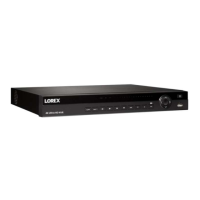
Lorex N881 Series - User Manual

Lorex N881 Series
136 pages
Print Icon
To Next Page IconTo Next Page
Loading...
User Manual
N881 Series

Table of Contents

Questions and Answers

  • A
    Andrea PhillipsAug 8, 2025
    How to troubleshoot a Lorex DVR that is not powering on?
    • G
      Gina BrockAug 8, 2025
      If your Lorex DVR system isn't powering on, first ensure all power cables are securely connected, including the adapter at the back of the unit. If connections are good but the system still lacks power, verify the system is switched on and the LED indicators are lit. If connected to a power bar or surge protector, try plugging directly into a wall outlet. Finally, confirm the outlet has power by testing it with another device or trying a different outlet.
  • L
    Lisa WoodardAug 12, 2025
    What to do if there is no picture on monitor/TV connected to Lorex N881?
    • J
      John StricklandAug 12, 2025
      If you're not seeing a picture on your monitor/TV after connecting it to the Lorex DVR system, try these steps: First, power off the monitor/TV and the DVR, then power them back on, starting with the monitor/TV. Next, ensure that you've selected the correct input channel on your monitor/TV to which the DVR is connected. Finally, check the video cable connections at both the DVR and the monitor/TV to make sure they are secure.
  • D
    Diana DeanAug 16, 2025
    Why is my mouse not working on my Lorex N881?
    • C
      cjohnsAug 16, 2025
      If the mouse is not detected by your Lorex DVR system, ensure the mouse cable is firmly connected to one of the USB ports. If that doesn't work, power off the system by disconnecting the power cable. Then, firmly connect the USB mouse to a USB port and reconnect the power cable to the DC 12V port on the rear panel to restart the system.
  • L
    Linda SmithAug 20, 2025
    How to disable the beep sound during motion detection on my Lorex N881?
    • S
      Stacy WilcoxAug 21, 2025
      The Lorex DVR system beeps during motion detection because motion detection is enabled and the alarm buzzer is activated. Uncheck the Buzzer option in the motion detection configuration screen.
  • P
    pamelavasquezAug 26, 2025
    What to do if Lorex DVR hard drive is not detected?
    • M
      Marcus DanielsAug 26, 2025
      If the hard drive is not being detected by your Lorex DVR system, first remove the housing and check that the hard drive cables are firmly connected. If the cables are secure, ensure that a compatible hard drive is installed in the system. If a hard drive was not installed, open the housing and install a compatible hard drive. Make sure to format the drive after installing.
  • B
    Brooke OsborneAug 29, 2025
    Why is there no picture on some channels of my Lorex N881 DVR?
    • C
      crystal03Aug 29, 2025
      If there is no picture on selected channels, check the camera video cable and connections. Disconnect and reconnect the cable at both the system and the camera. Try moving the camera to another channel or use another cable. If the issue persists, visit lorex.com/compatibility and navigate to N881 Series for a list of all compatible cameras. Also, if you have multiple PTZ cameras connected to the recorder’s PoE ports, the camera power requirement may surpass the recorder’s power output. Lorex PTZ cameras come with a power adapter, which you can use to power the camera instead of the recorder’s PoE ports.
  • F
    fmillerSep 2, 2025
    Why am I not receiving email notifications from my Lorex N881?
    • H
      Heather NelsonSep 2, 2025
      If you are not receiving email notifications from your Lorex DVR, first ensure you have configured email notification. Also, make sure that Send Email is checked for any events you want to be notified of in the Event menu.

Lorex N881 Series Specifications

General IconGeneral
SeriesN881
Video OutputHDMI, VGA
Operating SystemEmbedded Linux
Recording ModesContinuous, Motion, Schedule
Video CompressionH.265/H.264
Video Input Channels8
Audio Input/Output1 RCA Input / 1 RCA Output
Remote ViewingLorex Cloud App
Network ConnectivityEthernet (RJ-45)
Playback FeaturesPlayback
Operating Temperature14° ~ 131°F / -10° ~ 55°C
Power Supply12V DC

Related product manuals