EasyManua.ls Logo

Lorex N841 Series - User Manual

Lorex N841 Series
130 pages
Print Icon
To Next Page IconTo Next Page
Loading...
User Manual
N841 Series

Table of Contents

Other manuals for Lorex N841 Series

Questions and Answers

Summary

Important Safeguards

1.1 General Precautions

Safety precautions for using the product.

1.2 Installation

Instructions and safety guidelines for installing the product.

Important Safeguards: Operation and Environment

Power Sources and Ventilation Safety

Safety regarding power sources, cords, overload, and ensuring ventilation.

Water, Heat, Accessories, and Camera Installation Safety

Precautions for water exposure, heat, accessories, and camera installation.

Important Safeguards: Service and Usage

1.3 Service

Guidelines for product servicing and replacement parts.

1.4 Use

Safety advice for cleaning, product handling, and lightning protection.

2 Package Contents

3 Recorder Overview

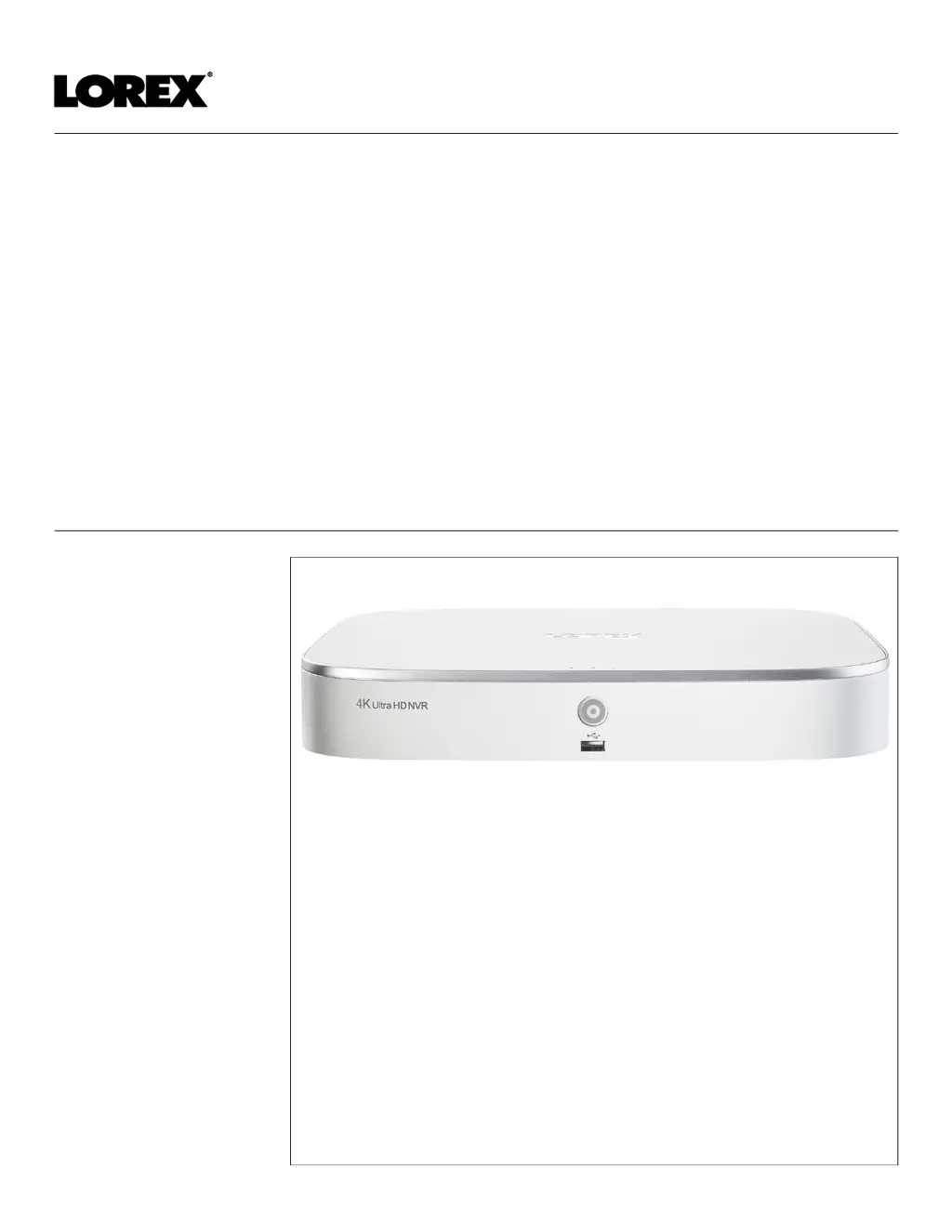
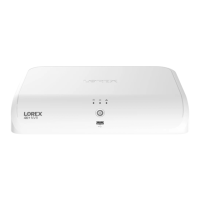
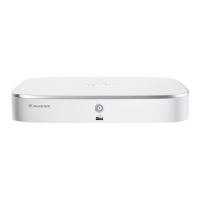
3.1 Front Panel

Details the LED indicators, buttons, and ports on the front panel.

3.2 Back Panel

Explains the ports and connections available on the back panel.

4 Basic System Setup

4.1 STEP 1: Connect cameras

Steps for connecting cameras directly or to a local network.

4.2 STEP 2: Connect router

Instructions for connecting the recorder to the router via Ethernet.

4.3 STEP 3: Connect mouse

Steps for connecting the USB mouse for system control.

Basic System Setup: Monitor, Power, and Firmware

4.4 STEP 4: Connect monitor

Guide for connecting a monitor using HDMI or VGA cables.

4.5 STEP 5: Connect power

Instructions for connecting the power adapter to the recorder.

4.6 STEP 6: Upgrade Firmware to Latest Version (If Available)

Information on upgrading system firmware to the latest version.

4.7 Quick Access to System Information

4.8 Connecting Cameras to the Local Area Network (LAN)

Connecting Cameras via Power Adapters

Step 2 of 2: Add the cameras to your NVR

Process of searching for and adding connected IP cameras to the NVR.

Confirming Camera Connection

5 Camera Installation

5.1 Installation Tips

Advice on camera placement, aiming, and environmental considerations.

5.2 Installing Cameras

Instructions for physically mounting cameras to surfaces.

5.3 Connecting Camera Extension Cables

6 Using the Mouse

Mouse Button Functions

Explanation of left-click, right-click, and scroll wheel functions.

7 Setting the Date & Time

To set the date and time

Steps to set the current time, time zone, and daylight saving time.

NTP Time Synchronization

8 Using the On-Screen Display

8.1 Navigation Bar

Explains the controls and options available in the Navigation Bar.

8.2 Quick Menu

Accessing and using the Quick Menu for common functions.

Quick Menu and Camera Toolbar Functions

8.2 Quick Menu (Continued)

Details the various options available within the Quick Menu.

8.3 Camera Toolbar

Describes quick functions available for individual camera channels.

Camera Toolbar Actions and Keyboards

8.4 On-Screen Keyboards

Usage of the full and number on-screen keyboards for input.

8.5 Camera Image Settings

Camera Image Configuration Details

9 Recording

9.1 Video Recording Types

Explains continuous, motion, and smart motion recording types.

9.2 Configuring Recording Quality

Steps to set video quality for Main and Sub streams.

Recording Quality and Schedule Configuration

Recording Quality Settings

Detailed settings for compression, frame rate, and bit rate.

9.3 Setting the Recording Schedule

How to create a custom recording schedule for different times.

9.4 Setting up Scheduled or Manual Recording

Manual Recording Options

9.5 Configuring Hard Drive Overwrite

10 Playback

10.1 Playing Back Video from the Hard Drive

Steps to select date, channels, and time for playback.

10.2 Playback Controls

Overview of playback controls like calendar, channel selection, and viewing modes.

Playback Viewing Modes and File Lists

Playback Control Functions and Area Search

Playback Control Functions

Detailed controls for play/pause, speed, zoom, and volume.

10.3 Area Search

How to search for motion within specific areas of the camera image.

Area Search Functionality Steps

10.4 Video Clip Backup

10.5 Playing Back Video from a USB Drive

Locating Video Files on USB

11 Backup

11.1 Formatting the USB Flash Drive

Steps to format a USB drive before backing up data.

11.2 Backing Up Video

Video Clip Backup and Viewing PC Files

11.3 Using Video Clip Backup

Specific method for backing up selected video clips.

11.4 Viewing Backed Up Files

Instructions for installing and using the Lorex Player for PC.

11.4.2 Viewing Backed Up Files on Mac

11.4.3 Lorex Player Controls

Lorex Player Controls Details

Player Settings Configuration

12 Motion Detection

12.1 Status Icons

Explains the icons indicating motion detection events.

12.2 Configuring Motion Detection

Steps to enable and set up motion detection per channel.

Motion Detection Area and Schedule Setup

Motion Detection Area Setup

Defining specific areas within the camera view for motion detection.

Motion Detection Schedule

Setting a weekly schedule for when motion detection is active.

Motion Detection Reaction Settings

13 Active Deterrence

13.1 Automatic Deterrence Settings

Setting up automatic warning light triggering based on motion.

Active Deterrence Area and Schedule

Warning Light Preferences

Adjusting warning light duration, type (solid/strobe), and frequency.

Active Deterrence Sensitivity and Manual Activation

Sensitivity and Threshold Settings

Adjusting sensitivity and threshold for warning light activation.

13.2 Manually Activate Deterrence Features

Methods to manually trigger warning lights and sirens.

14 Smart Motion Detection

14.1 Ensuring Accurate Person & Vehicle Detection

Camera installation tips for accurate smart detection.

14.2 Configuring Person & Vehicle Detection

Smart Detection Area, Schedule, and Warning Lights

Smart Detection Area and Schedule

Setting active areas and schedules for person/vehicle detection.

Warning Light Options for Smart Detection

Configuring warning light behavior for detected people or vehicles.

14.3 Searching for Person & Vehicle Detection Events (Smart Search)

Managing Smart Search Results

15 Managing Passwords and User Accounts

15.1 User Accounts

Information on default admin and user accounts.

15.1.1 Changing Passwords

Steps to modify passwords for existing accounts.

15.1.2 Adding Users

User Account Configuration and Modification

User Account Configuration

Configuration options for new users, including username, password, and authority.

15.1.3 Modifying Users

How to update existing user account details and permissions.

User Account and Group Management

15.1.4 Deleting Users

Steps to remove existing user accounts from the system.

15.2 Account Groups

Managing user permission groups for easier administration.

Account Group Management Details

15.2.3 Deleting Groups

16 Using the Main Menu

16.1 Main Menu Overview

Description of the primary menu options like Playback, Backup, Camera, etc.

16.2 Camera Menu

Managing IP cameras, setting recording parameters, and custom titles.

Camera Status and Firmware Versions

16.2.1 Viewing Camera Status

Checking connection and alarm status for connected cameras.

16.2.2 Camera Firmware Versions

Viewing firmware versions for connected cameras.

16.2.3 Upgrading Camera Firmware

16.2.4 Configuring Snapshot Recording Settings

16.2.5 Configuring Video Overlay Settings

16.2.6 Creating Custom Channel Names

Information Menu and Hard Drive Details

16.3 Information Menu

Accessing system information related to storage, network, and warnings.

16.3.1 Hard Drive Information

Viewing details about installed hard drives, including capacity and status.

Recording Information and Version Details

16.3.2 Recording Information

Viewing start and end times of recorded video on the hard drive.

16.3.3 Version Information

Displaying system information like device ID, model, and firmware version.

Event Information and Online Users

16.3.4 Event Information

Summary of system alarms and active motion detection events.

16.3.5 Online Users

Viewing users currently connected to the system.

Network Load and Testing

16.3.6 Network Load

Viewing system network traffic, including sending and receiving data.

16.3.7 Network Test

Testing network connectivity to other devices.

BPS Display and System Log Access

16.3.8 BPS

Shows bitrates of connected cameras.

16.3.9 System Log

Searching and viewing system logs within a specific time range.

16.4.1 Selecting DHCP or Static IP Address (TCP;IP)

System Ports and IP Filter Configuration

16.4.2 Configuring System Ports (Connection)

Configuring ports for remote connectivity and DDNS.

16.4.3 Configuring IP Filter

Setting permissions for external IP addresses accessing the unit.

16.4.4 Configuring Email Alerts

Email Server Settings and FTP Configuration

Email Server Settings

Configuring email server settings for sending alerts.

16.4.5 FTP (Advanced)

Sending recordings or snapshots to an FTP server.

FTP Server Settings and Switch Configuration

FTP Server Settings

Detailed configuration for connecting to an FTP server.

16.4.6 Configuring Switch Settings (Advanced)

Configuring networking settings for the internal PoE switch.

P2 P Setting and Video Loss Configuration

16.4.7 P2 P Setting

Enabling or disabling remote access via P2P connection.

16.4.8 Configuring Video Loss Settings

Configuring system reactions to video loss events.

Video Loss Event and Pre-Recording Setup

Video Loss Event Configuration

Setting up responses for video loss events like messages, emails, and recording.

16.4.11 Configuring Pre-Recording

Setting up pre-recording for motion detection events.

16.4.12 Formatting the Hard Drive

Hard Drive Management and Type Configuration

16.4.13 Configuring Hard Drive Type

Setting hard drive type to Read/Write or Read-Only.

16.4.14 Configuring Holidays

16.4.15 Configuring General System Settings

16.4.16 Setting the Monitor Resolution (Display)

Display Settings and Sequence Mode Configuration

Configuring Display Settings

Adjusting display transparency, time/channel display, and image enhancement.

16.4.17 Configuring Sequence Mode

Setting up automatic cycling of camera views.

Sequence Mode Customization

Saving and Restoring System Configuration

16.4.18 Saving Your System Configuration to a USB Thumb Drive

Backing up current system settings to a USB drive.

Restoring System Configuration

Restoring Defaults and Manual Firmware Upgrade

16.4.19 Restore Default Settings

Resetting the system to its original default settings.

16.4.20 Upgrading Firmware Manually

Procedure for updating system firmware using a USB thumb drive.

16.4.21 Automatic Firmware Upgrades

16.5 Shutdown

17 Connecting Remotely using the Lorex Home Mobile App

18 Smart Home & Voice Assistance

19 Pan;Tilt;Zoom (PTZ) Cameras

19.1 Connecting PTZ Cameras to the Recorder

Steps for connecting Lorex HD PTZ cameras to the NVR.

19.2 Basic PTZ Controls

Advanced PTZ Controls and Presets

19.3 Advanced PTZ Controls

Accessing advanced PTZ functions like presets, tours, and patterns.

19.4 Presets

Saving and recalling specific camera positions.

Tours, Patterns, and AutoScan Setup

19.5 Tours

Creating and running automated camera tours and patterns.

19.6 Patterns

Creating and running automated camera patterns.

19.7 AutoScan

20 Connecting Audio Devices

Audio Recording Setup

Enabling audio recording for cameras and the audio input port.

Audio Encoding and Sampling Rate

21 Replacing the Hard Drive

21.1 Removing the Hard Drive

Instructions for safely powering down and opening the recorder to remove the drive.

Hard Drive Removal Procedure

Disconnecting Hard Drive Cables and Screws

21.2 Installing a New Hard Drive

Aligning and Securing New Hard Drive

Connecting Cables and Reassembling Drive

22 DDNS Setup (Advanced)

22.1 STEP 1: Port Forwarding

Instructions to port forward router settings for DDNS connectivity.

22.2 STEP 2: Create a Lorex Account

Steps to create a Lorex account for system access.

22.3 STEP 3: Activate Your Warranty

DDNS Account and Recorder Setup Steps

22.4 STEP 4: Sign Up for a DDNS Account

Registering for a DDNS account and noting credentials.

22.5 STEP 5: Enable DDNS on the Recorder

Entering DDNS information into the recorder's menu.

STEP 5: Enable DDNS on the Recorder (Continued)

23 Troubleshooting

Power and System Startup Issues

Troubleshooting problems related to power and the system not turning on.

Hard Drive Detection Problems

Solutions for when the hard drive is not detected or is full.

Display, Mouse, and Notification Issues

No Picture or Display Issues

Resolving issues with no picture on the monitor or camera display.

Mouse and System Beep Issues

Troubleshooting mouse detection and unexpected system beeps.

Email Notification Problems

Solutions for not receiving email notifications.

24 Technical Specifications

General, Inputs;Outputs, and Display Specs

Information on video transmission, ports, and display capabilities.

Recording, Playback, Storage, and Smart Features Specs

Smart Home, Connectivity, and Additional Specs

25 Notices

FCC;IC and CE Compliance

Compliance statements regarding FCC, IC, and CE regulations.

Modification, RoHS, and ICES-003 Notices

Modification Clause

Warning about unauthorized modifications to the device.

RoHS and ICES-003 Compliance

Compliance with RoHS and Canadian ICES-003 standards.

Summary

Important Safeguards

1.1 General Precautions

Safety precautions for using the product.

1.2 Installation

Instructions and safety guidelines for installing the product.

Important Safeguards: Operation and Environment

Power Sources and Ventilation Safety

Safety regarding power sources, cords, overload, and ensuring ventilation.

Water, Heat, Accessories, and Camera Installation Safety

Precautions for water exposure, heat, accessories, and camera installation.

Important Safeguards: Service and Usage

1.3 Service

Guidelines for product servicing and replacement parts.

1.4 Use

Safety advice for cleaning, product handling, and lightning protection.

2 Package Contents

3 Recorder Overview

3.1 Front Panel

Details the LED indicators, buttons, and ports on the front panel.

3.2 Back Panel

Explains the ports and connections available on the back panel.

4 Basic System Setup

4.1 STEP 1: Connect cameras

Steps for connecting cameras directly or to a local network.

4.2 STEP 2: Connect router

Instructions for connecting the recorder to the router via Ethernet.

4.3 STEP 3: Connect mouse

Steps for connecting the USB mouse for system control.

Basic System Setup: Monitor, Power, and Firmware

4.4 STEP 4: Connect monitor

Guide for connecting a monitor using HDMI or VGA cables.

4.5 STEP 5: Connect power

Instructions for connecting the power adapter to the recorder.

4.6 STEP 6: Upgrade Firmware to Latest Version (If Available)

Information on upgrading system firmware to the latest version.

4.7 Quick Access to System Information

4.8 Connecting Cameras to the Local Area Network (LAN)

Connecting Cameras via Power Adapters

Step 2 of 2: Add the cameras to your NVR

Process of searching for and adding connected IP cameras to the NVR.

Confirming Camera Connection

5 Camera Installation

5.1 Installation Tips

Advice on camera placement, aiming, and environmental considerations.

5.2 Installing Cameras

Instructions for physically mounting cameras to surfaces.

5.3 Connecting Camera Extension Cables

6 Using the Mouse

Mouse Button Functions

Explanation of left-click, right-click, and scroll wheel functions.

7 Setting the Date & Time

To set the date and time

Steps to set the current time, time zone, and daylight saving time.

NTP Time Synchronization

8 Using the On-Screen Display

8.1 Navigation Bar

Explains the controls and options available in the Navigation Bar.

8.2 Quick Menu

Accessing and using the Quick Menu for common functions.

Quick Menu and Camera Toolbar Functions

8.2 Quick Menu (Continued)

Details the various options available within the Quick Menu.

8.3 Camera Toolbar

Describes quick functions available for individual camera channels.

Camera Toolbar Actions and Keyboards

8.4 On-Screen Keyboards

Usage of the full and number on-screen keyboards for input.

8.5 Camera Image Settings

Camera Image Configuration Details

9 Recording

9.1 Video Recording Types

Explains continuous, motion, and smart motion recording types.

9.2 Configuring Recording Quality

Steps to set video quality for Main and Sub streams.

Recording Quality and Schedule Configuration

Recording Quality Settings

Detailed settings for compression, frame rate, and bit rate.

9.3 Setting the Recording Schedule

How to create a custom recording schedule for different times.

9.4 Setting up Scheduled or Manual Recording

Manual Recording Options

9.5 Configuring Hard Drive Overwrite

10 Playback

10.1 Playing Back Video from the Hard Drive

Steps to select date, channels, and time for playback.

10.2 Playback Controls

Overview of playback controls like calendar, channel selection, and viewing modes.

Playback Viewing Modes and File Lists

Playback Control Functions and Area Search

Playback Control Functions

Detailed controls for play/pause, speed, zoom, and volume.

10.3 Area Search

How to search for motion within specific areas of the camera image.

Area Search Functionality Steps

10.4 Video Clip Backup

10.5 Playing Back Video from a USB Drive

Locating Video Files on USB

11 Backup

11.1 Formatting the USB Flash Drive

Steps to format a USB drive before backing up data.

11.2 Backing Up Video

Video Clip Backup and Viewing PC Files

11.3 Using Video Clip Backup

Specific method for backing up selected video clips.

11.4 Viewing Backed Up Files

Instructions for installing and using the Lorex Player for PC.

11.4.2 Viewing Backed Up Files on Mac

11.4.3 Lorex Player Controls

Lorex Player Controls Details

Player Settings Configuration

12 Motion Detection

12.1 Status Icons

Explains the icons indicating motion detection events.

12.2 Configuring Motion Detection

Steps to enable and set up motion detection per channel.

Motion Detection Area and Schedule Setup

Motion Detection Area Setup

Defining specific areas within the camera view for motion detection.

Motion Detection Schedule

Setting a weekly schedule for when motion detection is active.

Motion Detection Reaction Settings

13 Active Deterrence

13.1 Automatic Deterrence Settings

Setting up automatic warning light triggering based on motion.

Active Deterrence Area and Schedule

Warning Light Preferences

Adjusting warning light duration, type (solid/strobe), and frequency.

Active Deterrence Sensitivity and Manual Activation

Sensitivity and Threshold Settings

Adjusting sensitivity and threshold for warning light activation.

13.2 Manually Activate Deterrence Features

Methods to manually trigger warning lights and sirens.

14 Smart Motion Detection

14.1 Ensuring Accurate Person & Vehicle Detection

Camera installation tips for accurate smart detection.

14.2 Configuring Person & Vehicle Detection

Smart Detection Area, Schedule, and Warning Lights

Smart Detection Area and Schedule

Setting active areas and schedules for person/vehicle detection.

Warning Light Options for Smart Detection

Configuring warning light behavior for detected people or vehicles.

14.3 Searching for Person & Vehicle Detection Events (Smart Search)

Managing Smart Search Results

15 Managing Passwords and User Accounts

15.1 User Accounts

Information on default admin and user accounts.

15.1.1 Changing Passwords

Steps to modify passwords for existing accounts.

15.1.2 Adding Users

User Account Configuration and Modification

User Account Configuration

Configuration options for new users, including username, password, and authority.

15.1.3 Modifying Users

How to update existing user account details and permissions.

User Account and Group Management

15.1.4 Deleting Users

Steps to remove existing user accounts from the system.

15.2 Account Groups

Managing user permission groups for easier administration.

Account Group Management Details

15.2.3 Deleting Groups

16 Using the Main Menu

16.1 Main Menu Overview

Description of the primary menu options like Playback, Backup, Camera, etc.

16.2 Camera Menu

Managing IP cameras, setting recording parameters, and custom titles.

Camera Status and Firmware Versions

16.2.1 Viewing Camera Status

Checking connection and alarm status for connected cameras.

16.2.2 Camera Firmware Versions

Viewing firmware versions for connected cameras.

16.2.3 Upgrading Camera Firmware

16.2.4 Configuring Snapshot Recording Settings

16.2.5 Configuring Video Overlay Settings

16.2.6 Creating Custom Channel Names

Information Menu and Hard Drive Details

16.3 Information Menu

Accessing system information related to storage, network, and warnings.

16.3.1 Hard Drive Information

Viewing details about installed hard drives, including capacity and status.

Recording Information and Version Details

16.3.2 Recording Information

Viewing start and end times of recorded video on the hard drive.

16.3.3 Version Information

Displaying system information like device ID, model, and firmware version.

Event Information and Online Users

16.3.4 Event Information

Summary of system alarms and active motion detection events.

16.3.5 Online Users

Viewing users currently connected to the system.

Network Load and Testing

16.3.6 Network Load

Viewing system network traffic, including sending and receiving data.

16.3.7 Network Test

Testing network connectivity to other devices.

BPS Display and System Log Access

16.3.8 BPS

Shows bitrates of connected cameras.

16.3.9 System Log

Searching and viewing system logs within a specific time range.

16.4.1 Selecting DHCP or Static IP Address (TCP;IP)

System Ports and IP Filter Configuration

16.4.2 Configuring System Ports (Connection)

Configuring ports for remote connectivity and DDNS.

16.4.3 Configuring IP Filter

Setting permissions for external IP addresses accessing the unit.

16.4.4 Configuring Email Alerts

Email Server Settings and FTP Configuration

Email Server Settings

Configuring email server settings for sending alerts.

16.4.5 FTP (Advanced)

Sending recordings or snapshots to an FTP server.

FTP Server Settings and Switch Configuration

FTP Server Settings

Detailed configuration for connecting to an FTP server.

16.4.6 Configuring Switch Settings (Advanced)

Configuring networking settings for the internal PoE switch.

P2 P Setting and Video Loss Configuration

16.4.7 P2 P Setting

Enabling or disabling remote access via P2P connection.

16.4.8 Configuring Video Loss Settings

Configuring system reactions to video loss events.

Video Loss Event and Pre-Recording Setup

Video Loss Event Configuration

Setting up responses for video loss events like messages, emails, and recording.

16.4.11 Configuring Pre-Recording

Setting up pre-recording for motion detection events.

16.4.12 Formatting the Hard Drive

Hard Drive Management and Type Configuration

16.4.13 Configuring Hard Drive Type

Setting hard drive type to Read/Write or Read-Only.

16.4.14 Configuring Holidays

16.4.15 Configuring General System Settings

16.4.16 Setting the Monitor Resolution (Display)

Display Settings and Sequence Mode Configuration

Configuring Display Settings

Adjusting display transparency, time/channel display, and image enhancement.

16.4.17 Configuring Sequence Mode

Setting up automatic cycling of camera views.

Sequence Mode Customization

Saving and Restoring System Configuration

16.4.18 Saving Your System Configuration to a USB Thumb Drive

Backing up current system settings to a USB drive.

Restoring System Configuration

Restoring Defaults and Manual Firmware Upgrade

16.4.19 Restore Default Settings

Resetting the system to its original default settings.

16.4.20 Upgrading Firmware Manually

Procedure for updating system firmware using a USB thumb drive.

16.4.21 Automatic Firmware Upgrades

16.5 Shutdown

17 Connecting Remotely using the Lorex Home Mobile App

18 Smart Home & Voice Assistance

19 Pan;Tilt;Zoom (PTZ) Cameras

19.1 Connecting PTZ Cameras to the Recorder

Steps for connecting Lorex HD PTZ cameras to the NVR.

19.2 Basic PTZ Controls

Advanced PTZ Controls and Presets

19.3 Advanced PTZ Controls

Accessing advanced PTZ functions like presets, tours, and patterns.

19.4 Presets

Saving and recalling specific camera positions.

Tours, Patterns, and AutoScan Setup

19.5 Tours

Creating and running automated camera tours and patterns.

19.6 Patterns

Creating and running automated camera patterns.

19.7 AutoScan

20 Connecting Audio Devices

Audio Recording Setup

Enabling audio recording for cameras and the audio input port.

Audio Encoding and Sampling Rate

21 Replacing the Hard Drive

21.1 Removing the Hard Drive

Instructions for safely powering down and opening the recorder to remove the drive.

Hard Drive Removal Procedure

Disconnecting Hard Drive Cables and Screws

21.2 Installing a New Hard Drive

Aligning and Securing New Hard Drive

Connecting Cables and Reassembling Drive

22 DDNS Setup (Advanced)

22.1 STEP 1: Port Forwarding

Instructions to port forward router settings for DDNS connectivity.

22.2 STEP 2: Create a Lorex Account

Steps to create a Lorex account for system access.

22.3 STEP 3: Activate Your Warranty

DDNS Account and Recorder Setup Steps

22.4 STEP 4: Sign Up for a DDNS Account

Registering for a DDNS account and noting credentials.

22.5 STEP 5: Enable DDNS on the Recorder

Entering DDNS information into the recorder's menu.

STEP 5: Enable DDNS on the Recorder (Continued)

23 Troubleshooting

Power and System Startup Issues

Troubleshooting problems related to power and the system not turning on.

Hard Drive Detection Problems

Solutions for when the hard drive is not detected or is full.

Display, Mouse, and Notification Issues

No Picture or Display Issues

Resolving issues with no picture on the monitor or camera display.

Mouse and System Beep Issues

Troubleshooting mouse detection and unexpected system beeps.

Email Notification Problems

Solutions for not receiving email notifications.

24 Technical Specifications

General, Inputs;Outputs, and Display Specs

Information on video transmission, ports, and display capabilities.

Recording, Playback, Storage, and Smart Features Specs

Smart Home, Connectivity, and Additional Specs

25 Notices

FCC;IC and CE Compliance

Compliance statements regarding FCC, IC, and CE regulations.

Modification, RoHS, and ICES-003 Notices

Modification Clause

Warning about unauthorized modifications to the device.

RoHS and ICES-003 Compliance

Compliance with RoHS and Canadian ICES-003 standards.

Lorex N841 Series Specifications

General IconGeneral
Remote AccessYes
Video OutputHDMI, VGA
Motion DetectionYes
Compression FormatH.264
Network InterfaceRJ45
Remote ViewingLorex Home App
Operating SystemLinux
Audio Input/Output1 audio input, 1 audio output
Recording ModesContinuous, Motion Detection
Operating Temperature14°F to 122°F (-10°C to 50°C)

Related product manuals