EasyManua.ls Logo

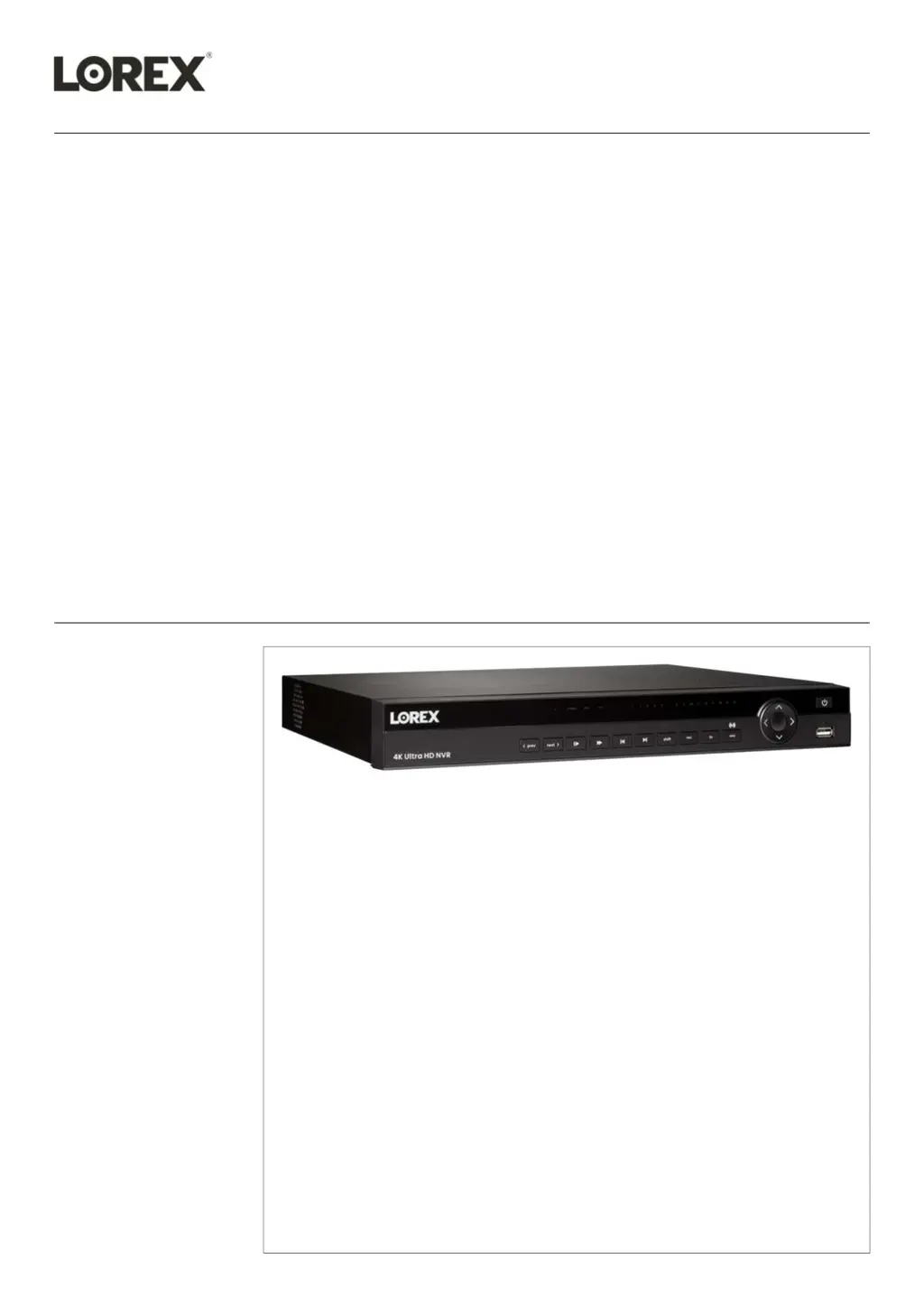
Lorex N882A63B - User Manual

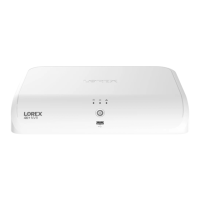
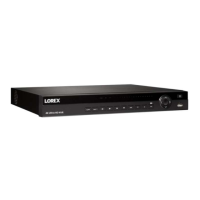
Lorex N882A63B
122 pages
Print Icon
To Next Page IconTo Next Page
Loading...
User Manual
N882 Series

Table of Contents

Questions and Answers

Summary

Important Safeguards

1.1 General Precautions

General safety guidelines for product operation and environment.

1.2 Installation Safety

Instructions and safety precautions for installing the product.

1.3 Service Information

Guidelines for product servicing and conditions requiring professional service.

1.4 Usage Precautions

Precautions and guidelines for proper product usage and cleaning.

Package Contents

Recorder Overview

3.1 Front Panel Layout

Description of the recorder's front panel components and their functions.

3.2 Back Panel Connections

Description of the recorder's back panel connections and ports.

Basic System Setup

4.1 Camera Connection

Instructions for connecting cameras to the NVR for initial setup.

4.2 Network Router Setup

Instructions for connecting the recorder to the router for network access.

4.3 Mouse Connection

Instructions for connecting the USB mouse to control the system.

4.4 Monitor Connection

Instructions for connecting a monitor via HDMI or VGA for system display.

4.5 Power Connection

Instructions for connecting the power adapter and powering on the unit.

4.6 Firmware Upgrade

Guide to upgrading the system firmware for enhanced features and stability.

4.7 System Information Access

How to display system information like model, serial, and device ID.

4.8 LAN Camera Connection

Guide on connecting IP cameras to the NVR via the local network.

Camera Installation

5.1 Installation Tips

General tips for installing security cameras, including placement and testing.

5.2 Camera Mounting

Steps for mounting cameras to a surface and ensuring secure installation.

5.3 Extension Cable Connection

Instructions for connecting cameras using Ethernet cables and PoE.

Using the Mouse

Setting the Date & Time

Using the On-Screen Display

8.1 Navigation Bar Guide

Explanation of the navigation bar elements and their functions in the Live View.

8.2 Quick Menu Usage

How to access and use the quick menu for rapid access to system functions.

8.3 Camera Toolbar Functions

Description of the camera toolbar for quick functions on specific channels.

8.4 On-Screen Keyboards

Explanation of the virtual keyboards used for text and numeric input.

8.5 Camera Image Settings

How to adjust image settings like brightness, contrast, and sharpness for cameras.

Recording Configuration

9.1 Video Recording Types

Overview of supported recording types: continuous, motion, and smart motion.

9.2 Recording Quality Settings

How to set up recording quality for Main and Sub streams.

9.3 Setting Recording Schedule

How to configure a custom schedule for video recording.

9.4 Scheduled or Manual Recording

Options for setting up scheduled or manual recording modes.

9.5 Hard Drive Overwrite Config

How to configure the system to overwrite old recordings when the drive is full.

Playback Operations

10.1 Playing Back Video from HDD

Steps to search and play recorded video files from the system's hard drive.

10.2 Playback Controls

Explanation of various playback controls for navigating recorded video.

10.3 Area Search Function

How to play back recordings based on motion within a specific area of the camera image.

10.4 Video Clip Backup

How to back up selected video clips to a USB flash drive.

10.5 Playing Back Video from USB

Instructions for playing back video files stored on a USB drive.

Data Backup

11.1 USB Flash Drive Formatting

Recommended procedure for formatting a USB drive before use with the system.

11.2 Backing Up Video Files

Steps to save video recordings from the system to a USB flash drive.

11.4 Viewing Backed Up Files

How to view backed-up .dav files using the Lorex Player software.

Motion Detection

12.1 Status Icons Explained

Explanation of icons indicating motion detection status on camera images.

12.2 Configuring Motion Detection

How to set up motion detection preferences and reactions per channel.

Active Deterrence Features

13.1 Automatic Deterrence Settings

How to configure automatic warning light and siren triggering for deterrence cameras.

13.2 Manual Deterrence Activation

Options for manually activating deterrence features on single or all cameras.

Smart Motion Detection

14.1 Accurate Person & Vehicle Detection

Camera installation notes for accurate person and vehicle detection.

14.2 Configuring Person & Vehicle Detection

How to set preferences for person and vehicle detection per channel.

14.3 Smart Search Functionality

How to filter and search recorded video for person/vehicle detection events.

Managing Passwords and User Accounts

15.1 User Accounts Overview

Overview of default admin and user accounts and their access levels.

15.1.1 Changing Passwords

Steps to change the system password for administrator and user accounts.

15.1.2 Adding Users

How to create new user accounts with specific menu access permissions.

15.1.3 Modifying Users

How to update account details for existing users.

15.1.4 Deleting Users

Steps to remove a user account from the system.

15.2 Account Groups Management

How to manage user permissions by organizing users into groups.

15.2.1 Adding Groups

How to create new user groups with specific permission settings.

15.2.2 Modifying Groups

How to change existing group names or permissions.

15.2.3 Deleting Groups

Steps to remove a user group from the system.

Using the Main Menu

16.1 Main Menu Overview

Overview of the main menu options and their functions.

16.2 Camera Menu Operations

How to manage IP cameras, set parameters, and assign custom titles.

16.2.2 Camera Firmware Versions

How to view firmware versions for connected IP cameras.

16.2.3 Upgrading Camera Firmware

Steps to update the firmware for connected IP cameras through the NVR.

16.2.4 PoE Manager Status

How to view the status of IP cameras connected via PoE.

16.2.5 Snapshot Recording Settings

How to set up snapshot images when motion is detected or via schedule.

16.2.6 Video Overlay Settings

How to configure text and information overlays on the camera image.

16.2.7 Custom Channel Names

How to assign custom names to cameras for easier identification.

16.3 Information Menu

How to access system information like storage, network, and warnings.

16.4 Settings Menu Configuration

How to configure general system settings, recording, motion, and more.

16.5 System Shutdown Options

Options to log out, shut down, or restart the system.

Connecting to Your System Using Smartphone or Tablet Apps

Connecting Remotely using the Mobile App

Pan;Tilt;Zoom (PTZ) Cameras

19.1 Connecting PTZ Cameras to Recorder

How to connect Lorex HD PTZ cameras to the recorder via Ethernet.

19.2 Basic PTZ Controls

Explanation of basic controls for operating PTZ cameras via the recorder.

19.3 Advanced PTZ Controls

Using advanced options for PTZ cameras, including presets, tours, patterns.

19.4 Preset Location Management

How to save and recall specific camera positions for quick retrieval.

Connecting Audio Devices

Replacing the Hard Drive

21.1 Removing the Hard Drive

Steps for safely removing the hard drive from the recorder.

21.2 Installing a New Hard Drive

Steps for installing a new hard drive into the recorder.

DDNS Setup (Advanced)

22.1 STEP 1: Port Forwarding

Instructions for port forwarding on the router for remote access.

22.2 STEP 2: Create a Lorex Account

Steps to create a Lorex account for system access.

22.3 STEP 3: Activate Your Warranty

How to activate the manufacturer's warranty for the recorder.

22.4 STEP 4: Sign Up for a DDNS Account

How to sign up for a DDNS account for remote access.

22.5 STEP 5: Enable DDNS on Recorder

How to configure DDNS settings on the recorder for remote access.

Troubleshooting

Common Problems and Solutions

Addresses common issues like power, hard drive detection, and no picture display.

23.1.1 PoE Budget and Video Loss

Explains how exceeding the PoE budget can cause video loss.

23.1.6 Cable Issues

Discusses problems related to twisted, bent, or damaged cables affecting video signal.

23.1.9 Low Internet Bandwidth

Explains how insufficient internet bandwidth can lead to connection issues.

Technical Specifications

24.4 Recording Specifications

Technical details on recording resolution, frame rate, scheduling, and compression.

24.6 Storage Specifications

Details on hard drive bays, capacity, backup media, and storage mirroring.

24.9 Connectivity Specifications

Specifications for mobile viewing, PC/MAC remote viewing, and network interface.

24.10 Additional Specifications

Details on firmware upgrade, power, dimensions, weight, and operating temperature.

Notices and Compliance

Regulatory Compliance Statements

Covers FCC, IC, CE, RoHS, and ICES-003 compliance information.

25.3 Modification Warning

Warning against unauthorized modifications to the device.

Summary

Important Safeguards

1.1 General Precautions

General safety guidelines for product operation and environment.

1.2 Installation Safety

Instructions and safety precautions for installing the product.

1.3 Service Information

Guidelines for product servicing and conditions requiring professional service.

1.4 Usage Precautions

Precautions and guidelines for proper product usage and cleaning.

Package Contents

Recorder Overview

3.1 Front Panel Layout

Description of the recorder's front panel components and their functions.

3.2 Back Panel Connections

Description of the recorder's back panel connections and ports.

Basic System Setup

4.1 Camera Connection

Instructions for connecting cameras to the NVR for initial setup.

4.2 Network Router Setup

Instructions for connecting the recorder to the router for network access.

4.3 Mouse Connection

Instructions for connecting the USB mouse to control the system.

4.4 Monitor Connection

Instructions for connecting a monitor via HDMI or VGA for system display.

4.5 Power Connection

Instructions for connecting the power adapter and powering on the unit.

4.6 Firmware Upgrade

Guide to upgrading the system firmware for enhanced features and stability.

4.7 System Information Access

How to display system information like model, serial, and device ID.

4.8 LAN Camera Connection

Guide on connecting IP cameras to the NVR via the local network.

Camera Installation

5.1 Installation Tips

General tips for installing security cameras, including placement and testing.

5.2 Camera Mounting

Steps for mounting cameras to a surface and ensuring secure installation.

5.3 Extension Cable Connection

Instructions for connecting cameras using Ethernet cables and PoE.

Using the Mouse

Setting the Date & Time

Using the On-Screen Display

8.1 Navigation Bar Guide

Explanation of the navigation bar elements and their functions in the Live View.

8.2 Quick Menu Usage

How to access and use the quick menu for rapid access to system functions.

8.3 Camera Toolbar Functions

Description of the camera toolbar for quick functions on specific channels.

8.4 On-Screen Keyboards

Explanation of the virtual keyboards used for text and numeric input.

8.5 Camera Image Settings

How to adjust image settings like brightness, contrast, and sharpness for cameras.

Recording Configuration

9.1 Video Recording Types

Overview of supported recording types: continuous, motion, and smart motion.

9.2 Recording Quality Settings

How to set up recording quality for Main and Sub streams.

9.3 Setting Recording Schedule

How to configure a custom schedule for video recording.

9.4 Scheduled or Manual Recording

Options for setting up scheduled or manual recording modes.

9.5 Hard Drive Overwrite Config

How to configure the system to overwrite old recordings when the drive is full.

Playback Operations

10.1 Playing Back Video from HDD

Steps to search and play recorded video files from the system's hard drive.

10.2 Playback Controls

Explanation of various playback controls for navigating recorded video.

10.3 Area Search Function

How to play back recordings based on motion within a specific area of the camera image.

10.4 Video Clip Backup

How to back up selected video clips to a USB flash drive.

10.5 Playing Back Video from USB

Instructions for playing back video files stored on a USB drive.

Data Backup

11.1 USB Flash Drive Formatting

Recommended procedure for formatting a USB drive before use with the system.

11.2 Backing Up Video Files

Steps to save video recordings from the system to a USB flash drive.

11.4 Viewing Backed Up Files

How to view backed-up .dav files using the Lorex Player software.

Motion Detection

12.1 Status Icons Explained

Explanation of icons indicating motion detection status on camera images.

12.2 Configuring Motion Detection

How to set up motion detection preferences and reactions per channel.

Active Deterrence Features

13.1 Automatic Deterrence Settings

How to configure automatic warning light and siren triggering for deterrence cameras.

13.2 Manual Deterrence Activation

Options for manually activating deterrence features on single or all cameras.

Smart Motion Detection

14.1 Accurate Person & Vehicle Detection

Camera installation notes for accurate person and vehicle detection.

14.2 Configuring Person & Vehicle Detection

How to set preferences for person and vehicle detection per channel.

14.3 Smart Search Functionality

How to filter and search recorded video for person/vehicle detection events.

Managing Passwords and User Accounts

15.1 User Accounts Overview

Overview of default admin and user accounts and their access levels.

15.1.1 Changing Passwords

Steps to change the system password for administrator and user accounts.

15.1.2 Adding Users

How to create new user accounts with specific menu access permissions.

15.1.3 Modifying Users

How to update account details for existing users.

15.1.4 Deleting Users

Steps to remove a user account from the system.

15.2 Account Groups Management

How to manage user permissions by organizing users into groups.

15.2.1 Adding Groups

How to create new user groups with specific permission settings.

15.2.2 Modifying Groups

How to change existing group names or permissions.

15.2.3 Deleting Groups

Steps to remove a user group from the system.

Using the Main Menu

16.1 Main Menu Overview

Overview of the main menu options and their functions.

16.2 Camera Menu Operations

How to manage IP cameras, set parameters, and assign custom titles.

16.2.2 Camera Firmware Versions

How to view firmware versions for connected IP cameras.

16.2.3 Upgrading Camera Firmware

Steps to update the firmware for connected IP cameras through the NVR.

16.2.4 PoE Manager Status

How to view the status of IP cameras connected via PoE.

16.2.5 Snapshot Recording Settings

How to set up snapshot images when motion is detected or via schedule.

16.2.6 Video Overlay Settings

How to configure text and information overlays on the camera image.

16.2.7 Custom Channel Names

How to assign custom names to cameras for easier identification.

16.3 Information Menu

How to access system information like storage, network, and warnings.

16.4 Settings Menu Configuration

How to configure general system settings, recording, motion, and more.

16.5 System Shutdown Options

Options to log out, shut down, or restart the system.

Connecting to Your System Using Smartphone or Tablet Apps

Connecting Remotely using the Mobile App

Pan;Tilt;Zoom (PTZ) Cameras

19.1 Connecting PTZ Cameras to Recorder

How to connect Lorex HD PTZ cameras to the recorder via Ethernet.

19.2 Basic PTZ Controls

Explanation of basic controls for operating PTZ cameras via the recorder.

19.3 Advanced PTZ Controls

Using advanced options for PTZ cameras, including presets, tours, patterns.

19.4 Preset Location Management

How to save and recall specific camera positions for quick retrieval.

Connecting Audio Devices

Replacing the Hard Drive

21.1 Removing the Hard Drive

Steps for safely removing the hard drive from the recorder.

21.2 Installing a New Hard Drive

Steps for installing a new hard drive into the recorder.

DDNS Setup (Advanced)

22.1 STEP 1: Port Forwarding

Instructions for port forwarding on the router for remote access.

22.2 STEP 2: Create a Lorex Account

Steps to create a Lorex account for system access.

22.3 STEP 3: Activate Your Warranty

How to activate the manufacturer's warranty for the recorder.

22.4 STEP 4: Sign Up for a DDNS Account

How to sign up for a DDNS account for remote access.

22.5 STEP 5: Enable DDNS on Recorder

How to configure DDNS settings on the recorder for remote access.

Troubleshooting

Common Problems and Solutions

Addresses common issues like power, hard drive detection, and no picture display.

23.1.1 PoE Budget and Video Loss

Explains how exceeding the PoE budget can cause video loss.

23.1.6 Cable Issues

Discusses problems related to twisted, bent, or damaged cables affecting video signal.

23.1.9 Low Internet Bandwidth

Explains how insufficient internet bandwidth can lead to connection issues.

Technical Specifications

24.4 Recording Specifications

Technical details on recording resolution, frame rate, scheduling, and compression.

24.6 Storage Specifications

Details on hard drive bays, capacity, backup media, and storage mirroring.

24.9 Connectivity Specifications

Specifications for mobile viewing, PC/MAC remote viewing, and network interface.

24.10 Additional Specifications

Details on firmware upgrade, power, dimensions, weight, and operating temperature.

Notices and Compliance

Regulatory Compliance Statements

Covers FCC, IC, CE, RoHS, and ICES-003 compliance information.

25.3 Modification Warning

Warning against unauthorized modifications to the device.

Lorex N882A63B Specifications

General IconGeneral
ModelN882A63B
Channels8
Storage Capacity3TB
Remote ConnectivityYes
Remote AccessYes
Remote ViewingYes
Video OutputHDMI, VGA
Motion DetectionYes
Hard Drive Capacity3TB
Video Resolution4K (8MP)
Video CompressionH.265, H.264
CompressionH.265, H.264
Network InterfaceRJ45
Operating Temperature14°F ~ 131°F (-10°C ~ 55°C)

Related product manuals