EasyManua.ls Logo

Lorex N910 Series - User Manual

Lorex N910 Series
10 pages
Print Icon
To Next Page IconTo Next Page
Loading...
Quick Start Guide
Guide de configuration rapide
Guía de configuración rápida
N910 Series
lorex.com
Français
Español
English
Question and Answer IconNeed help?

Do you have a question about the Lorex N910 Series and is the answer not in the manual?

Summary

Lorex N910 Series Quick Start Guide

Recorder Overview

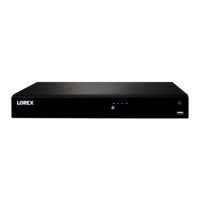
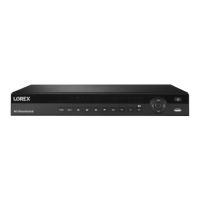
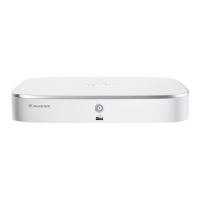
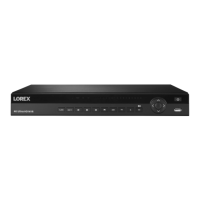
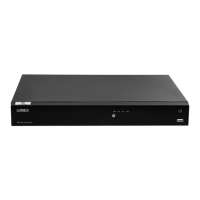
Front Panel Overview

Details the front panel components of the recorder, including status lights and buttons.

Back Panel Overview

Details the rear panel connections and ports for the recorder.

Connect Your Wired Camera

Setup Your Recorder

Connect Recorder to Wi-Fi Router

Connect the recorder to your Wi-Fi router using the included Ethernet cable for initial setup.

Connect USB Mouse and Flash Drive

Connect a USB mouse for navigation and a flash drive for firmware updates or event copying.

Connect Recorder to TV via HDMI

Connect the recorder to a TV using an HDMI cable for display and configuration.

Connect Power Adapter and Complete Setup

Connect the power adapter and follow the on-screen wizard for network setup.

Download Lorex Home App

Download and Install Lorex Home App

Download the Lorex Home app from your device's app store to connect your recorder.

Connect Recorder to App

Tap the '+' icon in the app to add and connect your recorder for remote viewing.

Connect Fusion Wi-Fi Camera

Initiate Wi-Fi Camera Connection

Turn on the camera, open the Lorex Home app, and tap '+' to start the connection process.

Discover and Add Wi-Fi Camera

In Live View, click a channel, select Device Search, and double-click the camera to add it.

Finalize Wi-Fi Camera Setup

Enter the camera's password and allow time for connection. Multiple devices can be added.

Managing Your Notifications

Turn Off Camera Alerts

Disable camera alerts in the app to prevent duplicate notifications after setup.

Need Help?

Support Resources

Access support and related information by scanning QR codes or visiting provided web links.

Register Your Product

Terms of Service and Warranty

View the full Terms of Service and Limited Hardware Warranty Policy on the Lorex website.

FCC Compliance Information

Information regarding the device's compliance with FCC rules and operational conditions.

Summary

Lorex N910 Series Quick Start Guide

Recorder Overview

Front Panel Overview

Details the front panel components of the recorder, including status lights and buttons.

Back Panel Overview

Details the rear panel connections and ports for the recorder.

Connect Your Wired Camera

Setup Your Recorder

Connect Recorder to Wi-Fi Router

Connect the recorder to your Wi-Fi router using the included Ethernet cable for initial setup.

Connect USB Mouse and Flash Drive

Connect a USB mouse for navigation and a flash drive for firmware updates or event copying.

Connect Recorder to TV via HDMI

Connect the recorder to a TV using an HDMI cable for display and configuration.

Connect Power Adapter and Complete Setup

Connect the power adapter and follow the on-screen wizard for network setup.

Download Lorex Home App

Download and Install Lorex Home App

Download the Lorex Home app from your device's app store to connect your recorder.

Connect Recorder to App

Tap the '+' icon in the app to add and connect your recorder for remote viewing.

Connect Fusion Wi-Fi Camera

Initiate Wi-Fi Camera Connection

Turn on the camera, open the Lorex Home app, and tap '+' to start the connection process.

Discover and Add Wi-Fi Camera

In Live View, click a channel, select Device Search, and double-click the camera to add it.

Finalize Wi-Fi Camera Setup

Enter the camera's password and allow time for connection. Multiple devices can be added.

Managing Your Notifications

Turn Off Camera Alerts

Disable camera alerts in the app to prevent duplicate notifications after setup.

Need Help?

Support Resources

Access support and related information by scanning QR codes or visiting provided web links.

Register Your Product

Terms of Service and Warranty

View the full Terms of Service and Limited Hardware Warranty Policy on the Lorex website.

FCC Compliance Information

Information regarding the device's compliance with FCC rules and operational conditions.

Lorex N910 Series Specifications

General IconGeneral
SeriesN910 Series
CategoryDVR
Video OutputHDMI, VGA
Power Supply12V DC
Operating SystemEmbedded Linux
Recording ModesContinuous, Schedule, Motion
Motion DetectionYes
Operating Temperature14°F to 131°F (-10°C to 55°C)
Storage CapacityUp to 10TB
Compression FormatH.264
Network ConnectivityEthernet
Remote AccessLorex Cloud App
Audio Input/Output1 audio input, 1 audio output

Related product manuals