If you want full control over your transition right from the start, we suggest you
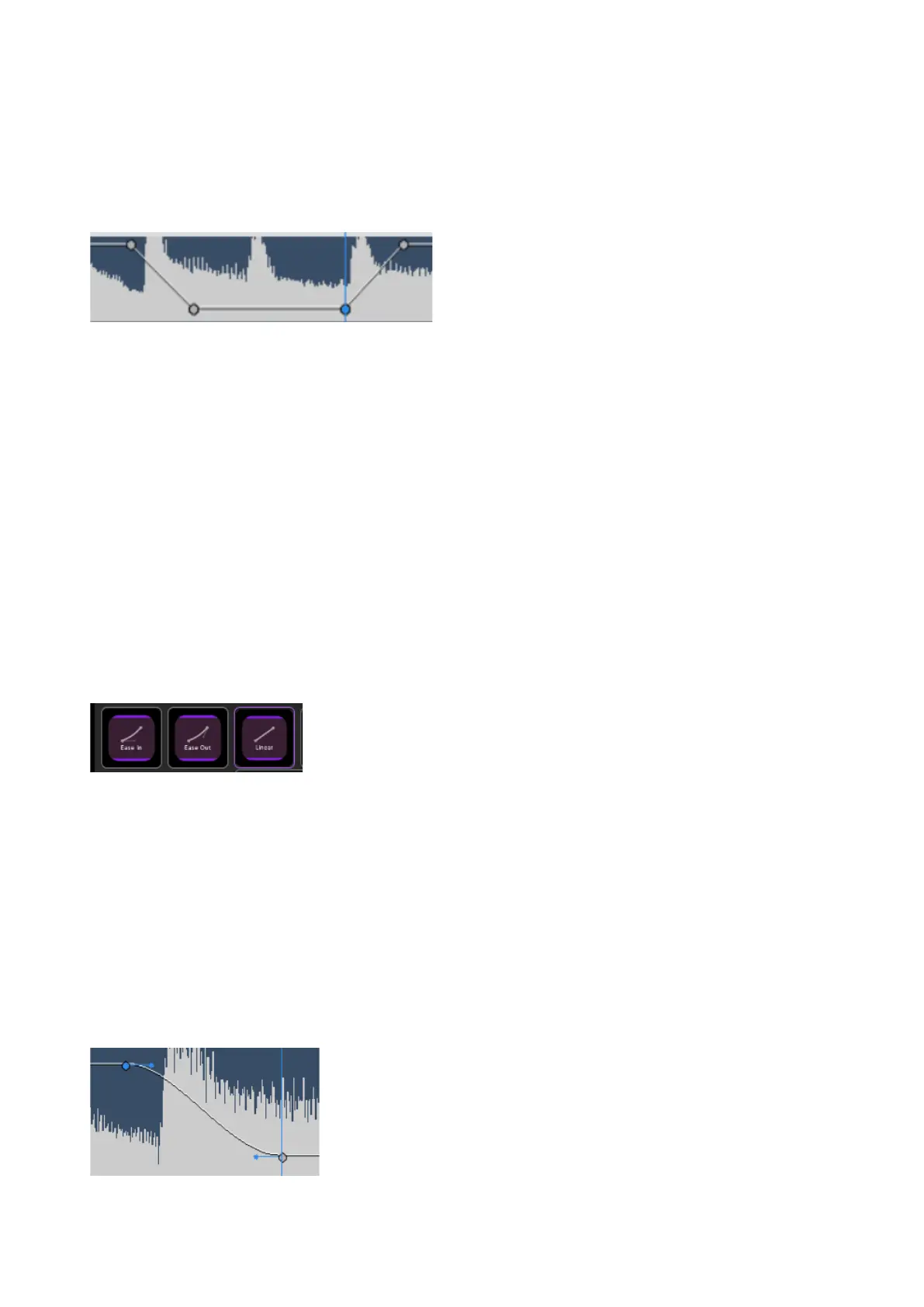
select the PEN TOOL and set keyframes to your audio clip. Alternatively, you can
assign "Add keyframes" action to a touch button if you prefer. Make sure you have
enabled the visibility of keyframes by right-clicking the audio clip and selecting
“Show Clip Keyframes”.
By rotating the wheel, you can move the keyframes up and down on a straight line
and achieve a quick fade in / fade out. If you set several keyframes – to turn down
the volume of background music during an interview or voice over for example – tap
the wheel to toggle between keyframe selection and horizontal keyframe
adjustment.
If the timing for your transition changes, select the keyframe(s) that need to be
moved and turn the dial for vertical movement of those selected keyframes.
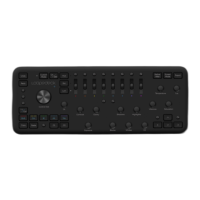
KEYFRAME INTERPOLATION
By changing and adjusting keyframe interpolation, you gain precise control over the
rate of changes in your transitions (or other effects).
è
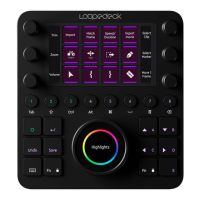
EASE IN
Slows down the value changes entering a keyframe. You can manually adjust the
handles.
è
EASE OUT
Gradually accelerates the value changes leaving a keyframe. You can manually
adjust the handles.


 To Next Page