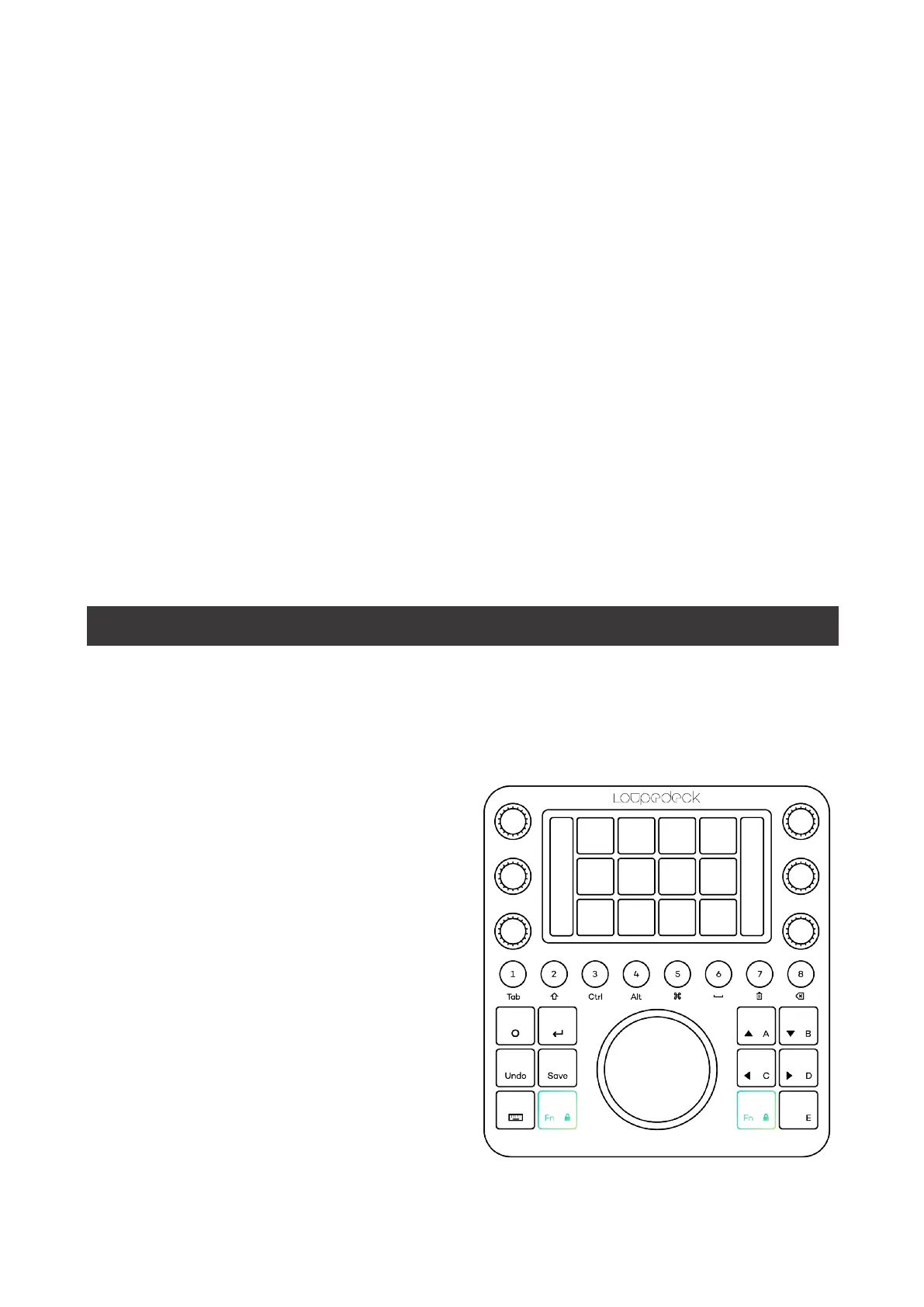
The factory default profile comes with 3 workspaces:
1.
WORKSPACE:
Editing
2.
WORKSPACE:
Color
3.
WORKSPACE:
Audio
Yo u ca n of course have more workspaces: you can have sub-workspaces that you access
with the
Fn
key. This could be handy, for example, for creating a sub-workspace for your
favorite editing functions under the main editing workspace.
Yo u ca n al so c rea te Wo rksp ac es b ut only assign them when needed: for example, a Multi
Camera Workspace with actions that are Multi-Camera-project-specific.
ACCESSING WORKSPACES
Access the workspaces directly using the dedicated round buttons. If you double-tap the
home button, you will see a “home screen” that has links to workspaces. The order the
workspaces are on the pads of the home screen reflects the order they are on the physical
workspace buttons. These can be set by the user. If you are viewing a page of a workspace
that is not its first one, the first tap of home button takes you to the first page for touch
pads and dials of that workspace.
WORKSPACE 1: EDITING
This section includes basic actions that are needed for putting together, cleaning up and
finalising a video for presentation or output. By default, it includes 3 touchpages, 1 dial
page and 2 wheel pages.
1.1
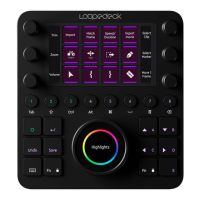
EDIT BASICS - TOUCH PAGE
This first page is filled with shortcuts
that most editors would use frequently
throughout the editing process, along
with two blue page links for organising
your “Project” and accessing “Tools” as
well as the Loupedeck Setup icon.
Tip!:
In case you don’t recognise an
icon right away, a long press on the
touch display will show the action
name on the wheel. This might be
useful if you want to try out other
applications that you are less familiar
with or Windows Apps.


 To Next Page