DEFAULT PROFILE
The default profile that you get with CT may not be 100% fitting for your needs and
workflow, but don’t worry: it's possible to customize Loupedeck CT freely to your liking. We
are aware that people have different needs, workflows and projects – so do feel free to
modify things! Having what matters to you where it matters and memorizing it will speed
up your workflow.
Use Loupedeck Setup to make the profile – or several, if you wish – perfect for you and
save them (e.g. on the built-in CT storage).
CT is not designed to eliminate all mouse usage. Moreover, with some functions, CT works
best when it gets a little help from your mouse (e.g., selecting a clip with the mouse and
then working with the clip with CT). With some actions, CT nicely takes the workload off the
mouse, though – e.g., navigating through the timeline, moving clips, adjusting color, tuning
transitions etc.
Yo u mi gh t thi nk t ha t so me obv iou s an d mu ch-needed actions are missing from the default
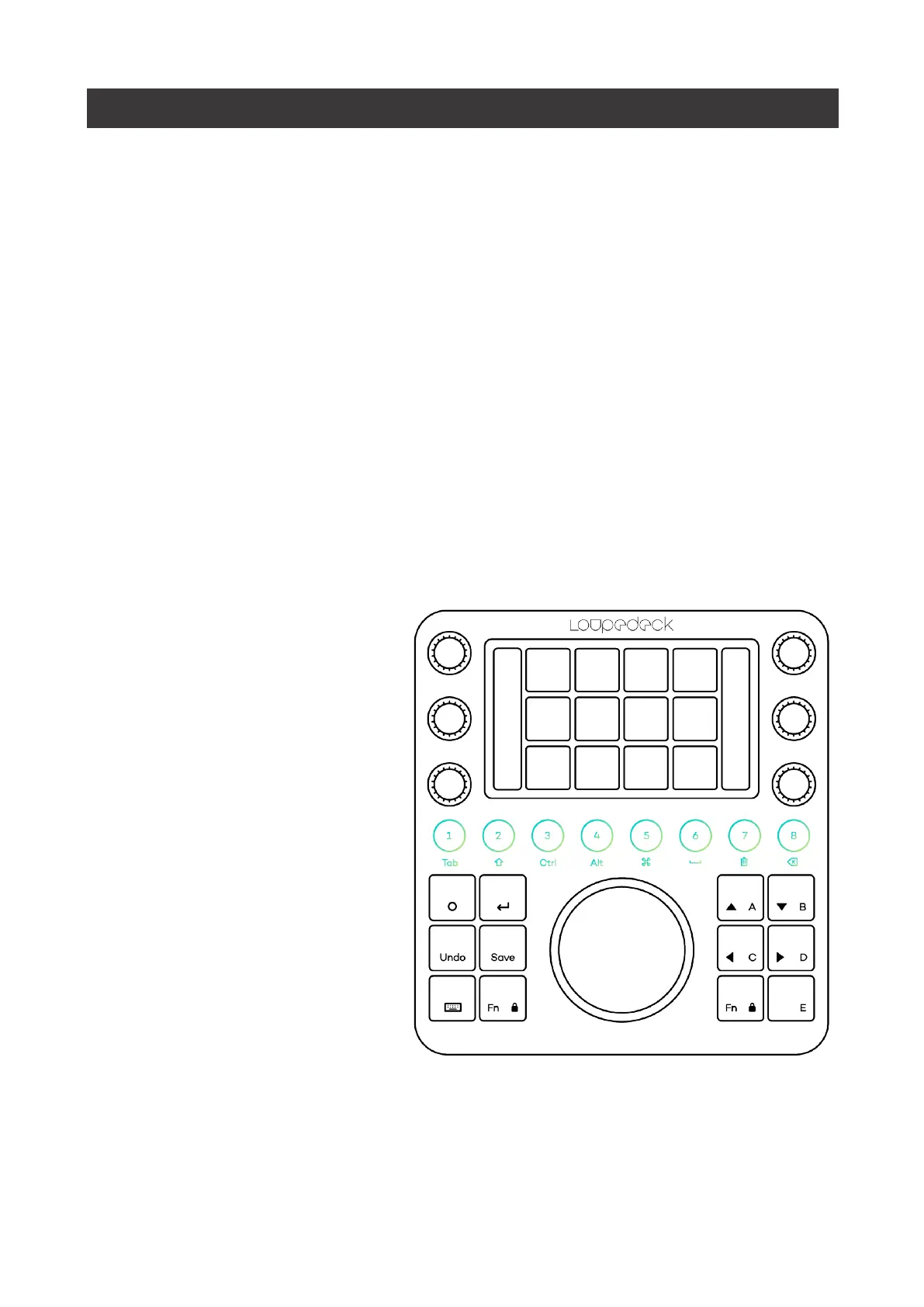
profile. However, by hovering over buttons in the Setup window (or just by trying out the
device), you will notice a few more actions such as:
Mark In
- 4
Mark Out
- 5
Go To In
- Fn + 4
Go To Out
: Fn + 5
Copy
: 7
Paste
: 8
Paste All Attributes:
Fn + 8
Edit
: E
Edit All Tracks
: Fn + E
These actions are useful
throughout the whole editing
process, so we placed them
in easy-to-reach locations.
Tip!:
Remember that
pressing the Fn button gives
you a second layer of
actions. So for example, behind the Undo button, you will find a Redo action by pressing Fn
+ Undo. Enter key works as Esc when you press Fn + Enter.


 To Next Page