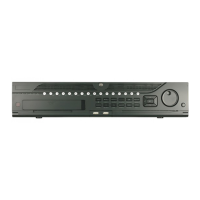
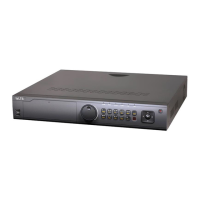
User Manual of 89XX-R Series NVR
18
2. Press the Enter button (12) to display the on-screen keyboard.
3. Input the user name.
4. Press the Enter button (12) to accept input and dismiss the on-
keyboard.
5. Use the Down Arrow button (12) to move to the “Password” field.
6. Input password (use on-
screen keyboard or numeric buttons (3) for
numbers).
7. Press the Enter button (12) to accept input and dismiss the on-
keyboard.
8. Press the OK
button on the screen to accept input and display the
Yes/No” verification prompt (use Up/Down Arrow
between fields)
9. Press Enter button (12) to accept selection.
User name/password prompt depends on DVR is configuration. See
“System Configuration” section.
2 DEV
Enable IR Remote: Press DEV button, enter DVR Device ID# with number keys, press
Enter to pair unit with the DVR
Disable IR Remote: Press DEV
button to clear Device ID#; unit will no longer be
Switch to the corresponding channel in Live View or PTZ Control
Check the checkbox and select
Adjust focus in the PTZ Control
and lower case alphabet, symbols, and
Enter Manual Record setting
Call a PTZ preset by using the numeric
buttons in PTZ control setti
Turn audio on/off in Playback
Auto scan in the PTZ Control
Zoom in the PTZ camera in the PTZ Control
Switches between main and spot output
Zooms out the image in PTZ control mode
Return to Main menu (after successful
Show/hide full screen in Playback mode
Navigate between fields and
Use Up/Down buttons to speed up/slow down recorded video, and Left/Right
buttons to advance/rewind 30
channels in Live View mode
camera movement in PTZ control mode
Confirm selection in any menu
Play or pause video in Playback mode
Stop/start auto switch in auto
Go back to previous screen
Select all items on a list
Switch between play and reverse
camera iris, focus, and zoom
Switch between channels in Synchronous Playback mode
Troubleshooting Remote Control:
Make sure you have installed batteries properly in the remote control. And you have to aim the remote control
at the IR receiver in the front panel.
If there is no response after you press any button on the remote, follow the procedure below to troubleshoot.


 To Next Page
 Loading...