Luowice Wireless Security Camera User ManualLuowice Wireless Security Camera User Manual
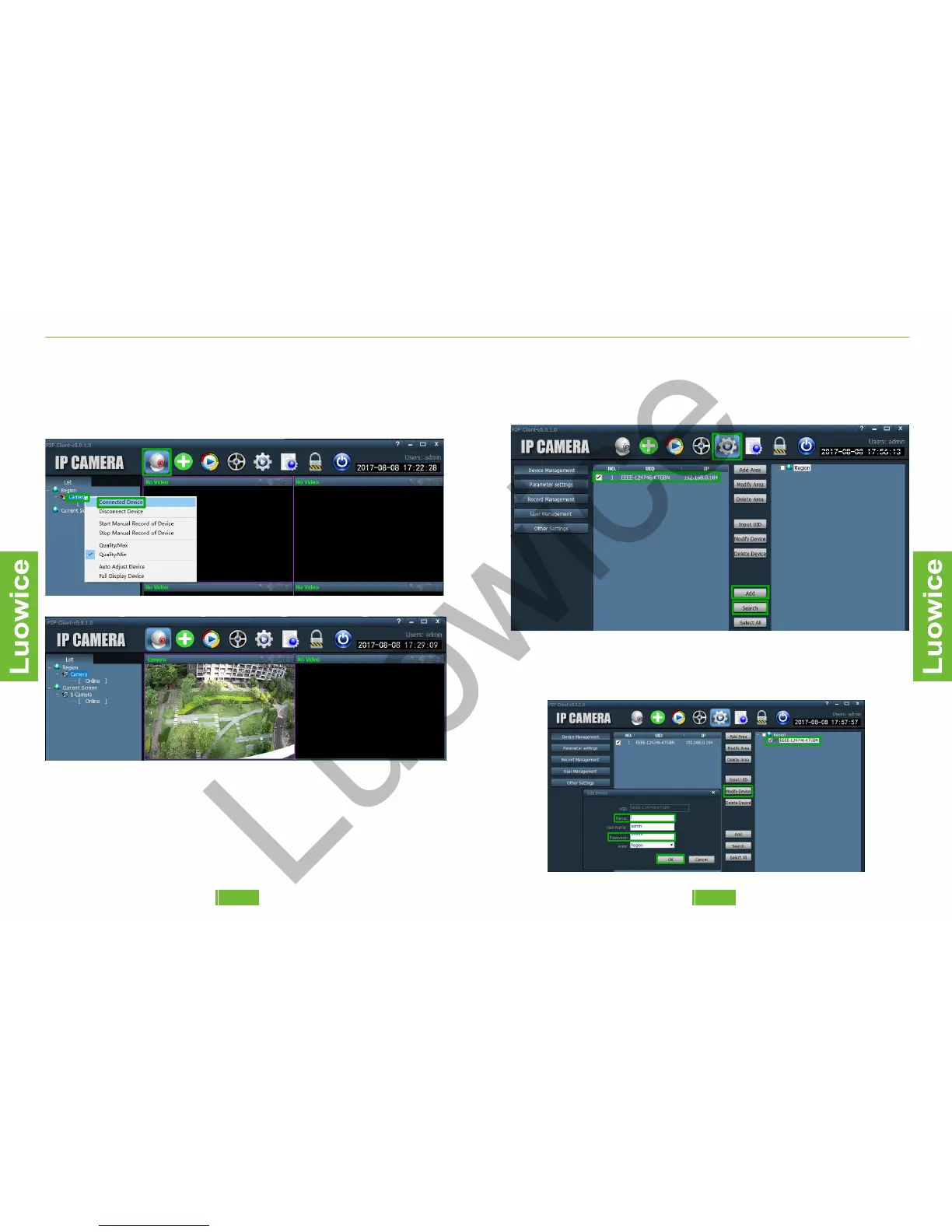
Then click the 'Preview' icon. And the camera will indicate as 'Offline'.
Then take the mouse cursor to the 'Camera' icon the top left side under the
'Region' list and right click the mouse. Then click 'Connected Device' on
the pop-out page. When the camera's status indicates as 'Online', double
click the 'Camera' icon and the camera will show live view on the screen.
Then check the camera under the 'Region' list. And click the 'Modify
Device' icon. Input the name and password of the camera, and then click
'OK' on the pop-out page. Then click the 'Preview' icon and get the live
view on the screen as Method A indicated above.
Method B—Add cameras via searching LAN device
Operation: Please click the 'Config' icon, and then click 'Search'. When
the camera appears on the left box, check the camera, and then click
'Add'. And the camera will appear under the 'Region' list on the right box.
0706


 To Next Page