Luowice Wireless Security Camera User ManualLuowice Wireless Security Camera User Manual
cursor to SUN '1'. Then press the mouse and move it slightly. Loosen the
mouse and the area of SUN '1' will turn into green color and there will be
video record during 1:00am-2:00am on Sunday then.
2.3.4 Action with Alarm
2.3.4 Action with Alarm
2.3.4 Action with Alarm
2.3.4 Action with Alarm
2.3.4 Action with Alarm
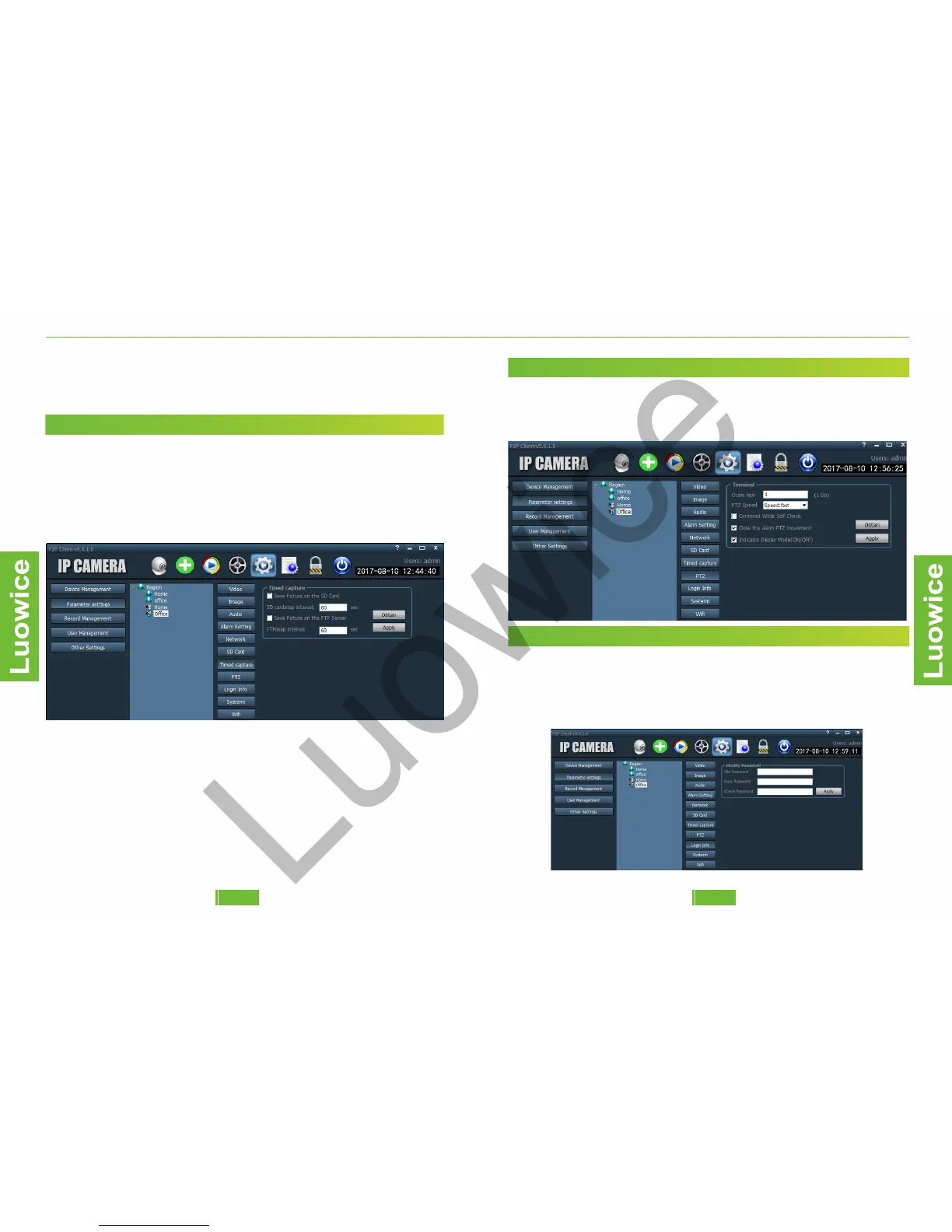
2.3.7 Timed Capture
Function: To modify the storage location of the snapshots you take when
live view the camera on the PC Client.
Operation:The default setting of 'Time capture' is that the picture will be
saved in your PC. You can check 'Save Picture on the SD Card' or/and
'Save Picture on the FTP Server' to save the snapshot in the SD card/FTP
server as well.
2.3.4 Action with Alarm
2.3.4 Action with Alarm
2.3.4 Action with Alarm
2.3.4 Action with Alarm
2.3.4 Action with Alarm
2.3.8 PTZ
Function: Modify the PTZ settings.
Operation: The device will obtain the appropriate settings
automatically based on your network condition. We suggest not to
modify the settings manually.
2.3.4 Action with Alarm
2.3.4 Action with Alarm
2.3.4 Action with Alarm
2.3.4 Action with Alarm
2.3.4 Action with Alarm
2.3.9 Login Info
Function: Modify the password.
Operation: Please kindly input the old password and set up new password.
Please keep the password the same in both 'New Password' and 'Check
Password'. And keep the password within 15 letters while avoid using
special characters such as #, %.
1716


 To Next Page