20
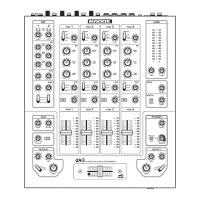
d.4 Pro DJ Production Console
d.4 Pro 4-channel DJ Production Console
If you think your Mackie product has a problem,
please check out the following troubleshooting tips and
doyourbesttoconrmtheproblem.VisittheSupport
section of our website (www.mackie.com/support)
where you will find lots of useful information such as
FAQs, documentation, and user forums. You may find
the answer to the problem without having to send your
Mackie product away.
Herearesomethingsyoucancheck:
Troubleshooting
No Power
• Ourfavoritequestion:Isitpluggedin?
• Makesurethepowercordissecurelyseatedinthe
IEC socket [17] and plugged all the way into the
AC outlet.
• MakesuretheACoutletislive(checkwithatester
or lamp).
• Makesuretherearpanelpowerswitch[16]isin
the on position (up).
• AretheEQcontrolsonthefrontpanelilluminated?
If not, make sure the AC outlet is live.
• Areallthelightsoutinyourtown?Ifso,contact
your local power company to get power restored.
• IfnoLEDsareilluminated,andyouarecertainthat
the AC outlet is live, it will be necessary to have
your d.4 Pro serviced. There are no user serviceable
partsinside.Referto“Repair”onthenextpageto
find out how to proceed.
Appendix A: Service Information
Bad Channel
• Checktheassignswitch[37]isnotintheoffposi-
tion.
• Checkthechannel’sprogramfader[38]isnotfully
down.
• Arethatchannel’sEQcontrolsallturneddown?
• Isthesignalsourceturnedup?Makesurethe
signal level from the selected input source is high
enoughtolightupsomeoftheprogrammeter[39]
LEDs.
• Isthecorrectinputchosenwiththesource[30]
switch,andisitsprogramlevel[29]turnedupfar
enough?
• Trythesamesourcesignalinanotherchannel,set
up exactly like the suspect channel.
• Makesuretheauxknob[35]isturnedtofullydry
if you are not using an external processor.
Bad Output
• Istheassociatedlevelcontrol(ifany)turnedup?
• Ifit’soneofthemainoutputs,tryunpluggingthe
others.Forexample,ifit’stheleftXLRmainout
[12], unplug the left RCA main out [14]. If the
problem goes away, it’s not the mixer.
• Ifaleftoutputispresumeddead,switchtheleft
and right cords at the mixer end. If the problem
stays on the left side, it’s not the mixer.


 To Next Page