110 Chapter 5: Bitmaps
Note: To repeat any of these effects after using them, press Control+Y (Windows) or Command+Y
(Macintosh).
To flip, rotate, skew, or apply effects to part of a bitmap:
1 Select part of a bitmap in the Paint window with the Marquee tool.
2 Use any of the following effects:
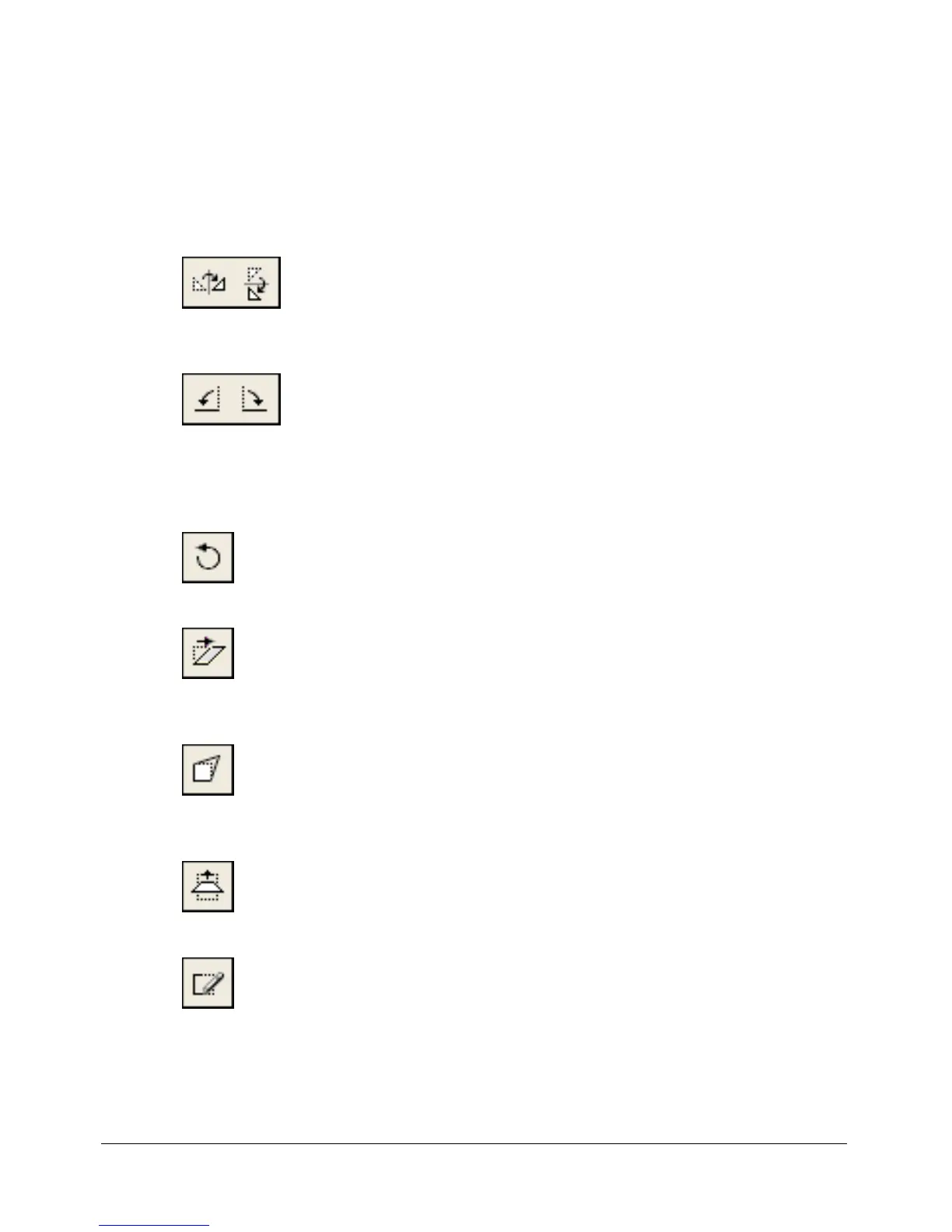
■ To flip the selection, click the Flip Horizontal button to flip right to left, or click the Flip
Vertical button to flip top to bottom.
■ To rotate the selection 90° counterclockwise or 90° clockwise, click the Rotate Left or
Rotate Right buttons, respectively.
■ To rotate the selection by any amount in either direction, click the Free Rotate button, and
drag the rotate handles in any direction. (You can rotate a sprite that contains a bitmap
instead of the bitmap. For more information, see “Rotating and skewing sprites”
on page 72.)
■ To skew the selection, click the Skew button, and drag any of the skew handles.
■ To warp the shape of the selected area, click the Warp button, and drag any handle in any
direction.
■ To create a perspective effect, click the Perspective button, and drag one or more handles to
create the effect you want.
■ To create an outline around the edges of the selected artwork, click the Trace Edges button.



 To Next Page