58 Chapter 3: Sprites
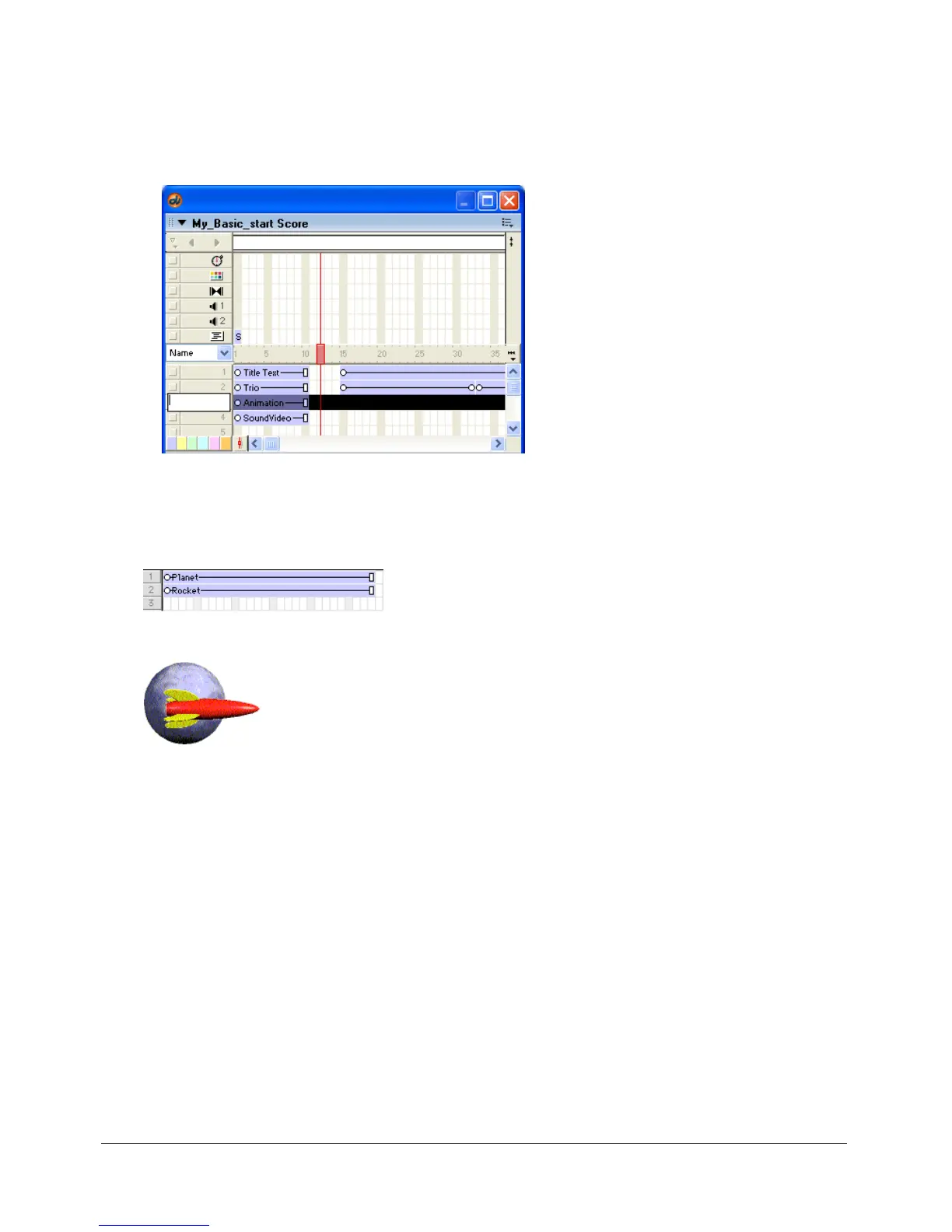
To name a sprite channel:
1 Double-click a channel in the Score sprite channel column.
A text box appears.
2 Type a name for the channel and press Enter.
Layering sprites
A sprite appears in front of other sprites on the Stage according to its channel. Sprites in higher-
numbered channels appear in front of sprites in lower-numbered channels.
The rocket in channel 2 appears in front of the planet in channel 1.
To change a sprite’s layer:
1 In the Score, select the sprite. To select the contents of an entire channel, click the channel
number at the left side of the Score.
2 Do one of the following:
■ Select Modify > Arrange, and select a command from the submenu to change the order
of sprites.
■ Drag the sprite in the Score from one channel to another.
■ If you selected a channel, drag its contents to another channel.
Note: If you give each sprite a unique name, you don’t have to update any scripts you have written
when you move a sprite to a new channel. For more information, see “Naming sprites” on page 55.



 To Next Page