156 Chapter 7: Color, Tempo, and Transitions
3 From the Palette pop-up menu, select the palette that you want to use to create a new palette
cast member.
4 Double-click any color within the palette.
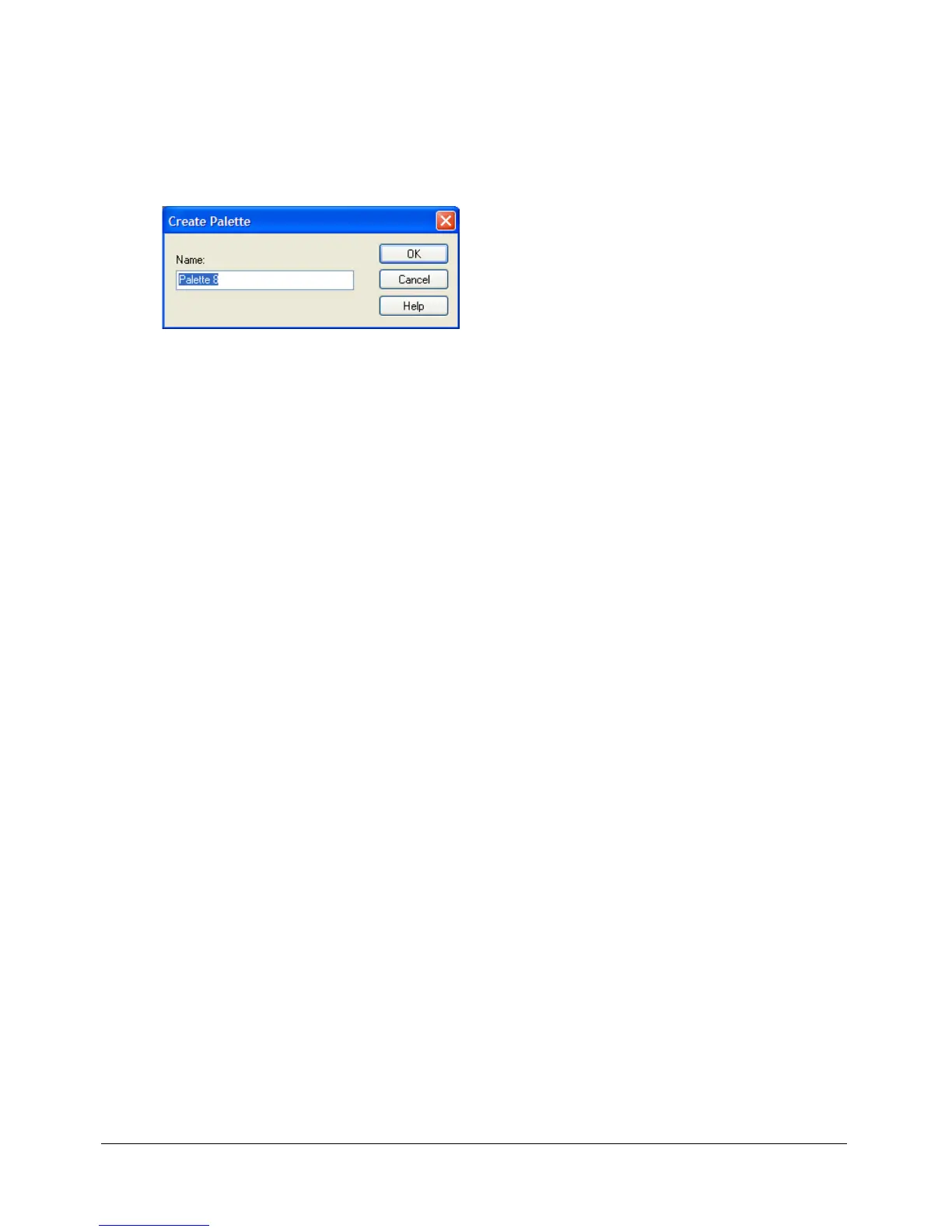
Director makes a copy of the palette and prompts you to enter a name.
5 In the Create Palette dialog box, enter a name and click the OK button.
6 The Color dialog box opens. Make any changes you want and click the OK button.
7 The new color palette appears in the Cast window bearing the name you gave it.
To view or change color palette cast member properties:
1 Select a color palette cast member.
2 To display the Property inspector, select Modify > Cast Member > Properties, or select
Window > Property Inspector.
3 If necessary, click the Member tab and display the Graphical mode.
The following non-editable settings appear:
■ The cast member size in kilobytes
■ The cast member creation and edit dates
■ The name of the last person who modified the cast member
4 To view or edit the cast member name, use the Name text box.
5 To add comments about the cast member, use the Comments text box.
6 To specify how Director removes the cast member from memory if memory is low, select one
of the following options from the Unload pop-up menu:
3—Normal sets the selected cast members to be removed from memory after any priority 2 cast
members have been removed.
2—Next sets the selected cast members to be among the first removed from memory.
1—Last sets the selected cast members to be the last removed from memory.
0—Never sets the selected cast members to be retained in memory; these cast members are
never unloaded.
7 To modify the colors in the palette, click Edit.


 To Next Page
 Loading...