Editing and formatting text 169
Formatting entire cast members
Director can apply formatting changes to entire cast members. This process is much faster than
manually opening each cast member and applying changes. Any change you apply to a cast
member affects all the text within the cast member.
To format text cast members:
1 In a Cast window or on the Stage, select the cast members you want to change.
You can select as many cast members as you want to change.
2 Use the Text inspector, Modify > Font, or Modify > Paragraph to make formatting changes.
The change affects all the text in the selected cast members.
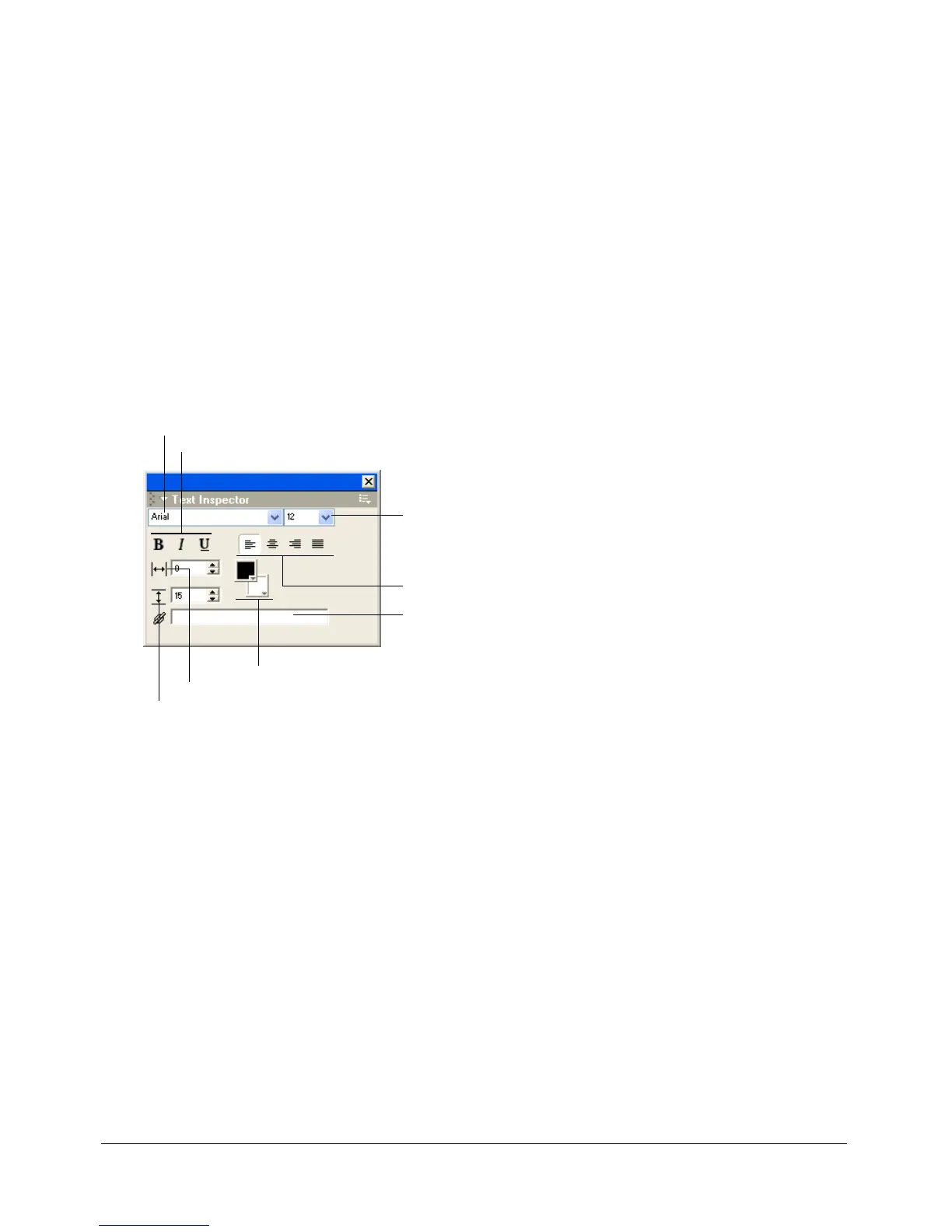
Formatting with the Text inspector
The Text inspector provides many useful formatting controls in a compact window for use on the
Stage or with entire cast members in the Cast window.
Most of the formatting controls also appear at the top of the Text window and in the Font and
Paragraph dialog boxes.
To display the Text inspector:
• Select Window > Text Inspector, or press Control+T (Windows) or Command+T
(Macintosh).
Font
Size
Line Spacing
Kerning
Alignment options
Hyperlink
Character formatting
Foreground and Background Colors



 To Next Page