56 Chapter 3: Sprites
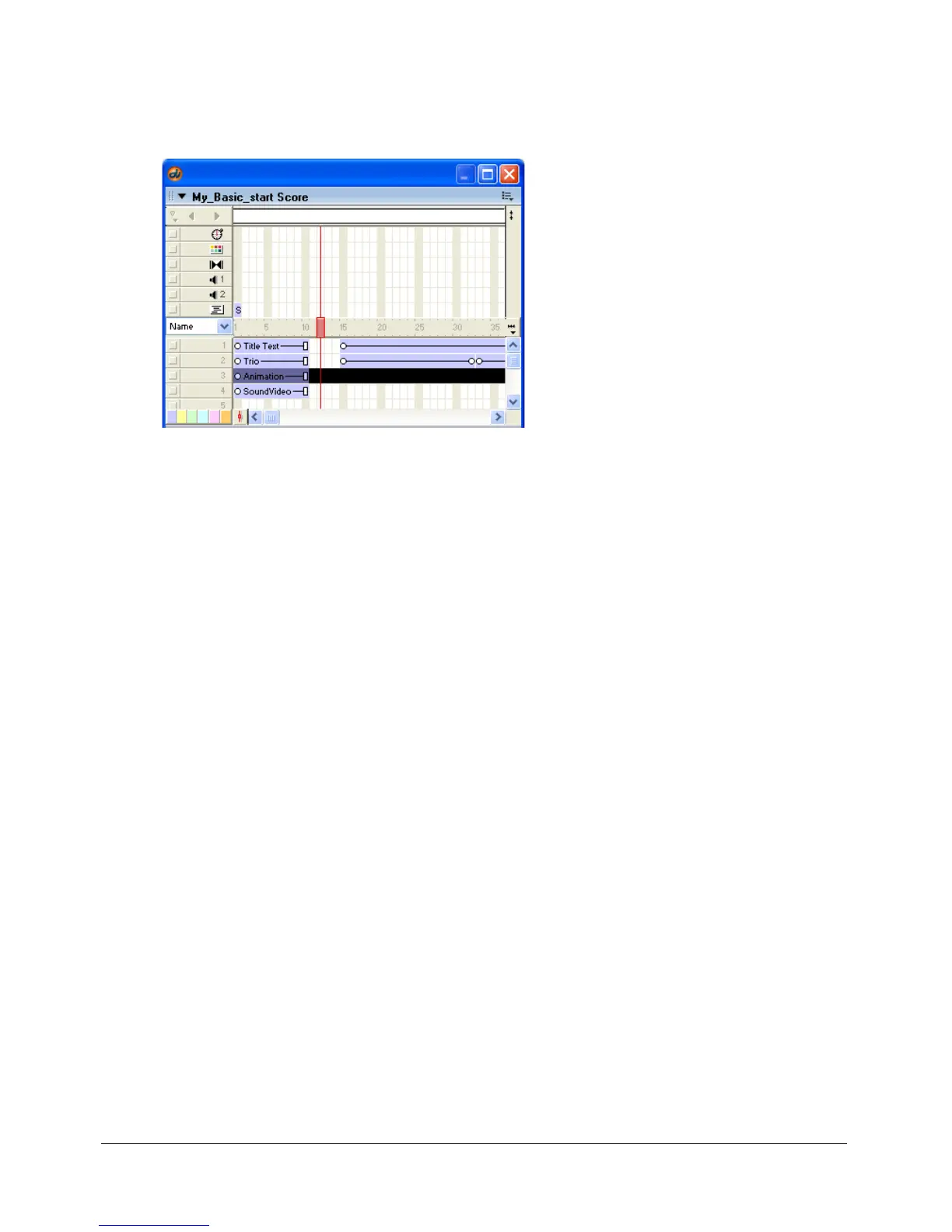
To view a sprite in the Score by its name:
1 In the Score, select the Sprite labels pop-up menu.
2 Select Name. All the sprites in the score appear with their sprite name listed.
To view a sprite on the Stage by its name:
• Select a sprite on the Stage. The sprite name appears on the second line of the sprite overlay.
To edit the name of a sprite:
1 Select the sprite and open the Property inspector.
2 Enter a name in the Name text box.
Setting the Sprite name property in Lingo or JavaScript syntax
The new sprite name property is accessible as a standard sprite property. The
name property can
be read at all times, but names can only be assigned via script when in score recording mode.
The syntax is as follows:
put sprite(1).name -- this displays the name in the message window.
You can also refer to the sprite by using its given name when evoking script commands on the
sprite. For example:
sendSprite ("pete", #handlername) -- call the "handlername" method in
sprite("pete")
put sprite("somename").rect -- display the sprite's rect
To find out what sprite is targeted for a particular name, you can use the following expression:
sprite("myName").spriteNum
To create a name for a sprite, the assignment must be made in score recording mode. Note that
you don’t have to use the updateFrame command, but the record frame must be a frame where
the sprite exists in the score.
beginrecording
sprite(2).name = "tubular"
endrecording
For more information about this property, see the Scripting Reference topics in the Director
Help Panel.



 To Next Page