Using the Actions panel and Script window 59
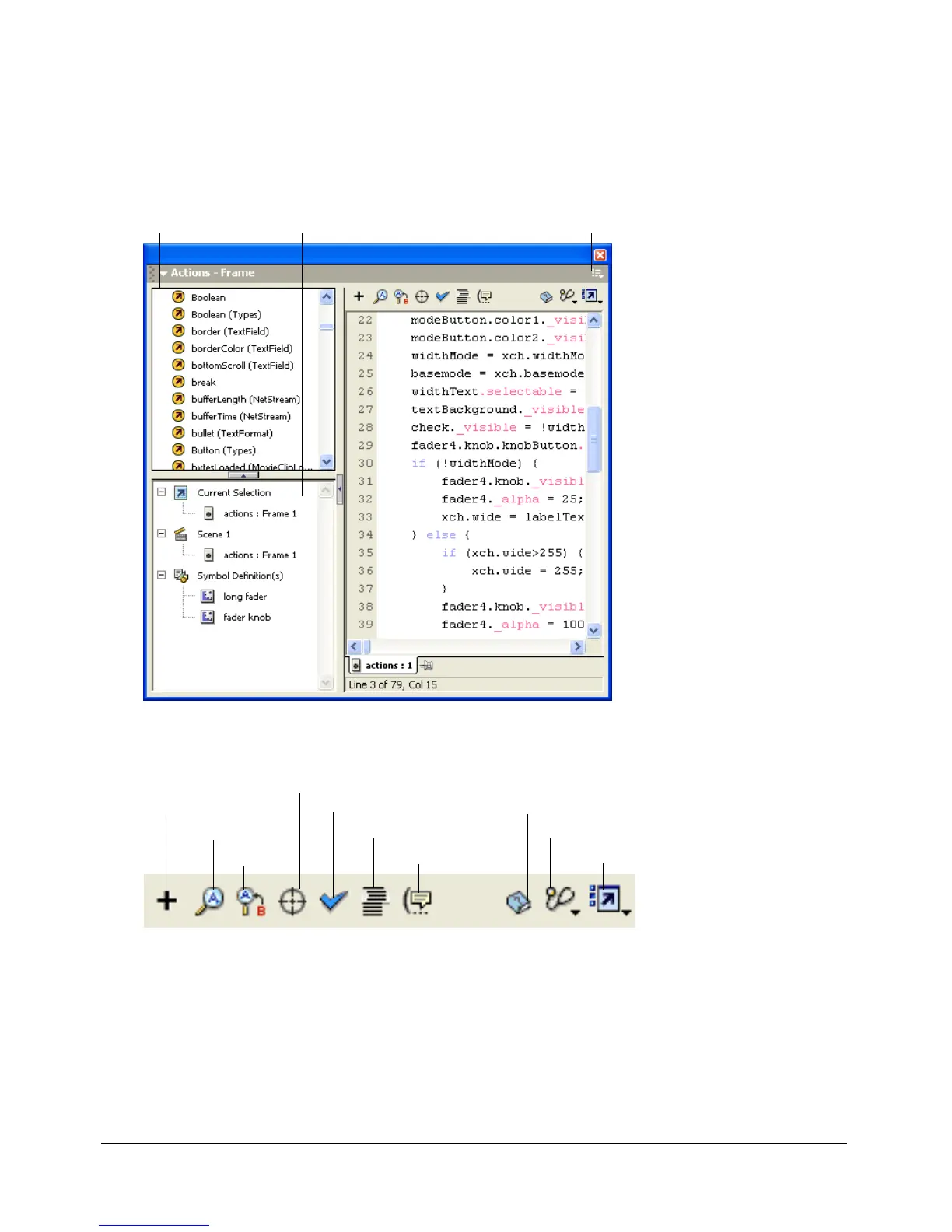
In the Actions panel, the Actions toolbox also contains a Script navigator, which is a visual
representation of the locations in the FLA file that have associated ActionScript; you can navigate
through your FLA file here to locate ActionScript code. If you click an item in the Script
navigator, the script associated with that item appears in the Script pane, and the playhead moves
to that position on the Timeline. If you double-click an item in the Script navigator, the script
gets pinned (see “Managing scripts in a FLA file” on page 60).
There are also several buttons above the Script pane:
You edit actions, enter parameters for actions, or delete actions directly in the Script pane. You
can also double-click on an item in the Actions toolbox or the Add (+) button above the Script
pane to add actions to the Script pane.
Actions toolbox Script navigator* Pop-up menu*
* Actions panel only
View Options pop-up menu
Debug Options*
* Actions panel only
Reference
Replace
Find
Add item to script
nser
arge
pa
Check Syntax
Auto Format
Show Code Hint



 To Next Page