Using the Output panel 77
Using the Output panel
In test mode, the Output panel displays information to help you troubleshoot your SWF file.
Some information, such as syntax errors, is displayed automatically. You can display other
information by using the List Objects and List Variables commands. (See “Listing a SWF file’s
objects” on page 77 and “Listing a SWF file’s variables” on page 78.)
If you use the
trace statement in your scripts, you can send specific information to the Output
panel as the SWF file runs. This could include notes about the SWF file’s status or the value of an
expression. (See “Using the trace statement” on page 79.)
To display the Output panel, select Window > Development Panels > Output or press F2.
Note: If there are syntax errors in a script, the Output panel appears automatically when you check
syntax or test your SWF file.
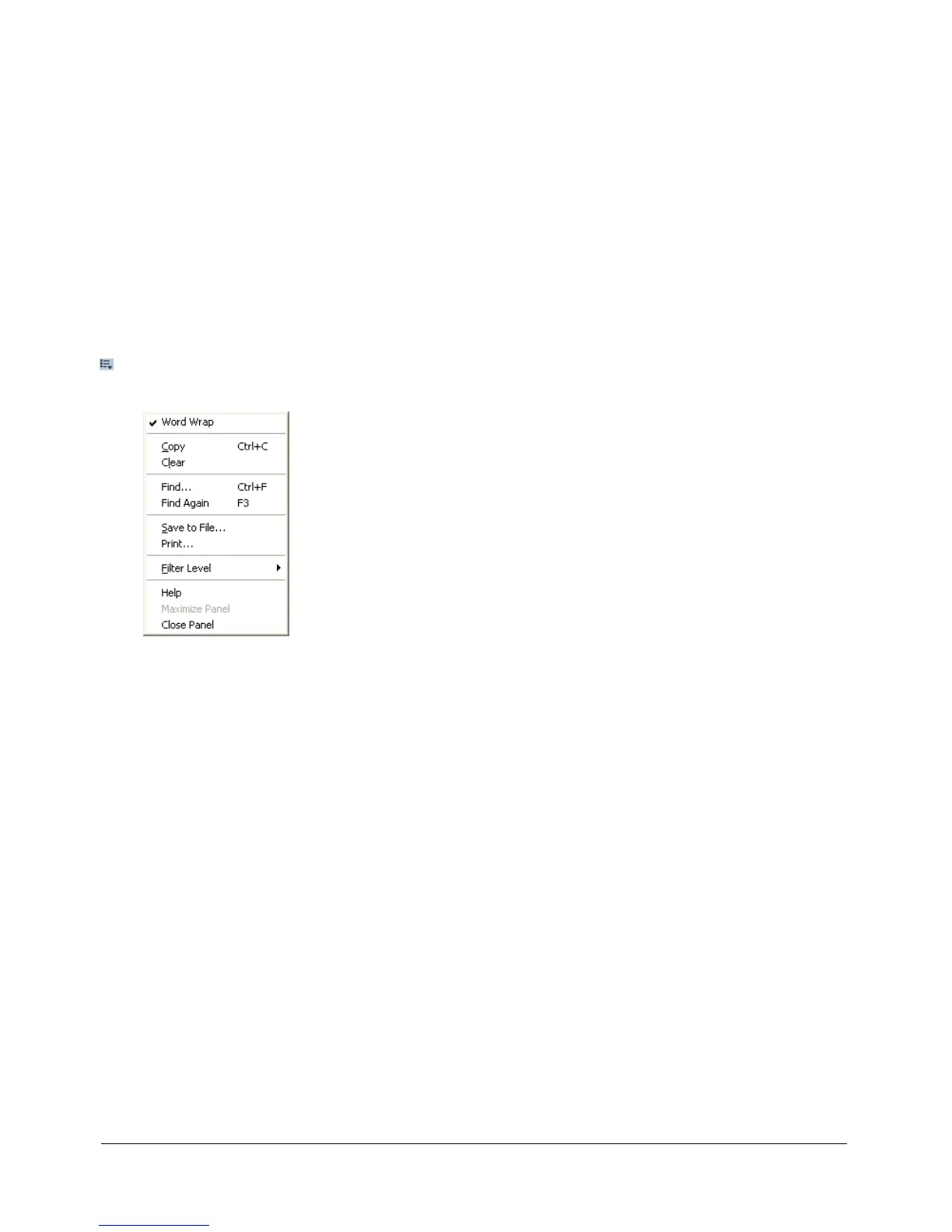
To work with the contents of the Output panel, use the Options pop-up menu in the upper
right corner.
Listing a SWF file’s objects
In test mode, the List Objects command displays the level, frame, object type (shape, movie clip,
or button), target paths, and instance names of movie clips, buttons, and text fields in a
hierarchical list. This is especially useful for finding the correct target path and instance name.
Unlike the Debugger, the list does not update automatically as the SWF file plays; you must select
the List Objects command each time you want to send the information to the Output panel.
The List Objects command does not list all ActionScript data objects. In this context, an object is
considered to be a shape or symbol on the Stage.
To display a list of objects in a movie:
1 If your movie is not running in test mode, select Control > Test Movie.
2 Select Debug > List Objects.
A list of all the objects currently on the Stage is displayed in the Output panel, as shown in
this example:
Level #0: Frame=1 Label="Scene_1"
Button: Target="_level0.myButton"
Shape:
Movie Clip: Frame=1 Target="_level0.myMovieClip"
Shape:
Edit Text: Target="_level0.myTextField" Text="This is sample text."



 To Next Page