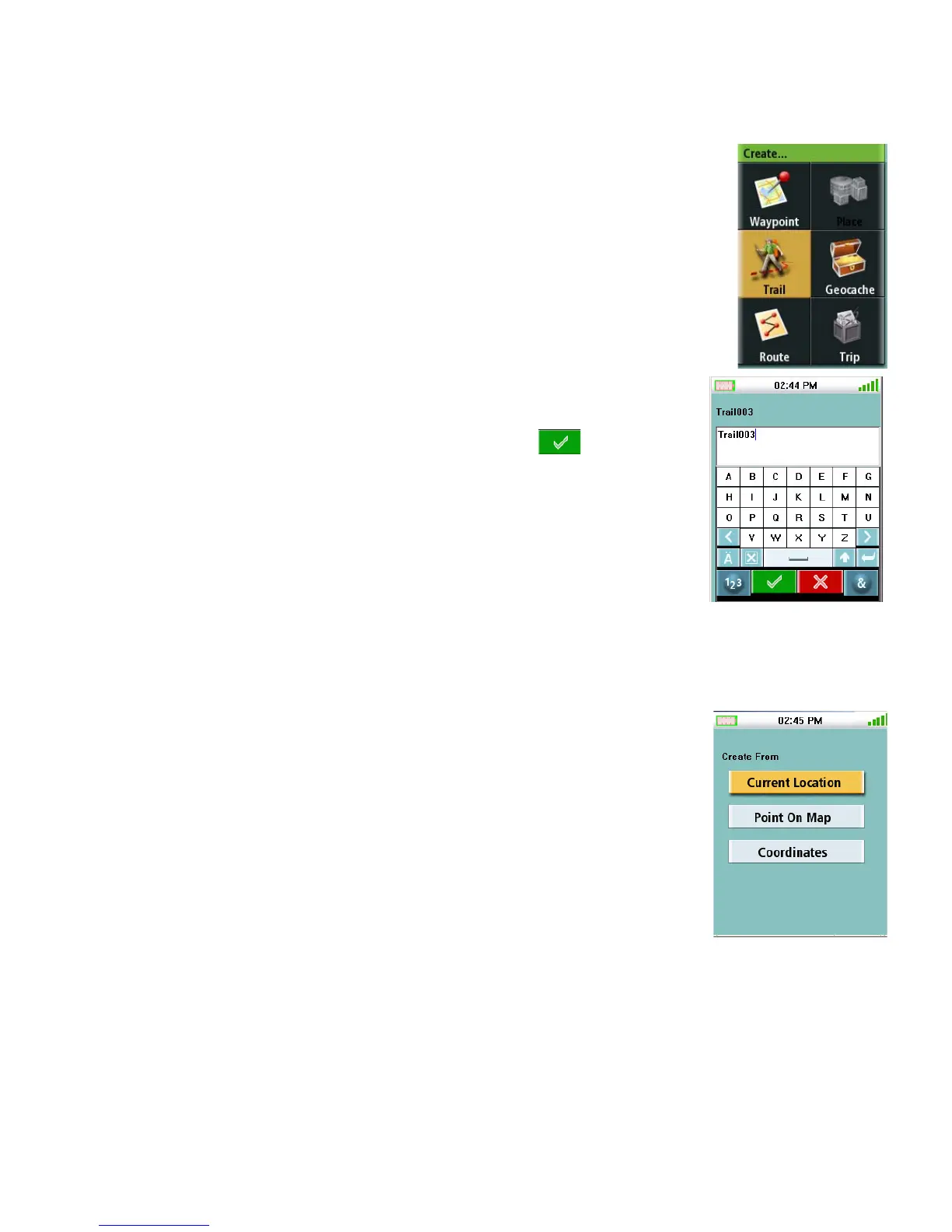
Create Menu 9
Trail
Creating a Trail from Current Track History
1. Access the Main Menu, highlight “Create” and press Enter.
2. Select “Trail” from the Create Menu.
3. Select “Current Track”.
4. Use the keypad to enter a name for the trail. (The default name
“TrailXXX” will be used if no name entered.)
5. When the name has been entered, highlight and press
Enter.
Geocache
Creating a Geocache
1. Access the Main Menu, highlight “Create” and press Enter.
2. Select “Geocache” from the Create Menu.
3. Select “Current Location”, “Point On Map”, or “Coordinates”.
Current Location displays the Waypoint screen with the
coordinates for your present location filled in.
Point on Map displays the Map screen. Pan around the map until
the pan cursor is at the point you want the waypoint created for
and press Enter. The Waypoint screen is displayed with the
coordinates for the pan cursor filled in.
Coordinates displays the Waypoint screen with all values set to
current location.
Use the PAGE/GO TO button to access Options.










 To Next Page