MAKERBOT METHOD MANUAL PAGE 15
2
3
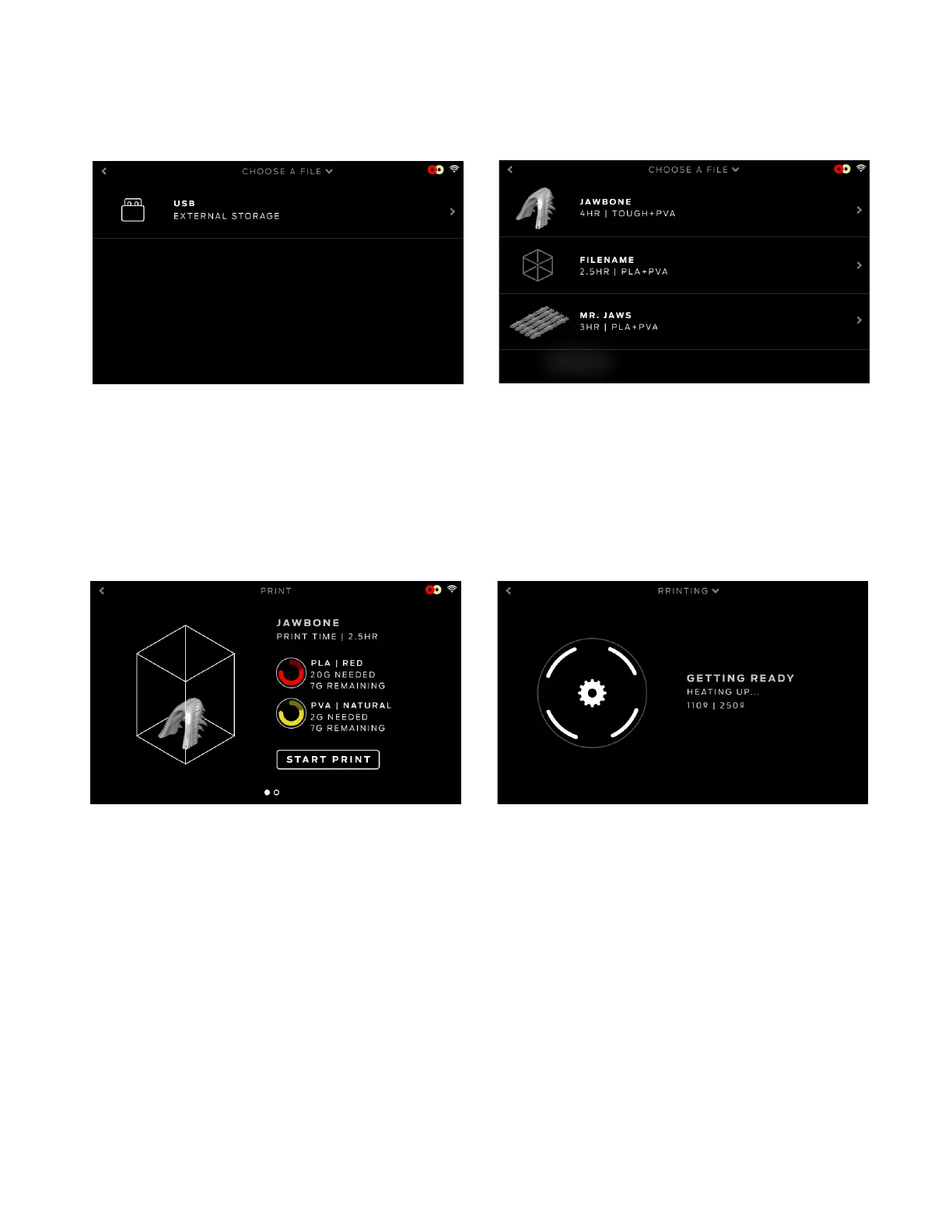
START PRINT
PRINTING
Choose a .MakerBot file that has been exported from MakerBot
Print to begin printing. Note that the file needs to be formatted
from within MakerBot Print for MakerBot Method before being
exported.
Select [START PRINT] to begin printing the file.
During the printing process you will be able to view print progress
information and other printer details.
1. Percentage of the print completed.
2. Time elapsed and estimated time remaining in the print. While the
Heated Chamber and Performance Extruders are heating, the screen
will display the current and target temperatures.
3. While actively printing, swipe the touch screen between the following
screens:
• Print progress
• Rendering of your model or layout
• File information
• Print options information
• Extruder temperatures
4. The Print menu contains the following options:
• PAUSE - Press the pause button on the screen to temporarily
pause your print.
• CHANGE MATERIAL - Select this option to load or unload material.
• CANCEL - Select this option to cancel your print.
START A PRINT
1
Use the touchscreen to scroll through the list of available files
and press it again to select the file you would like to print.
SELECT A FILE
Select [PRINT] on the touchscreen to initiate a print stored on a
USB flash drive.
Push the icon to select the location of the file you want to print.
Select [USB STORAGE] to print a file stored on a USB drive
inserted into the USB port.



 To Next Page