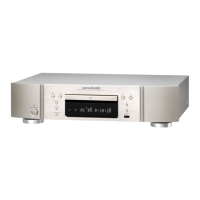
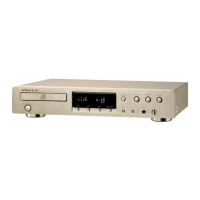
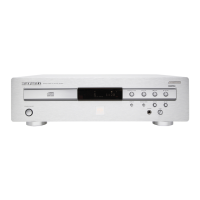
30
UD9004
2.Update of the IP ROM
NOTE : When the firmware is updated, the UD9004's settings and picture adjustments may be reset. Make a note of the
settings before updating, and set them again after updating.
2.1. Installation of application for IP ROM update
Prepare a computer connected to the Internet.
(1) From the SDI's UD9004 screen, download the following application software:
• Soft : silicon developer toolkit
2.2. Preparations (proceeding to connections and the product mode)
(1) Connect the set and computer using an RS-232C cable (straight type).
(2) With no disc loaded in the set, plug the AC cord into the power outlet while pressing the SD/DISC and 3 buttons on
the main unit simultaneously.
•The product mode is set and the "HD" indicator lights.
•While in the product mode, no video signals are output from the HDMI terminal.
(3) After "NO DISC" appears on the FL tube, press the SD/DISC button to display "IP/S Update".
•The display switches as shown below each time the SD/DISC button is pressed.
"SD Mode" → "F/E Update" → "IP/S Update" → "Disc Mode" → "SD Mode"
(4) Press the 1 buttom/
"IP/S Writing" is displayed on the FL tube.
2.3. Update
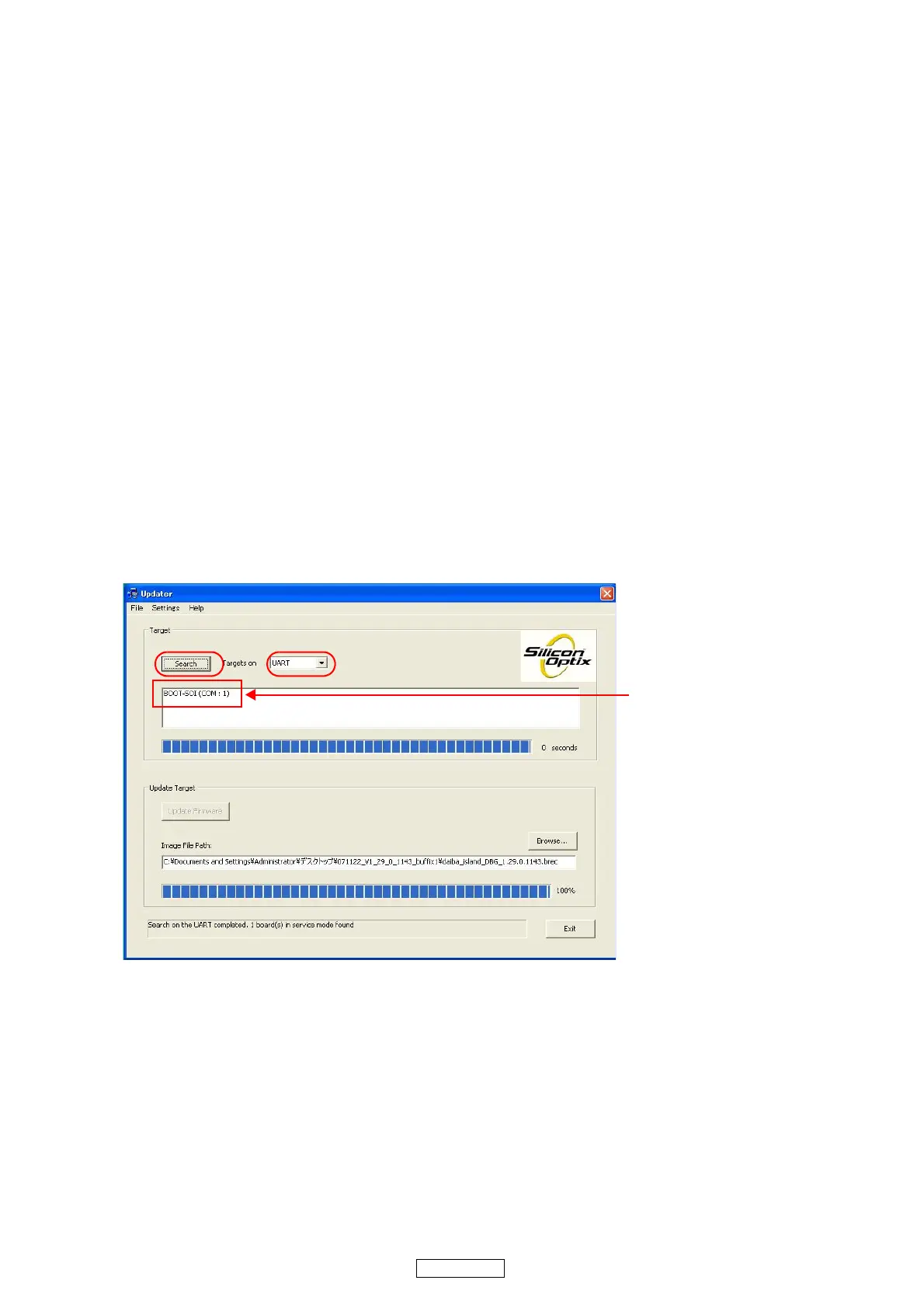
(1) From the Windows Start menu, open "All Programs" → "Silicon Optix" → "Developers ToolKit" → "Updater" → "Up-
dater.exe".
(2) At "Targets on" (q), select "UART", then click the "Search" button(w).
qw
" BOOT-SOI(COM:1)" is displayed if
the target is recognized normally.



 To Next Page