25
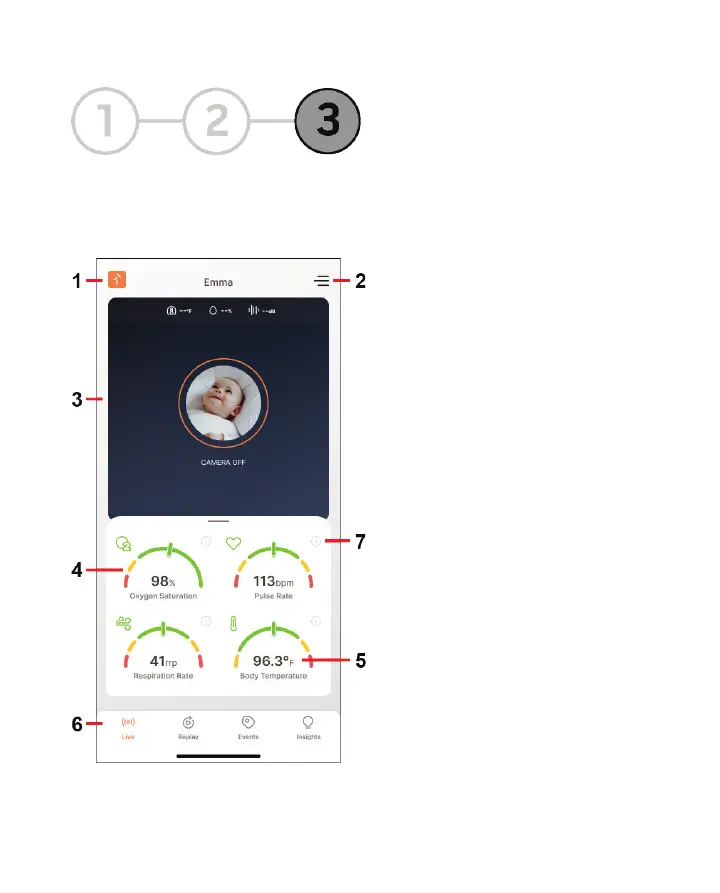
Step 3: View Live Data
After setting up the Masimo Stork App, connecting the Hub and Sensor and attaching the Boot to the
baby, select Open Stork from the App screen. The Vitals Dashboard screen displays data from the
Masimo Sensor. The Live screen is also the Masimo Stork App Home Screen, with access to other App
functions.
* If a sensor is not paired to the Masimo Stork Hub,
a dash displays for the number, and the pointer
does not show on the gauge.
1. System Status
Displays connected devices. Access to turn
connected devices On or Off.
2. Side Menu
Displays the App Menu and provides links to App
functions and features.
3. Camera Display
Displays the camera image, ambient temperature,
humidity and sound level where the camera is
located.
4. Vitals Gauge *
Displays the data in a gauge style.
5. Vitals Display *
Displays the data in numerical format. See Health
Settings on page 31.
6. Bottom Navigation
Provides links to data specific functions and
features. See Bottom Navigation on page 31.
7. Data Information
Displays detailed information about the data
measurement.



 To Next Page