___________________________________________________________________________________
MBT1015 rev-C
User’s Manual Versio18.08
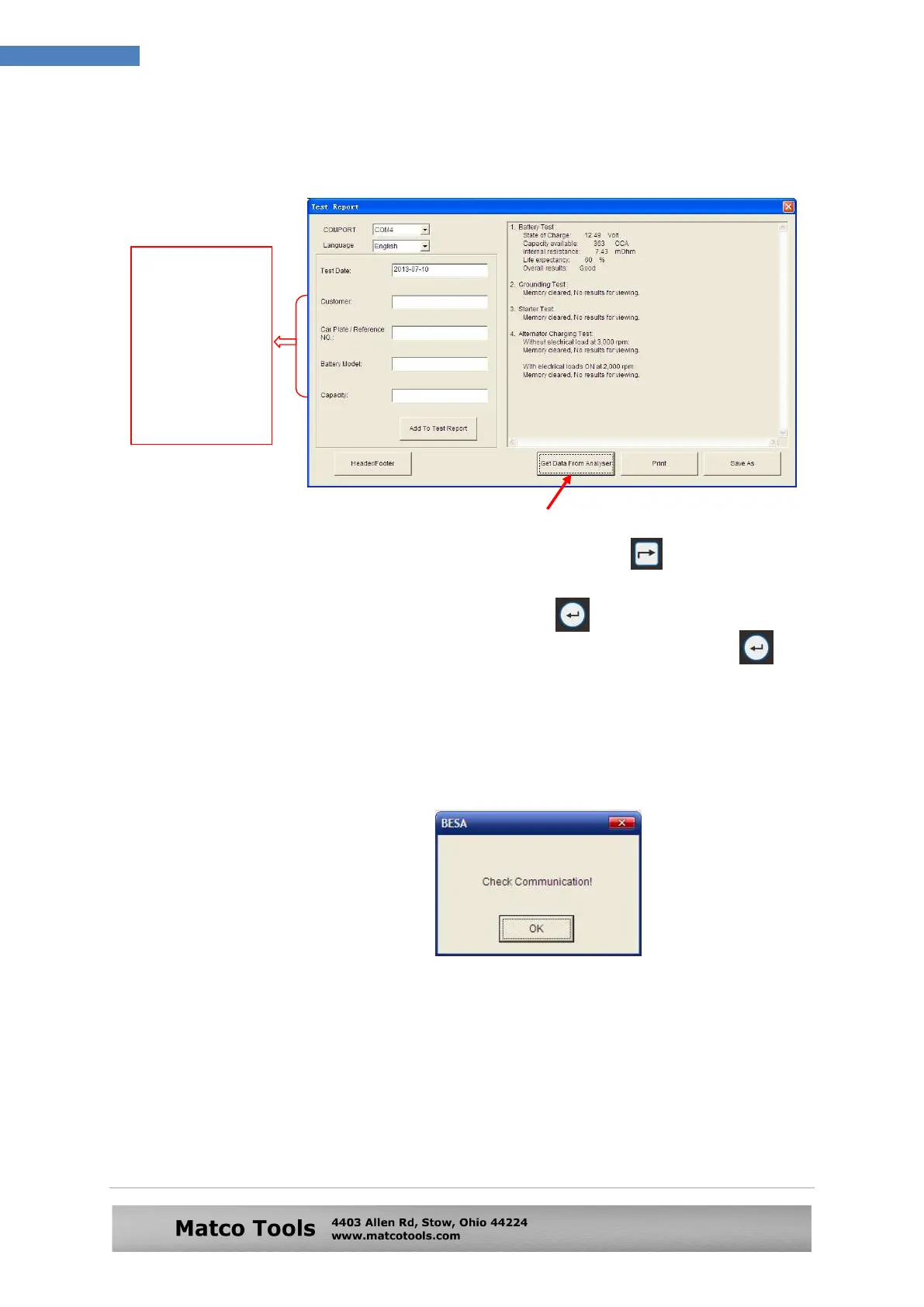
3. While on this display (Fig.81) click on [Get Data from Analyser] tab on
the PC and the Test Result will appear. See example below.
4. If you need to view another test result, press key to go back to
the display as shown in Fig.80.
5. Select the next test Result and press key, and as usual the
display will go to the particulars screen (Fig.81). Now press key
again will display the results.
6. ON the PC, click “Get Data from Analyser” tab and the results will be
transferred to the PC.
If there is no communication, a message text box will appear (see
below)
.
In this case, unplug the Analyzer from the PC and repeat Step 4 to Step
6. If problem persist, then select an alternate COMPORT individually
from the dropdown list and click [Get Data from Analyser] tab to see
whether the Last Test Result will appear (as displayed in Step 6 No.4).
If the above fails again, then try plugging the Analyzer to the PC’s
another USB port and repeating Step 4 to Step 6 again.
You can type in
the particulars
here and then
click [Add to Test
Report] tab to be
included in the
test report which
will be stored
and printed out if
you wish.


 To Next Page
 Loading...