Using Scan Tool Memory
VIEWING DATA IN MEMORY
48
When you retrieve DTCs from a vehicle, the data is saved to the Scan
Tool’s memory.
Each time you retrieve DTCs, existing data in the Scan Tool's
memory is overwritten with the new data.
VIEWING DATA IN MEMORY
When you turn the Scan Tool on while NOT connected to a vehicle, and
data is currently saved in memory, the Scan Tool enters Memory mode.
You can view DTCs and Live Data stored in the Scan Tool’s memory.
1. With the Scan Tool NOT connected to a vehicle, press and release
POWER/LINK
to turn the Scan Tool on.
If the batteries are low, a warning message displays. Replace
the batteries before continuing.
2. If more than one vehicle is stored in memory, the Vehicle Selection
menu displays. Select the desired vehicle, then press ENTER
.
If there are no vehicles currently stored in memory, an
advisory message displays. Press M to return to the Main
Menu.
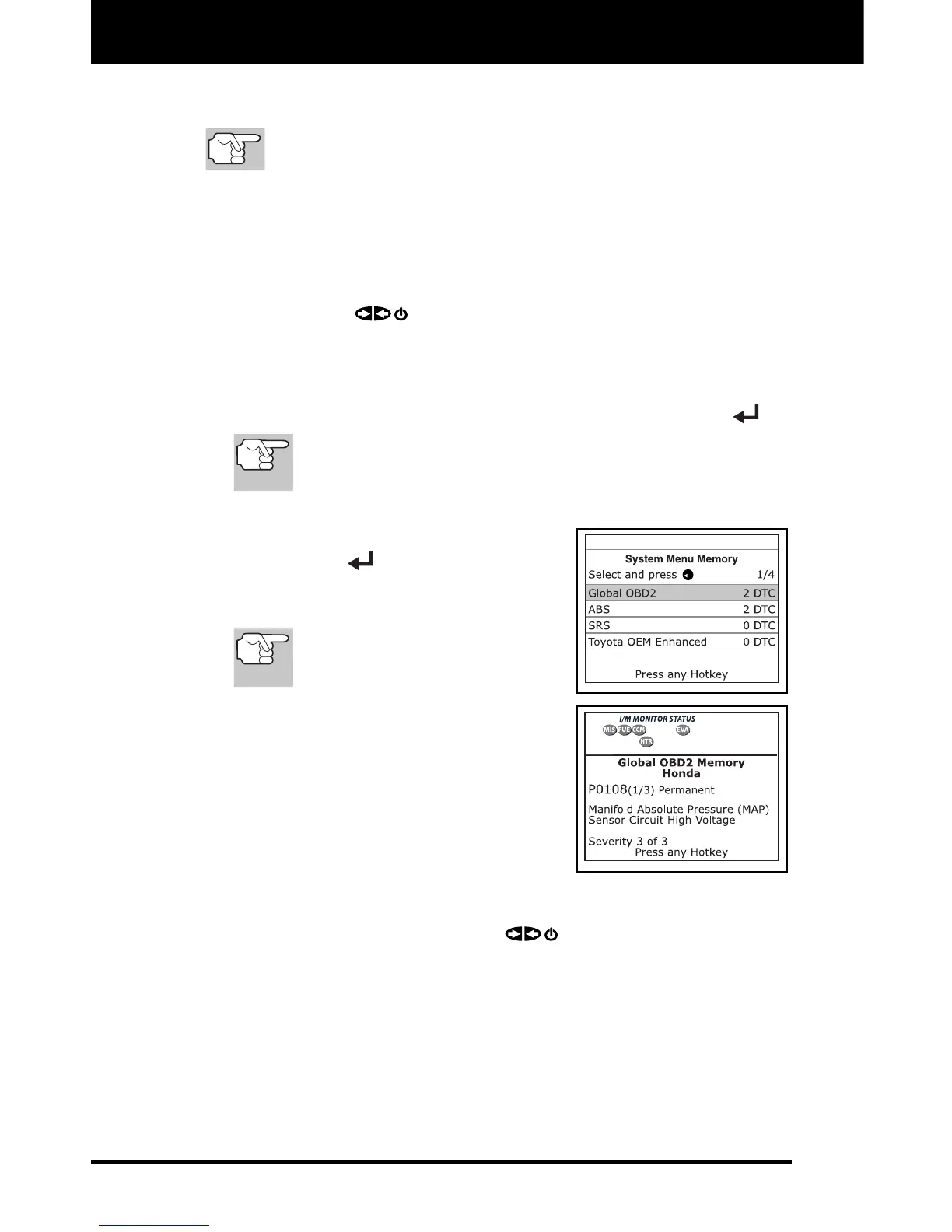
The Memory System Menu displays.
3. Select the DTCs you wish to view, then
press ENTER
.
The Scan Tool displays the "priority"
DTC.
If there are no DTCs currently
stored in memory, an advisory
message shows.
Press DTC/FF
to scroll through all
stored DTCs and to view Freeze
Frame data for the priority DTC.
When all DTCs have been displayed
and DTC/FF
is pressed, the Scan
Tool displays the first enhanced DTC
stored in memory. Press DTC/FF
to
scroll through all stored enhanced
DTCs.
4. When you have finished viewing data in the Scan Tool's memory,
press and release POWER/LINK
to turn the Scan Tool off.


 To Next Page