Restoring the Matrox Imaging operating system to factory defaults 83
Restoring the factory default MIOS using a USB key
Once your USB key has a burned image of the factory default MIOS, you can use
it to install the factory default MIOS onto multiple Matrox Iris GTX smart
cameras. To do this, you need to connect your bootable USB key, a monitor,
mouse, and keyboard to your Matrox Iris GTX, as described in Chapter 2:
Powering and connecting to your Matrox Iris GTX.
1. With your bootable USB key connected to your Matrox Iris GTX, reboot your
Matrox Iris GTX.
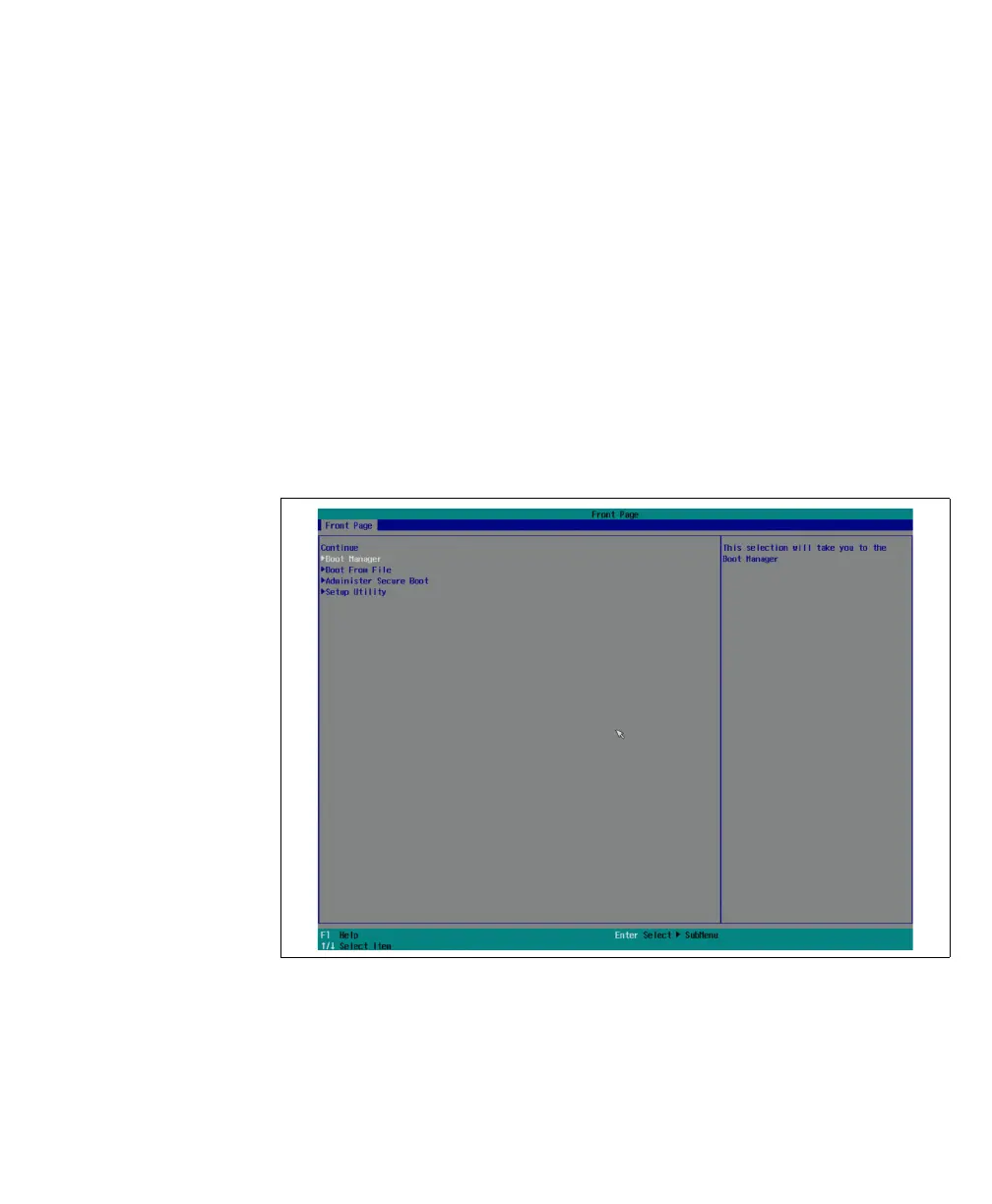
2. When the BIOS logo appears, press the ESC key to open the front page of the
BIOS menu.
3. Click on Boot Manager. The BIOS boot device menu is presented.



 To Next Page