Apps
Apps
Whiteboards
9.2. How to Connect to Video Application
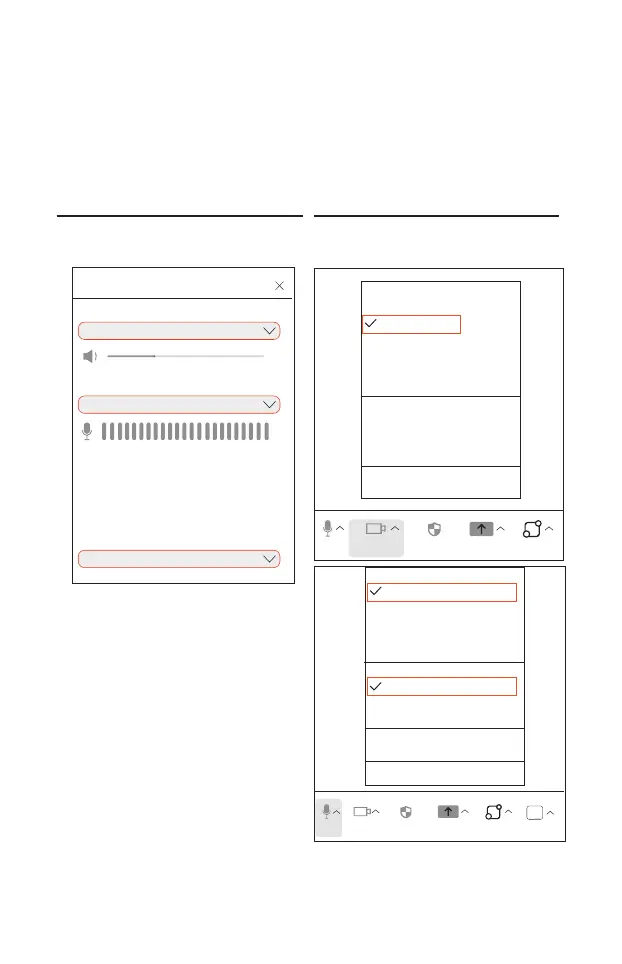
① Open the video application (eg: Zoom, Teams, Meetup)
② Select MAXHUB UC S07 as the main camera source
③ Select MAHXUB UC S07 as the main speaker and microphone source
④ You may use the Remote Control to adjust the sounds or control the
camera view. See Remote Control (Page 6)
Device settings
Speaker
Speaker (MAXHUB UC S07)
Microphone (MAXHUB UC S07)
Video Settings
Camera
MAXHUB UC S07
Microphone
Select a Camera(Alt+N to switch)
Sharing Camera
MAXHUB UC S07
Studio Camera
HD User Facing
HD Camera
Blur My Background
Choose Virtual Background.......
Choose Video Filter......
Video Settings......
Mute
Stop Video Security
Share Screen
Select a Microphone
Microphone (MAXHUB UC S07)
Microphone(Sharing Microphone)
Microphone Array(Intel......)
Same as System(Microphone......)
Select a Speaker
Speaker (MAXHUB UC S07)
Speaker (Realtek(R) Audio)
Same as System (Speaker......)
Audio Settings...
Test Speaker & Microphone...
Leave Computer Audio
Mute Stop Video Security Share Screen
10
Example of Microsoft
Teams Device Settings
Example of Zoom Settings



 To Next Page