Restoring Files 56
Maxtor Central Axis
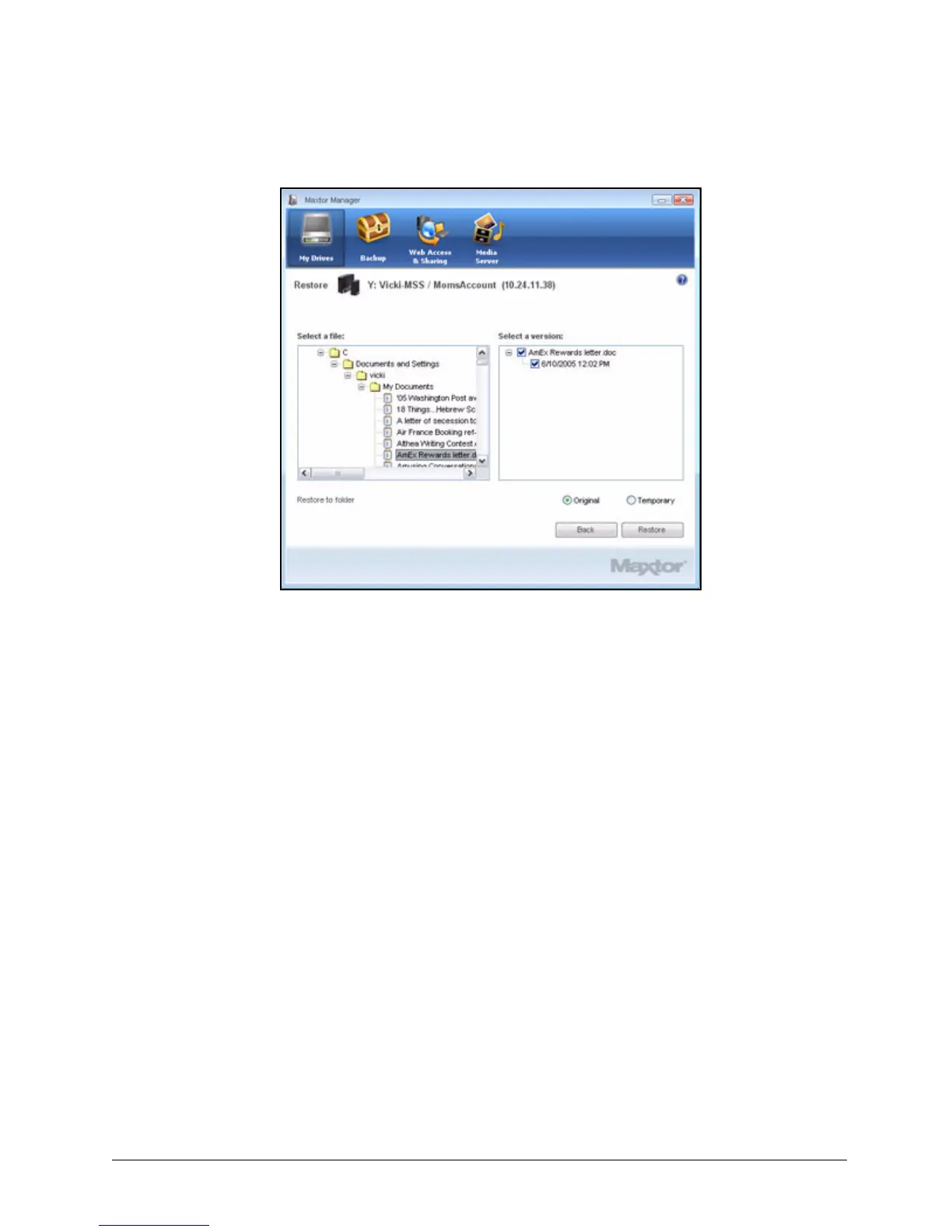
Step 2: Select a file and file version to be restored and click Restore.
The selected file version is restored to the location noted in the Restore Historical
Version window.
Restoring the Most Recent Version
To restore the most recent version of a file,
Step 1. Click Restore most recent version.
Windows Explorer displays the contents of the Maxtor Backup folder:
Figure 63: Restore Historical Version



 To Next Page