Installing the Software 6
Maxtor Central Axis
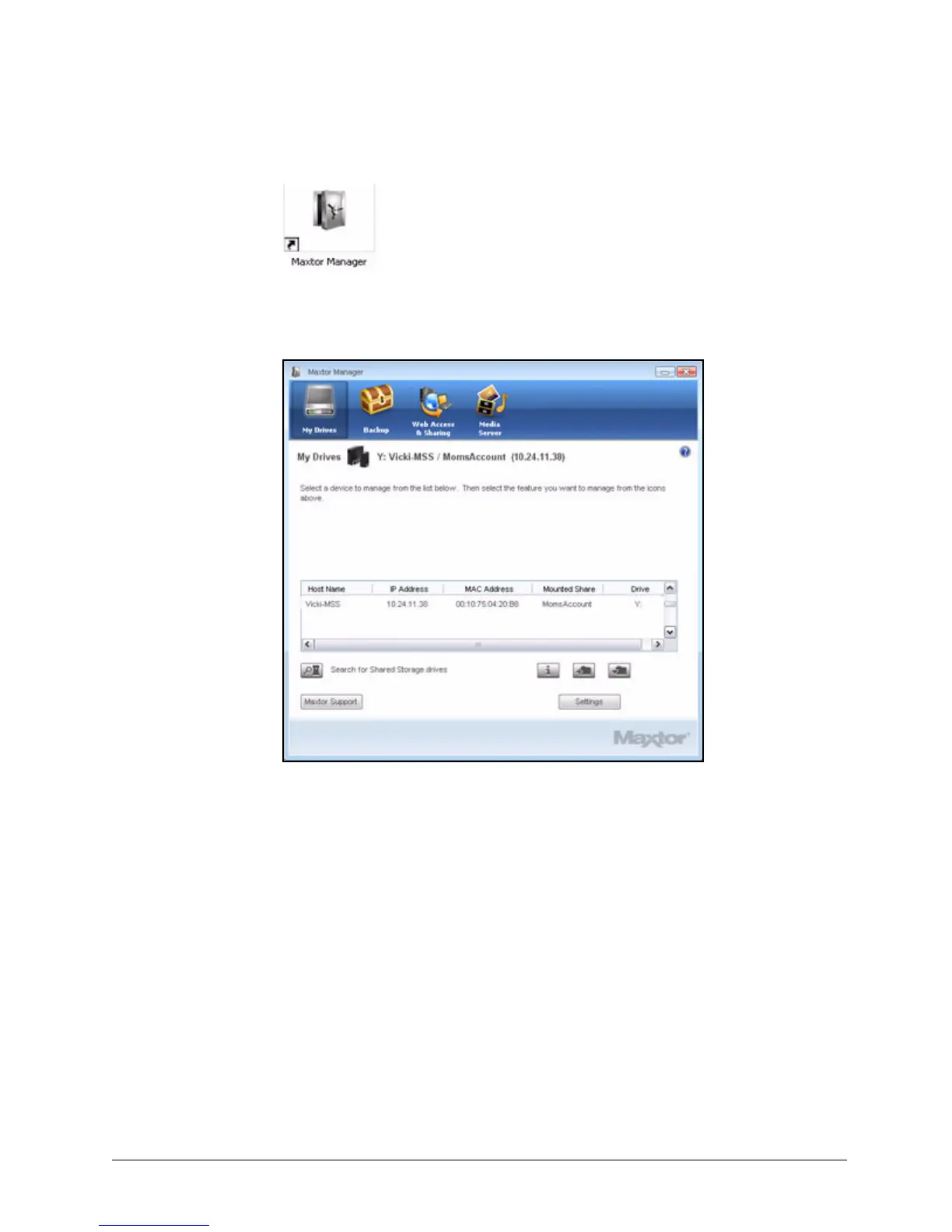
Step 10: Double-click the Maxtor Manager icon to open the Maxtor Manager application
for your Central Axis:
Installing OneTouch 4 after Installing Central Axis
If you install the Maxtor OneTouch 4 software after you've installed the Maxtor Central Axis
software, you must be sure to install the OneTouch 4 software in the same directory as the
Central Axis software
If the Web Access button and Central Axis Help stop functioning after you've installed the
OneTouch 4 software, do the following:
If you’re certain that you’ve installed the OneTouch 4 software in the same directory as the
Central Axis software,
Step 1. In the Add or Remove Programs list, select Maxtor Central Axis Manager and
choose the Change option.
Figure 9: Maxtor Manager Application



 To Next Page