12
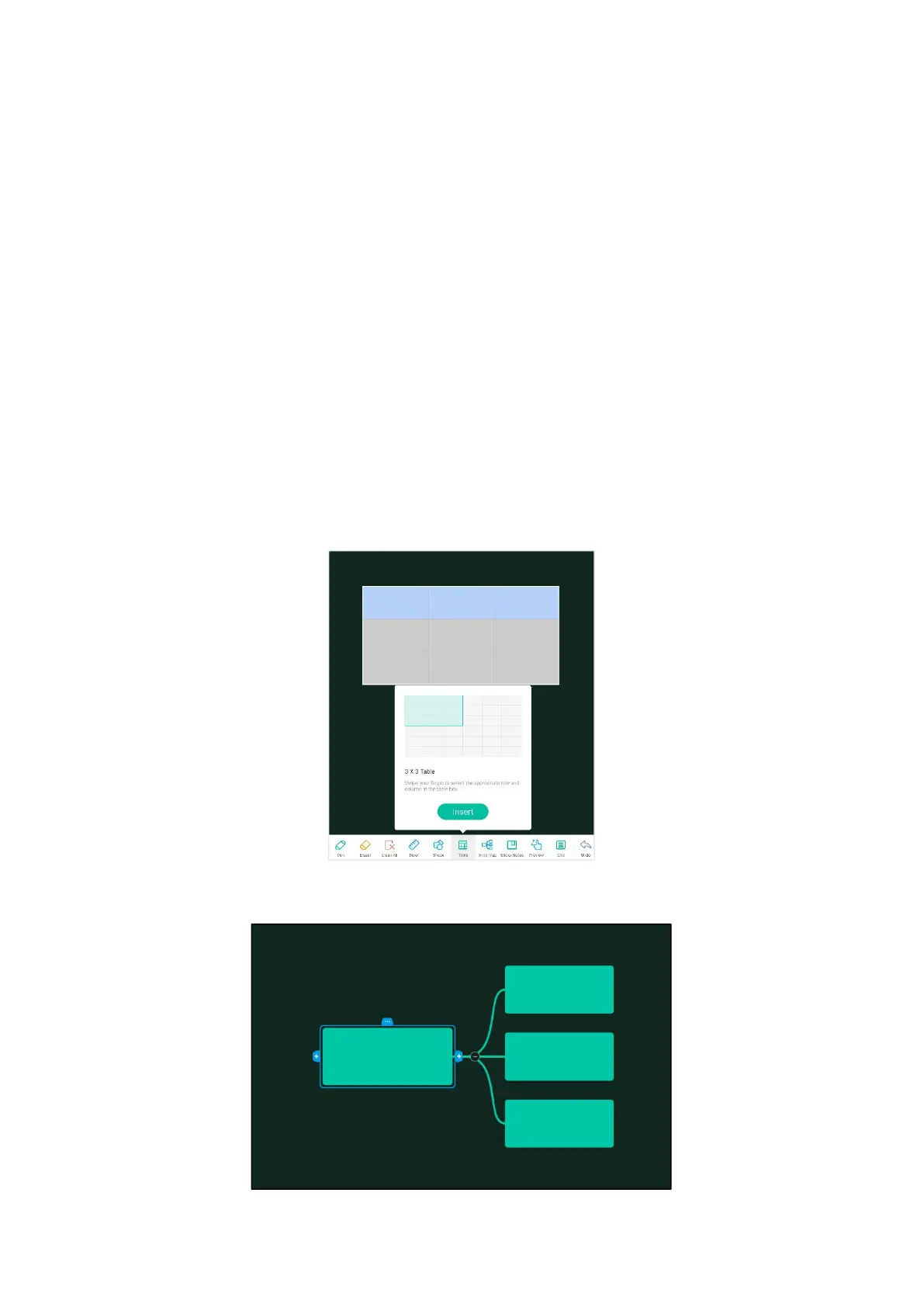
(6) Table: Click the table icon, select the number of rows of the table to be
inserted, and click OK to insert the table into the whiteboard. Using the brush tool,
you can enter content in the table. The width and height of the table will
automatically adapt to the brush size. Using the selection tool select the table, and,
column operation, such as adding and deleting, users can use the brush tool in the
form of the same row or column to draw horizontal or vertical lines across the table
to increase the row or column, in the same way, using the brush tool in the form of
the same row or column picture "Z" word lines across the table to delete rows or
columns.
(7) Brain map: Click to form a brain map and write in the column of brain map.



 To Next Page