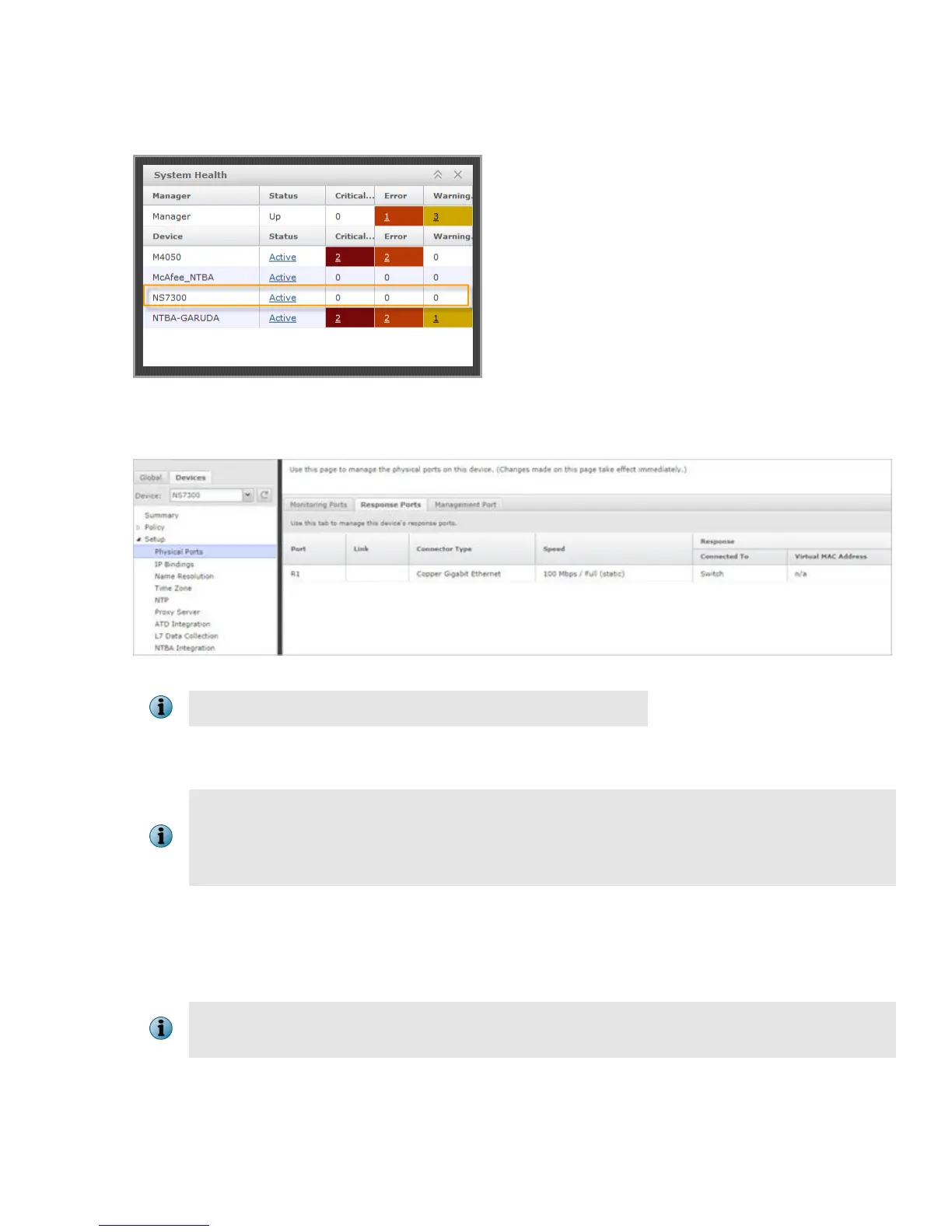
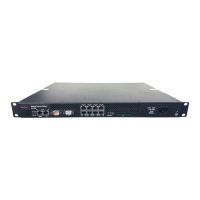
The Manager status displays as Up and Sensor status is Active.
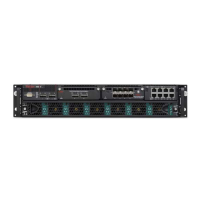
c From the Manager, click Devices | <Device_Name> | Setup | Physical Ports to open the Physical Ports page.
<Device_Name> indicates the name of the Sensor you added.
d A policy named Default Inline IPS is active upon Sensor addition. To view this policy, select Intrusion
Prevention | Policy | IPS Policies. Select Default Inline IPS from the list and click View / Edit.
The Default Inline IPS policy contains attacks already congured with a "blocking" Sensor
response action. If any attack in the policy is triggered, the Sensor automatically blocks the
attack. To tune this or any other McAfee-provided policies, you can clone the policy and then
customize it as described in the McAfee Network Security Platform IPS Administration Guide.
e Click Devices | <Device_Name> | Setup | Physical Ports.
f
Select the port on the Sensor that you cabled to view port settings. Make sure that your port settings
match the cabling, for example, if port 1 is cabled for the in-line mode, then the Operating Mode in the port
setting must be in-line mode.
For more information on port settings, see Conguring the monitoring and response ports of a
Sensor, McAfee Network Security Platform IPS Administration Guide.
14


 To Next Page