OM-121 13
Changing the Keypad-Controller Interface
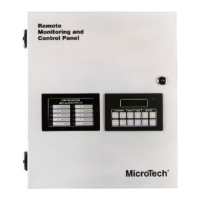
The RMC Panel’s keypad/display can be directly interfaced with its own controller or remotely
interfaced with any of its associated unit controllers via network communications. The controller
that is currently selected is indicated by the Unit Selection LEDs on the panel face. When the RMC
Panel’s keypad/display is interfaced to a unit controller, it acts identically to the unit’s
keypad/display (see note below).
To shift the interface “down” to the next controller (for example, from Unit #1 to Unit #2), press
SWITCH and then the NEXT key in the Menu group. To shift the interface “up” to the previous
controller (for example, from Unit #2 to Unit #1), press SWITCH and then the PREV key in the Menu
group. Repeat either keystroke sequence until the desired controller is selected. Note that you must
release the SWITCH key before pressing the Menu NEXT or PREV key, and the key stroke sequence
must occur quickly (within 1 second); otherwise, the controller will execute separate, normal
SWITCH and Menu NEXT or PREV key functions.
The controller selection function can “wrap around” from the last to the first controller or from the
first to the last controller. For example, you can change the interface from Unit #8 to the RMC
Panel by pressing SWITCH and then Menu NEXT.
The keypad-controller interface will automatically change back to the RMC Panel five minutes after
the last keystroke is made.
Note: A unit controller’s service mode can be changed only at the unit. You can look at a unit’s
service mode with the RMC Panel’s keypad/display, but the unit controller will not let you change it
remotely. (Caution: This feature was not available with the following applied rooftop unit programs:
95016
[
-03
[
and earlier, and 95031
[
-01
[
.)
Keypad/Display Exercises
Following are three exercises that will guide you through some typical keypad operations. Note that
often there is more than one way to perform an operation. For example, you can use the Menu group
keys with or without the optional Category group keys to quickly find the menu you want to display.
Changing a Set point
In this exercise, assume that the two VAV rooftop units are operating as Group #1 and the duct
static pressure is too high. The common duct pressure is currently 1.6"WC, and the Group #1 DSP
Set point is 1.5"WC. Using the following procedure, you will change this set point to 1.0"WC and
thus lower the actual pressure.
1. Press CONTROL in the Category key group. The first menu of the Control category is displayed.
This is menu 4, “Group Assign.”
2. Press NEXT in the Menu key group once. Menu 5, “Group #1,” is displayed. The first item of this
menu, “Cntl Temp=,” is also displayed.
3. Press NEXT in the Item key group three times. The “Press Spt=” item is displayed. This is the
Group #1 DSP (duct static pressure) Set point. The default value of 1.50"WC should also be
displayed.
4. Press either INCR or DECR in the Action key group. The controller prompts you for the password.
5. Press ENTER in the Action key group four times. (This is the password.) The “Password
Verified” message is displayed.
6. Press DECR until the set point is 1.00"WC. Notice that the adjustable field flashes during the
change.
7. Press ENTER. The field stops flashing. This means that the new set point is locked in.


 To Next Page