RX8000 Integrated Receiver/Decoders
1553-FGB 101 759 Uen K
www.mediakind.com
ALARMS
INPUT
OUTPUT
SERVICE
ENVIRONMENT
SERVICE
VIDEO NOT RUNNING
SET ALARM
DECODER
X
NOT RUNNING
1..
2
or 1
..6
SET ALARM
CLOSED CAPTION FAIL
SET ALARM
FILTER OUTPUT OVERFLOW
NO ALARM
OUTPUT
IPO ETHERNET IF 1 DOWN
NO ALARM
IPO ETHERNET IF 2 DOWN
NO ALARM
INPUT
NO TS LOCK
SET ALARM
ENV
OVERTEMPERATURE
SET ALARM
TEMP (MAX VALUE)
55
FAN X FAILED
SET ALARM
CA ERROR
SET ALARM
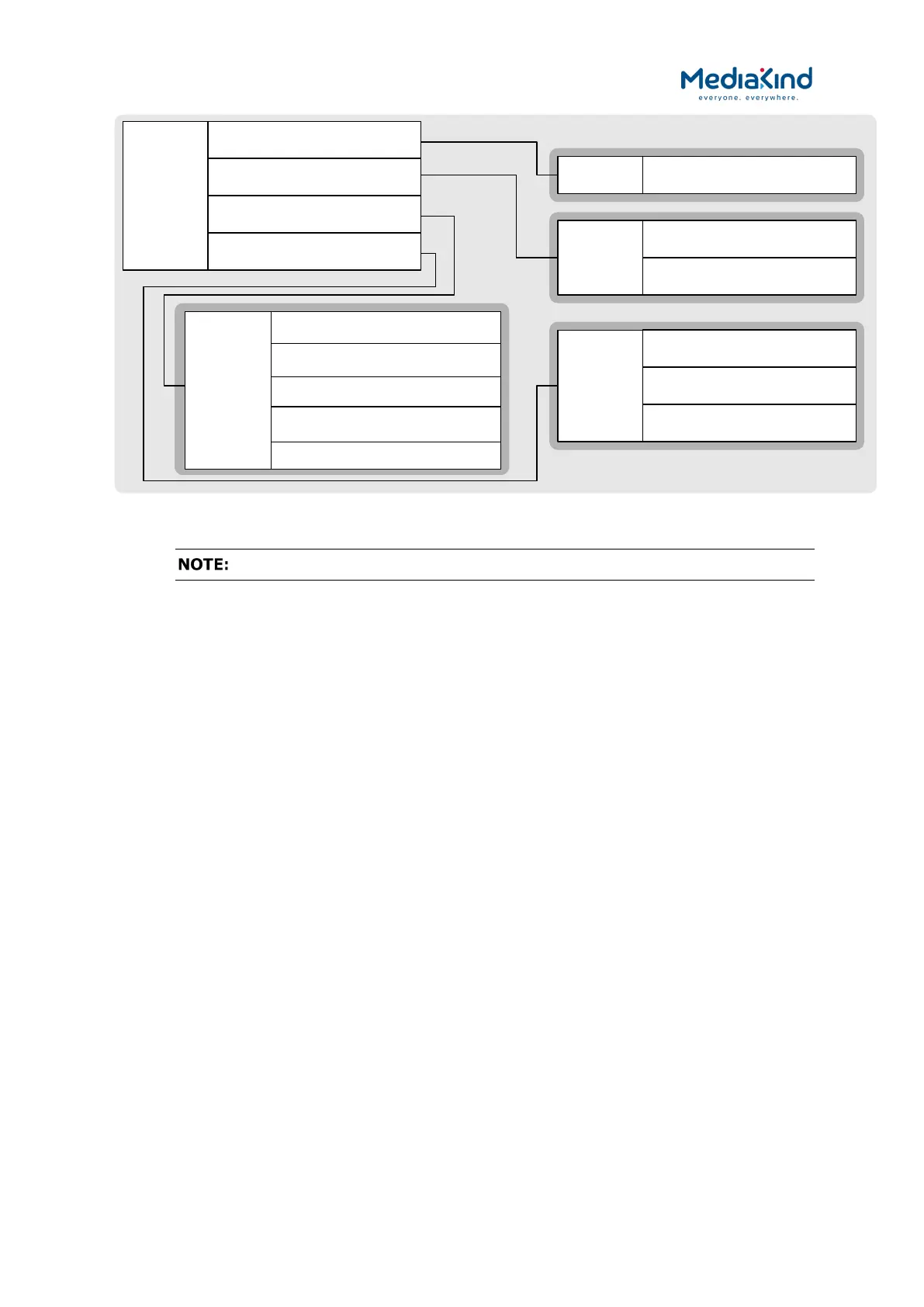
Figure 3-7 Sub-menu Alarms
The detail of each front panel element is explained throughout this chapter.
3.4. Using the Web Browser
The Web Browser interface is available as a standard feature on all models of the IRD. As of software
version 8.0.0, the IRD can be configured to present one of two web interface modes:
•
Dashboard View – A simplified view showing the most
common options on a single page that is compatible with most
modern web browsers. This feature available when the
RX8XXX/SWO/DASHBOARD license is enabled.
• Advanced View – The classic web interface that exposes all
the options across a number of tab views. This mode is
compatible with the browsers listed in section 3.4.1.
The Dashboard View will be presented by default but both modes have a button in the top right
corner of the web interface to allow the user to switch between them.
3.4.1. Setting Up Web Browser Remote Control
A personal computer (PC) running a Web Browser can be used to configure, control and monitor the
IRD remotely. The following web browsers have been tested:
•
Microsoft Internet Explorer (This is the only browser supported
by MediaKind)
• Mozilla Firefox (Functional but unsupported)
• Google Chrome (Functional but unsupported)
To set up Web Browser control:


 To Next Page