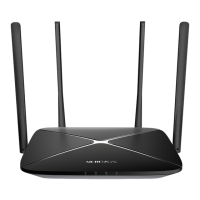
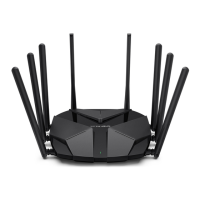
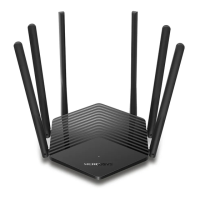
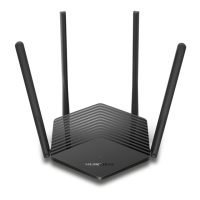
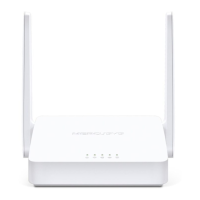
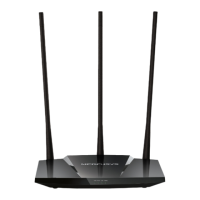
This document is a Quick Installation Guide for a Mercusys Wireless Router, providing instructions and information in multiple languages.
Function Description:
The Mercusys Wireless Router is designed to provide internet connectivity and manage a local network. It acts as a central hub for wired and wireless devices, allowing them to access the internet and communicate with each other. The router facilitates the setup of a home or small office network, offering features like parental controls and wireless network configuration. It can connect to a modem (DSL/Cable/Satellite) to receive internet access and then distribute that access to connected devices. The Mercusys App provides a simple and intuitive way to access and manage the router, including blocking unwanted devices, setting up parental controls, and configuring wireless settings.
Important Technical Specifications:
While specific technical specifications like Wi-Fi standards (e.g., 802.11ac, 802.11n), maximum speeds, or antenna gain are not explicitly detailed in this quick guide, the document mentions the use of 2.4 GHz Wi-Fi networks (SSIDs) for wireless connections. It also refers to LAN and WAN ports for wired connections, indicating standard Ethernet connectivity. The router requires a power adapter for operation. The web management interface is accessible via http://mwlogin.net. The device supports automatic IP address assignment (DHCP) and can be configured for static IP addresses. It also mentions MAC address cloning for certain modem types.
Usage Features:
- Hardware Connection: The guide provides clear steps for connecting the router to a modem and power source. This involves connecting the modem's LAN port to the router's WAN port using an Ethernet cable, and then connecting the router to a computer via an Ethernet cable to a LAN port or wirelessly.
- Wireless Connectivity: Users can connect to the router wirelessly using default SSIDs or by scanning a QR code found on the product label (available on some models). The router supports 2.4 GHz Wi-Fi networks.
- Wired Connectivity: The router includes LAN ports for connecting devices via Ethernet cables, and a WAN port for connecting to the modem.
- Web-based Management: The router is configured through a web browser by navigating to
http://mwlogin.net. This interface allows users to set up an internet connection, configure wireless settings, and create a login password for future access.
- Quick Setup: A step-by-step Quick Setup process is available through the web interface to guide users through initial internet and wireless network configuration.
- MERCUSYS App: A dedicated mobile application is available for both Apple App Store and Google Play, offering convenient management of the router. This app allows users to block unwanted devices, set up parental controls, and configure wireless settings remotely.
- Parental Controls: The Mercusys App and potentially the web interface offer parental control features to manage network access for specific devices.
- Device Blocking: Users can block unwanted devices from accessing the network through the Mercusys App.
- SSID and Password Management: The guide instructs users on how to change the SSID and wireless password during configuration.
- Reset Functionality: The router has a Reset button. Holding this button for 5 seconds (while the router is powered on) will reset the device to factory defaults, which can be useful for troubleshooting or if the web management password is forgotten.
Maintenance Features:
- Troubleshooting (FAQ): The document includes a comprehensive FAQ section addressing common issues such as:
- Login window not appearing (
http://mwlogin.net).
- Inability to access the internet.
- Forgetting the wireless network password.
- Forgetting the web management password.
- Rebooting: Many troubleshooting steps suggest rebooting the router and/or modem as a first step.
- Network Adapter Management: For connection issues, users are advised to disable and re-enable their network adapter.
- MAC Address Cloning: In cases where internet access is problematic with a cable modem, cloning the MAC address is suggested as a potential solution.
- Factory Reset: If the web management password is forgotten, a factory reset can be performed by holding the Reset button. This will revert all settings to default, requiring a re-configuration of the router.
- Firmware Updates: While not explicitly mentioned as a user-initiated process, router maintenance often includes firmware updates to improve performance and security.
- Safety Information: The guide emphasizes important safety precautions, including keeping the device away from water, fire, humidity, and high temperatures. It also advises against disassembling, repairing, or modifying the device, using damaged chargers or USB cables, and using any chargers other than those recommended.
- Support: For technical support, user guides, and more information, users are directed to visit
http://www.mercusys.com/en/support. The website http://www.mercusys.com is also provided for general information about Mercusys products.

 Need help?
 General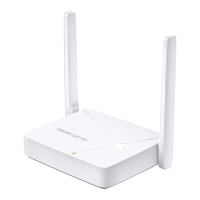

 To Next Page