Need help?
Do you have a question about the Mercusys MR90X and is the answer not in the manual?
Describes the router's features like 160 MHz channels, 1024-QAM, MU-MIMO, OFDMA.
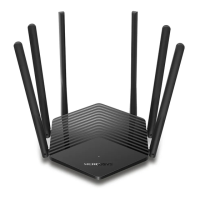
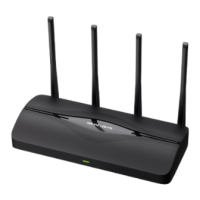
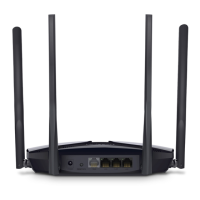
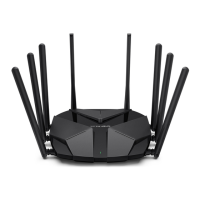
Details the physical appearance of the router, including front and rear panel components.
Provides guidelines on where to place the router for optimal performance and safety.
Step-by-step instructions for connecting the modem and router using an Ethernet cable.
Guides users through the router setup process using either a web browser or the Mercusys app.
Instructions on how to access the router's web management page using a web browser.
Explains how to select and configure the router's operating mode.
Guides users through a simplified setup process for the router's wireless network.
Covers network configuration settings, including status, internet, and LAN.
Allows cloning the MAC address for specific ISP requirements.
Configures port forwarding, port triggering, UPnP, and DMZ.
Allows setting internet access restrictions and time limits.
Configures Quality of Service to prioritize network traffic.
Covers security features like Firewall, Access Control, and VPN Server.
Guides on setting up OpenVPN and PPTP VPN servers.
Configuration for setting up an IPv6 internet connection.
System management tasks including firmware updates, backup/restore, and password changes.
Selects the router's operating mode, specifically Access Point Mode.
Guides through a simplified setup for the wireless network in AP mode.
Instructions for updating the router's firmware.
Procedures for backing up and restoring router configuration settings.
Contains administration tasks like changing passwords and managing local access.
How to view, save, or email system logs.
Tools for testing network connectivity.
Setting the router's system time and daylight saving.
Changing the system language.
Options for rebooting the router.
Configuration for controlling router LEDs.
Steps to recover or reset the forgotten wireless password.
Procedure to reset the login password for the web management page.
Troubleshooting steps if unable to access the router's web interface.
Solutions for internet access issues after configuration, including DNS and modem restart.
Steps to resolve problems finding or connecting to the wireless network.
 General
| DSL WAN | No |
|---|---|
| Ethernet WAN | Yes |
| WAN connection type | RJ-45 |
| Wi-Fi band | Dual-band (2.4 GHz / 5 GHz) |
| Top Wi-Fi standard | Wi-Fi 6 (802.11ax) |
| WLAN data transfer rate (max) | 6000 Mbit/s |
| WLAN data transfer rate (first band) | 1148 Mbit/s |
| WLAN data transfer rate (second band) | 4804 Mbit/s |
| Firewall security | SPI Firewall |
| Security algorithms | WPA, WPA2, WPA3 |
| Package type | Box |
| Number of products included | 1 pc(s) |
| Operating temperature (T-T) | 0 - 40 °C |
| Storage relative humidity (H-H) | 5 - 90 % |
| Operating relative humidity (H-H) | 10 - 90 % |
| Ethernet LAN (RJ-45) ports | 4 |
| Power source type | DC |
| VPN server | OpenVPN, PPTP supported |
| Ethernet LAN data rates | 10, 100, 1000, 2500 Mbit/s |
| Ethernet LAN interface type | Gigabit Ethernet |
| Cables included | LAN (RJ-45) |
| Product type | Tabletop router |
| Product color | Black |
| Antennas quantity | 8 |
| Antenna direction type | Omni-directional |
 Weight and Dimensions
| Depth | 172.2 mm |
|---|---|
| Width | 209 mm |
| Height | 42.4 mm |

 To Next Page