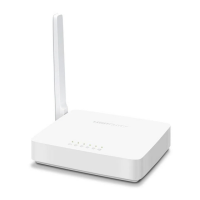
Need help?
Do you have a question about the Mercusys MW302R and is the answer not in the manual?
Overview of the router's integrated features and capabilities, highlighting its performance for SOHO networks.
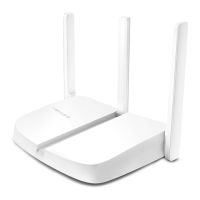
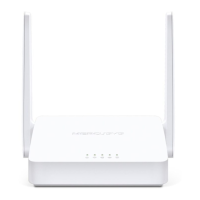
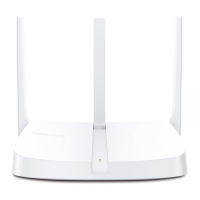
Details the physical appearance of the router, including its front and rear panels.
Describes the front panel of the router, focusing on the location and function of LEDs.
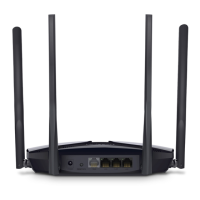
Details the components and ports located on the rear panel of the router.
Provides guidelines on the optimal placement of the router for performance and safety.
Explains the process of connecting the router to the internet, outlining available working modes.
Details how to set up the router in Wireless Router Mode for internet access for wired and wireless devices.
Guides on configuring the router to convert an existing wired network into a wireless one.
Explains how to set up the router to boost existing wireless coverage in a home.
Provides instructions for connecting the router to an ISP network wirelessly in areas without wired service.
Instructions on how to select and configure the router's operating mode (Router, AP, Extender, WISP).
Covers network-related configurations, including status, internet connection, LAN, and DHCP settings.
Displays current status information for Internet, LAN, DHCP Server, and Dynamic DNS.
Details how to set up the internet connection using Dynamic IP, Static IP, PPPoE, L2TP, and PPTP.
Explains how to clone a device's MAC address for the router, useful for ISP compatibility.
Covers configuration of the router's Local Area Network (LAN) IP address and subnet mask.
Guides on setting up IPTV or VoIP services and VLAN tags as required by the ISP.
Details how to configure the DHCP server for dynamic IP assignment and address reservation.
Instructions for setting up Dynamic DNS to access servers with a fixed domain name.
Explains how to manually configure routing tables for network traffic forwarding.
Covers wireless network settings, including basic configuration, guest network, and scheduling.
Details how to configure the 2.4GHz wireless network, including SSID, security, and channel settings.
Guides on creating and customizing a separate Wi-Fi network for guests, ensuring privacy.
Explains how to schedule the wireless network to automatically turn on or off.
Instructions on using Wi-Fi Protected Setup (WPS) to connect wireless devices.
Covers advanced wireless settings like WMM, AP Isolation, and Beacon Interval.
Explains Network Address Translation (NAT) and its forwarding rules: Port Forwarding, Triggering, UPnP, DMZ.
Guides on setting up public services in the local network by forwarding specific ports.
Details on configuring port triggering for applications like online games and VoIP.
Instructions for enabling Universal Plug and Play (UPnP) for seamless network communication.
Explains how to set up a DMZ host for unlimited bidirectional communication, useful for online gaming.
Guides on setting unique internet access restrictions for family members, including content blocking and time limits.
Details on configuring Quality of Service (QoS) to prioritize network traffic for efficient operation.
Covers security features to protect the home network from cyber attacks and unauthorized access.
Explains the Stateful Packet Inspection (SPI) Firewall for protecting the router from cyber attacks.
Guides on blocking or allowing specific client devices to access the network using Blacklist or Whitelist.
Details on binding IP and MAC addresses to prevent ARP spoofing and other ARP attacks.
Covers enabling and configuring IPv6 functionality for WAN and LAN connections.
Guides on checking the current IPv6 status and selecting the connection mode (Router or Pass-Through).
Covers system management functions including firmware upgrades, backup/restore, and administration.
Instructions on downloading and upgrading the router's firmware to the latest version.
Guides on backing up current configuration settings and restoring them from a file.
Details on changing the router's local management password for enhanced security.
Covers settings for managing the router locally, allowing specific devices or all LAN devices.
Instructions on enabling remote management to access the router over the internet.
Guides on viewing and saving system logs to monitor router activities.
Details on using diagnostic tools like Ping and Tracert to test network connectivity.
Covers setting the router's system time manually or automatically via NTP server.
Instructions on manually rebooting the router or scheduling regular reboots.
Guides on enabling Night Mode to turn off router LEDs during specific periods.
Instructions on selecting and configuring the router's operation mode to Access Point.
Guides on downloading and upgrading the router's firmware.
Details on backing up and restoring router configuration settings.
Covers administrative tasks like changing passwords and managing local access.
Instructions on changing the router's local management password.
Details on managing the router locally, allowing specific devices or all LAN devices.
Guides on viewing and saving system logs.
Details on using diagnostic tools to test network connectivity.
Covers setting the router's system time manually or automatically.
Instructions on rebooting the router manually or scheduling reboots.
Guides on enabling Night Mode to turn off router LEDs during specific periods.
Instructions on selecting and configuring the router's operation mode to Range Extender.
Guides on downloading and upgrading the router's firmware.
Details on backing up and restoring router configuration settings.
Covers administrative tasks like changing passwords and managing local access.
Instructions on changing the router's local management password.
Details on managing the router locally, allowing specific devices or all LAN devices.
Guides on viewing and saving system logs.
Covers setting the router's system time manually or automatically.
Instructions on rebooting the router manually or scheduling reboots.
Guides on enabling Night Mode to turn off router LEDs during specific periods.
Instructions on selecting and configuring the router's operation mode to WISP.
Covers network configurations including status, internet, MAC clone, LAN, and DHCP settings.
Displays current status information for Internet, LAN, DHCP Server, and Dynamic DNS.
Details setting up the internet connection using Dynamic IP, Static IP, PPPoE, L2TP, and PPTP.
Explains how to clone a device's MAC address for the router, useful for ISP compatibility.
Covers configuration of the router's Local Area Network (LAN) IP address and subnet mask.
Details how to configure the DHCP server for dynamic IP assignment and address reservation.
Instructions for setting up Dynamic DNS to access servers with a fixed domain name.
Explains how to manually configure routing tables for network traffic forwarding.
Covers wireless network settings, including basic configuration, guest network, and scheduling.
Details how to configure the 2.4GHz wireless network, including SSID, security, and channel settings.
Guides on creating and customizing a separate Wi-Fi network for guests, ensuring privacy.
Explains how to schedule the wireless network to automatically turn on or off.
Instructions on using Wi-Fi Protected Setup (WPS) to connect wireless devices.
Covers advanced wireless settings like WMM, AP Isolation, and Beacon Interval.
Explains Network Address Translation (NAT) and its forwarding rules: Port Forwarding, Triggering, UPnP, DMZ.
Guides on setting up public services in the local network by forwarding specific ports.
Details on configuring port triggering for applications like online games and VoIP.
Instructions for enabling Universal Plug and Play (UPnP) for seamless network communication.
Explains how to set up a DMZ host for unlimited bidirectional communication, useful for online gaming.
Guides on setting unique internet access restrictions for family members, including content blocking and time limits.
Details on configuring Quality of Service (QoS) to prioritize network traffic for efficient operation.
Covers security features to protect the home network from cyber attacks and unauthorized access.
Explains the Stateful Packet Inspection (SPI) Firewall for protecting the router from cyber attacks.
Guides on blocking or allowing specific client devices to access the network using Blacklist or Whitelist.
Details on binding IP and MAC addresses to prevent ARP spoofing and other ARP attacks.
Covers enabling and configuring IPv6 functionality for WAN and LAN connections.
Guides on checking the current IPv6 status and selecting the connection mode (Router or Pass-Through).
Covers system management functions including firmware upgrades, backup/restore, and administration.
Instructions on downloading and upgrading the router's firmware to the latest version.
Guides on backing up current configuration settings and restoring them from a file.
Instructions on changing the router's local management password.
Details on managing the router locally, allowing specific devices or all LAN devices.
Instructions on enabling remote management to access the router over the internet.
Guides on viewing and saving system logs.
Details on using diagnostic tools like Ping and Tracert to test network connectivity.
Covers setting the router's system time manually or automatically.
Instructions on rebooting the router manually or scheduling reboots.
Guides on enabling Night Mode to turn off router LEDs during specific periods.
Troubleshooting steps for forgetting the wireless network password.
Instructions on resetting the router to recover the web management login password.
Troubleshooting steps for common login issues with the router's web management interface.
Troubleshooting steps for internet access issues after configuration, including DNS and modem restart.
Troubleshooting steps for issues related to finding or connecting to the wireless network.
 General
| DSL WAN | No |
|---|---|
| Ethernet WAN | Yes |
| WAN connection type | RJ-45 |
| Wi-Fi band | Single-band (2.4 GHz) |
| Wi-Fi standards | 802.11b, 802.11g, Wi-Fi 4 (802.11n) |
| Top Wi-Fi standard | Wi-Fi 4 (802.11n) |
| WLAN data transfer rate (max) | 300 Mbit/s |
| Product type | Tabletop router |
| Product color | White |
| Networking standards | - |
| Ethernet LAN data rates | 10, 100 Mbit/s |
| Ethernet LAN interface type | Fast Ethernet |
| Transmit power | 20 dBmW |
| Antenna gain level (max) | 5 dBi |
| Ethernet LAN (RJ-45) ports | 3 |
| Storage temperature (T-T) | -40 - 70 °C |
| Operating temperature (T-T) | 0 - 40 °C |
| Storage relative humidity (H-H) | 5 - 90 % |
| Operating relative humidity (H-H) | 10 - 90 % |
| Output current | 0.6 A |
| Output voltage | 5 V |
| Power source type | DC |
| Security algorithms | WPA-PSK, WPA2-PSK |
| Cables included | LAN (RJ-45) |
| Package type | Box |
| Number of products included | 1 pc(s) |
 Weight and Dimensions
| Depth | 94 mm |
|---|---|
| Width | 114 mm |
| Height | 26 mm |


 To Next Page